Delving into How to Use a Green Screen (Chroma Key) for Custom Backgrounds, this introduction immerses readers in a unique and compelling narrative. We will explore the foundational principles of chroma keying, tracing its evolution from early media production to its widespread modern applications, and highlight the significant advantages it offers for creating visually dynamic and engaging content.
This guide will systematically cover everything from the essential equipment and optimal setup to selecting the right materials, fine-tuning camera settings, and mastering the software processes. By understanding each step, you’ll be well-equipped to transform ordinary footage into extraordinary visuals, unlocking a world of creative possibilities.
Introduction to Green Screen Technology
Green screen technology, also known as chroma keying, is a visual effects technique that allows filmmakers and content creators to replace a specific color in an image or video with another image or video. This is achieved by filming the subject against a solid, uniformly colored background, typically bright green or blue, which are colors rarely found in human skin tones or common clothing.
The software then identifies and “keys out” this specific color, making it transparent and enabling the insertion of any desired background.The fundamental concept behind chroma keying is the separation of foreground elements from a background based on color. By using a distinct color that is easily distinguishable from the subject, the software can precisely isolate the subject and overlay it onto a new visual environment.
This process has revolutionized visual storytelling, enabling the creation of fantastical worlds, complex scenarios, and dynamic presentations that would otherwise be impossible or prohibitively expensive to film practically.
Historical Context and Evolution of Green Screen Usage
The origins of chroma keying can be traced back to early photographic and cinematic techniques. The precursor to modern green screen was the “Schüfftan process,” developed by Eugen Schüfftan in 1920. This method involved using mirrors and selectively masking areas of the film frame to composite different elements. While effective, it was a complex and labor-intensive process.The advent of color film and advancements in optical printing in the mid-20th century paved the way for more sophisticated compositing.
The blue screen process, which utilized a bright blue backdrop, became prominent in the 1960s and 1970s, notably in the production of iconic science fiction films like “Star Wars.” Blue was often preferred due to its contrast with common human skin tones and the availability of suitable blue dyes for backdrops.The widespread adoption of digital video and computer graphics in the late 20th and early 21st centuries led to the dominance of the green screen.
Green, being a color that falls outside the typical spectrum of human skin tones and clothing, offers a cleaner key and allows for more flexibility in lighting. Modern digital chroma keying software has become incredibly sophisticated, offering precise control and enabling seamless integration of subjects into diverse backgrounds with remarkable realism.
Primary Benefits of Employing a Green Screen for Visual Effects
The strategic use of a green screen offers a multitude of advantages for visual effects production, significantly enhancing creative possibilities and operational efficiency.
- Cost-Effectiveness: Instead of incurring substantial expenses for location scouting, travel, set construction, and logistics for multiple scenes, creators can film all necessary footage in a controlled studio environment. This dramatically reduces the overall production budget while achieving the visual complexity of diverse settings.
- Creative Freedom and Flexibility: A green screen liberates creators from the constraints of physical locations. Any background imaginable, from alien landscapes to historical cityscapes, can be seamlessly integrated, offering unparalleled creative control over the final visual narrative. This allows for the creation of environments that are impossible to film in reality.
- Enhanced Control over Lighting and Environment: By filming against a green screen, creators have complete control over the lighting of the subject and the background separately. This allows for precise adjustments to match the lighting of the desired background, ensuring a more realistic and cohesive final image. It also eliminates environmental variables like weather or unpredictable lighting conditions.
- Simplified Production Workflow: The compositing process with green screen technology can be integrated into post-production workflows, allowing for iterative adjustments and refinements. This means that background elements can be changed or modified even after the initial filming, offering a dynamic and adaptable production pipeline.
- Accessibility for Independent Creators: With the increasing availability of affordable green screen materials and user-friendly editing software, this powerful visual effects technique is now accessible to a wider range of creators, including independent filmmakers, YouTubers, and educators, democratizing high-quality visual content creation.
Essential Equipment and Setup
To successfully implement a green screen for custom backgrounds, having the right equipment and a well-thought-out setup is crucial. This section Artikels the core components, ideal lighting conditions, and a practical guide to setting up your physical green screen, along with a checklist of essential accessories.A functional green screen setup requires a few key elements to work effectively. The goal is to create a seamless, evenly lit green surface that your video editing software can easily distinguish from your subject.
Core Components of a Green Screen Setup
The foundation of any green screen operation lies in a few essential pieces of hardware. These components work together to provide the necessary visual canvas and capture the footage.Here are the core components required for a functional green screen setup:
- Green Screen Backdrop: This can be a fabric (like muslin or polyester), a painted wall, or a collapsible pop-up screen. The key is a consistent, vibrant green color.
- Support System: This is needed to hang or mount your backdrop. Common options include a portable stand with crossbars, a wall-mounted system, or even sturdy clamps if you’re using a large sheet.
- Camera: Any digital camera capable of recording video will suffice, though higher-quality cameras can offer better results. Ensure it can record in a format compatible with your editing software.
- Lighting Equipment: Proper lighting is paramount for achieving a clean chroma key. This typically involves at least two lights, often more, to illuminate both the screen and the subject separately.
- Editing Software: You will need video editing software that supports chroma keying (also known as green screen effects). Popular options include Adobe Premiere Pro, Final Cut Pro, DaVinci Resolve, and even some free alternatives like OpenShot or Shotcut.
Ideal Lighting Conditions and Techniques
Lighting is arguably the most critical factor in achieving a clean green screen effect. Uneven lighting or shadows on the green screen can lead to “spill” (green light reflecting onto your subject) or artifacts that are difficult to remove in post-production. The aim is to create a uniform, bright green surface.Effective illumination for a green screen involves several key principles:
- Separate Lighting for Screen and Subject: It is highly recommended to light the green screen independently from your subject. This allows you to achieve an even, bright green without overexposing or creating harsh shadows on the person or object being filmed.
- Even Illumination of the Backdrop: The green screen itself should be lit as evenly as possible from edge to edge. Avoid hot spots (areas that are much brighter) or dark areas. Using multiple lights spread out across the backdrop can help achieve this. A common technique is to place two lights on stands, angled towards the screen, creating a gradient of light that is brightest in the center and fades slightly towards the edges.
- Key and Fill Lighting for the Subject: Once the green screen is lit, illuminate your subject. A key light is the primary light source, casting the main illumination. A fill light, often softer and less intense than the key light, is used to reduce harsh shadows created by the key light.
- Backlight (Hair Light): A backlight, positioned behind and above the subject, can help separate them from the green screen, preventing them from appearing “stuck” to the background. This is particularly useful for subjects with darker hair.
- Color Temperature Consistency: Ensure all your lights have a consistent color temperature (e.g., all daylight balanced or all tungsten balanced) to avoid color casts in your footage.
- Avoid Shadows: The most common mistake is casting shadows onto the green screen. Position your subject far enough away from the backdrop to prevent their body or any equipment from casting shadows.
Green Screen Backdrop Setup Guide
Setting up your physical green screen backdrop is a straightforward process, but attention to detail will ensure a better final result. The goal is to create a taut, wrinkle-free surface that is properly positioned for filming.Follow these steps for a successful physical green screen setup:
- Choose Your Location: Select an area with enough space to accommodate your backdrop, lighting equipment, and subject. Ensure you have access to power outlets for your lights and camera.
- Assemble the Support System: If using a backdrop stand, assemble it according to the manufacturer’s instructions. Ensure it is stable and can securely hold the weight of your backdrop.
- Hang the Backdrop: Carefully unroll or unfold your green screen. Drape it over the crossbar of your support system or secure it to your mounting system. If using fabric, ensure it is pulled taut to minimize wrinkles. You may need to use clamps or weights to keep the bottom edge of the backdrop in place and prevent it from billowing.
- Smooth Out Wrinkles: Wrinkles can create shadows and uneven lighting, which are difficult to key out. If using fabric, a steamer or an iron on a low setting (check the fabric care instructions first) can help remove stubborn creases. For painted walls, ensure the surface is smooth.
- Position Your Subject: Place your subject at a sufficient distance from the green screen. A general guideline is to have at least 6 feet (approximately 2 meters) between the subject and the backdrop to minimize green spill and shadows.
- Set Up Lighting: Position your lights as described in the “Ideal Lighting Conditions and Techniques” section. Start with lighting the green screen evenly, then set up lights for your subject.
Checklist of Necessary Accessories
Beyond the core components, several accessories can significantly enhance the quality and ease of your green screen workflow. Having these items on hand can save time and improve the final output.Here is a checklist of necessary accessories for optimal results:
- Clamps: Useful for securing fabric backdrops, holding cables, or attaching accessories to stands.
- Gaffer Tape: A versatile tool for securing cables, marking positions, and making temporary repairs.
- Light Stands: Essential for positioning your lighting equipment at the correct height and angle.
- Extension Cords and Power Strips: To ensure all your lighting and camera equipment can be powered safely.
- Reflectors: Can be used to bounce light and fill in shadows on your subject or even on the green screen if needed.
- Measuring Tape: Helpful for ensuring consistent distances between lights, subject, and backdrop.
- Steamer or Iron (with caution): For fabric backdrops to remove wrinkles.
- Color Checker Card: A small card with color patches that can be included in your footage to help with color correction in post-production.
Choosing the Right Green Screen Material
Selecting the appropriate green screen material is a crucial step in achieving professional-looking results. The fabric or surface you choose directly impacts the quality of your chroma key effect, influencing how easily and cleanly the background can be removed. This section will guide you through the various options and the factors to consider to make an informed decision for your specific project needs.The ideal green screen material offers a smooth, matte, and uniformly colored surface.
This consistency is paramount for the chroma keying software to accurately distinguish the green from your subject. Any wrinkles, sheen, or inconsistencies in color can lead to artifacts and make the editing process significantly more challenging.
Types of Green Screen Fabrics and Surfaces
A variety of materials are available for green screens, each with its own characteristics that can affect performance and cost. Understanding these differences will help you select the best option for your setup and budget.
- Muslin: This is a common and affordable choice, often used by beginners. It’s a cotton fabric that is relatively easy to find. However, muslin can be prone to wrinkles and may have a slight sheen if not treated or chosen carefully. It requires careful steaming or ironing to achieve a smooth surface.
- Polyester: Polyester green screens are generally more durable and wrinkle-resistant than muslin. They often have a matte finish, which is excellent for preventing reflections. Many professional-grade pop-up green screens are made from polyester.
- Seamless Paper: While not a fabric, seamless paper rolls are sometimes used as a green screen. They offer a perfectly smooth and matte surface, making them ideal for static shots. However, they are less durable, can tear easily, and are not suitable for dynamic or heavy-use situations.
- Vinyl: Vinyl green screens are very durable and easy to clean, making them a good option for high-traffic studios. They typically have a matte finish and are resistant to wrinkles. However, they can be heavier and more expensive than fabric options.
- Kits/Pop-Up Screens: These are often made of polyester or a blend and come with a collapsible frame. They offer convenience and a quick setup, making them popular for on-the-go filming or small studios. Their primary advantage is their portability and ease of assembly.
Factors for Selecting a Green Screen
The best green screen for your project depends on several key factors. Consider these aspects to ensure your investment aligns with your needs and expectations.
- Budget: Green screens range from very affordable options like basic muslin to more expensive, professional-grade materials and kits. Determine how much you are willing to spend, as this will significantly narrow down your choices.
- Portability: If you plan to move your green screen frequently, a lightweight, collapsible pop-up screen or a foldable fabric option will be more practical than a large, heavy vinyl or paper backdrop.
- Durability and Maintenance: For frequent use or demanding environments, durable materials like polyester or vinyl that are resistant to wear and tear and easy to clean are preferable. Muslin, while affordable, may require more care to maintain its condition.
- Wrinkle Resistance: Wrinkles are the enemy of a good green screen. Materials like polyester and vinyl tend to be more wrinkle-resistant than cotton muslin. If you opt for muslin, be prepared for diligent ironing or steaming.
- Lighting Conditions: The material’s ability to absorb light and avoid sheen is crucial. A matte finish is essential to prevent reflections that can interfere with the chroma key effect.
- Size of the Subject and Shot: Ensure the green screen is large enough to encompass your entire subject and the intended background area, with some buffer space to avoid accidental framing of the real background.
Pros and Cons of Green vs. Blue Screen Colors
While “green screen” is the common term, blue screens are also widely used for chroma keying. The choice between green and blue often depends on the subject matter and lighting.
Green Screen
Green is generally the preferred color for most applications due to its contrast with human skin tones.
- Pros:
- Excellent contrast with most skin tones, reducing the risk of “spill” (green light reflecting onto the subject).
- Requires less light to achieve a clean key compared to blue in many common lighting scenarios.
- More widely available and often more affordable in various material types.
- Cons:
- If the subject is wearing green clothing, it will be keyed out along with the background, creating a transparent or problematic area.
- Can sometimes pick up green reflections from the environment or the screen itself if not lit properly.
Blue Screen
Blue screens are often chosen when the subject might be wearing green, or for specific visual effects.
- Pros:
- Ideal for subjects wearing green clothing, as it avoids accidental keying of the subject’s attire.
- Can provide a cleaner key in certain lighting conditions, especially when dealing with darker subjects or specific color palettes.
- Less likely to pick up ambient reflections in environments that are predominantly green.
- Cons:
- May require more light than green to achieve a clean key, depending on the specific blue hue and lighting setup.
- Can be more susceptible to “spill” if the subject has very fair skin or if the blue hue is too close to skin tones.
- Less common and potentially slightly more expensive for some material types.
The choice between green and blue ultimately depends on the specific requirements of your project. For general purposes and when subjects are unlikely to wear green, a green screen is usually the most straightforward and effective choice. However, if your subject’s wardrobe is a concern, or if you are aiming for a specific aesthetic, a blue screen might be a better fit.
Always consider lighting and potential color spill when making your decision.
Camera Settings and Techniques

Achieving a seamless green screen effect relies heavily on how your camera interacts with the environment. Proper camera settings and strategic positioning are crucial for ensuring that the green background can be effectively isolated and replaced. This section will guide you through optimizing these elements for the best chroma key results.The quality of your chroma keying is directly influenced by the captured image’s data.
Incorrect settings can introduce noise, uneven lighting, or color casts that make it difficult for software to distinguish the green screen from your subject. By understanding and implementing these techniques, you can significantly enhance the professionalism of your final output.
White Balance
Accurate white balance is paramount for successful chroma keying. It ensures that colors are represented faithfully and prevents unwanted color tints from appearing on your subject, which could interfere with the keying process. An incorrect white balance can make the green screen appear uneven or introduce green spill onto your subject.To set an accurate white balance, use a gray card or a white object in the same lighting conditions as your subject and the green screen.
Point your camera at this reference object and use your camera’s white balance adjustment feature. Many cameras offer presets (daylight, tungsten) or a custom white balance option. For the most precise results, always use the custom setting.
Exposure
Proper exposure is critical for a clean key. Overexposed footage can “blow out” details, making the green screen appear washed out and harder to key. Underexposed footage can result in noisy shadows and a lack of detail, which also complicates the keying process. The goal is to expose the green screen evenly and without clipping.Aim for a balanced exposure where the green screen is well-lit but not blown out.
This usually means exposing for the highlights on the green screen, ensuring it’s bright and uniform. Use your camera’s histogram to monitor exposure levels. The histogram should show a good distribution of tones without excessive spikes at either end.
“A consistently lit and properly exposed green screen is the foundation of a clean chroma key.”
Camera Positioning and Distance
The placement of your camera relative to the green screen and your subject significantly impacts the quality of the key. Positioning the camera too close can lead to wide-angle distortion and make it harder to achieve an even background. Placing it too far away might reduce the resolution of your subject.Optimal camera positioning involves placing the camera at a distance that allows for a full frame of your subject without excessive distortion.
The camera should be positioned directly in front of the subject, parallel to the green screen. Avoid shooting at an angle, as this can create perspective issues and make the green screen appear uneven. Ensure your subject is a reasonable distance away from the green screen to minimize green spill. A distance of at least 6-10 feet (2-3 meters) between the subject and the screen is often recommended, depending on the lens and lighting.
Consistent Camera Movement and Focal Length
For a professional look, especially in dynamic shots, maintaining consistent camera movement and focal length is vital. Unwanted changes in these parameters can make the keying process more challenging and result in a less convincing final image.When planning your shots, decide on a focal length that suits your scene and subject. Once chosen, stick to it throughout the recording. Zooming or changing focal length mid-shot can alter the perspective and scale of your subject relative to the background, leading to noticeable artifacts when the key is applied.Similarly, any camera movement should be smooth and deliberate.
If you are panning or tilting, ensure the movement is fluid. Jerky or unpredictable camera movements can cause the software to struggle in maintaining a stable key, especially if the background is not perfectly uniform. Using a tripod or a gimbal can greatly assist in achieving smooth and consistent camera work.When considering camera movement, think about how the subject’s position changes relative to the green screen.
If the subject moves too close to the screen during a pan or tilt, green spill can become more prominent, complicating the key.
Software for Chroma Keying
With the physical setup and camera settings dialed in, the next crucial step in achieving a seamless green screen effect lies within your video editing software. This is where the magic of chroma keying truly happens, allowing you to isolate and replace your green background with any desired image or video. Fortunately, a wide array of editing tools offer robust chroma keying capabilities, catering to various skill levels and budgets.Understanding how to effectively utilize these software tools is paramount.
Each program offers a slightly different approach, but the core principles remain consistent. By mastering these features, you can transform your footage from a simple recording into a visually dynamic and professional-looking production.
Popular Video Editing Software with Chroma Keying
A variety of video editing suites are equipped with powerful chroma keying (often referred to as “Ultra Key,” “Keylight,” or “Chroma Key”) functionalities. The choice of software often depends on your operating system, budget, and the complexity of your editing needs.
- Adobe Premiere Pro: A professional-grade editor widely used in the industry, Premiere Pro features the “Ultra Key” effect, known for its intuitive controls and excellent results. It offers advanced options for fine-tuning edge refinement, spill suppression, and tolerance.
- Final Cut Pro: Apple’s professional video editing software provides a built-in “Keyer” effect that is straightforward to use and delivers high-quality results. It includes controls for color sampling, similarity, and edge feathering.
- DaVinci Resolve: This incredibly powerful and comprehensive editing suite, which offers a free version with robust features, includes a highly capable “Delta Keyer” and “Ultra Keyer” within its Fusion page. These tools provide exceptional control and precision for complex compositing tasks.
- iMovie: For Mac and iOS users, iMovie offers a simplified green screen feature that is very accessible for beginners. While less granular in its controls compared to professional software, it’s excellent for basic background replacement.
- Vegas Pro: A versatile editing program that offers a “Chroma Keyer” effect with good customization options, allowing users to adjust parameters like color similarity, softness, and edge feather.
Comparing Chroma Keying Tools
While most chroma keying tools share the fundamental goal of removing a specific color, their user-friendliness and feature sets can vary significantly. This comparison highlights key aspects to consider when selecting a tool.
| Feature | Adobe Premiere Pro (Ultra Key) | Final Cut Pro (Keyer) | DaVinci Resolve (Delta/Ultra Keyer) | iMovie |
|---|---|---|---|---|
| User-Friendliness | High, with intuitive sliders and clear options. | High, straightforward interface. | Moderate to High, especially within Fusion, requiring some learning curve. | Very High, designed for beginners. |
| Advanced Controls | Excellent: Spill Suppression, Tolerance, Edge Thin, Feather, Choke. | Good: Color Sampling, Similarity, Edge Feather, Softness. | Exceptional: Sophisticated algorithms for precise keying, matte cleanup, and compositing. | Basic: Limited to color selection and strength. |
| Spill Suppression | Integrated and effective. | Available through secondary effects or manual adjustments. | Highly advanced and controllable. | Limited or none. |
| Learning Curve | Moderate. | Moderate. | Steeper, especially for advanced compositing. | Low. |
| Cost | Subscription-based. | One-time purchase. | Free version available; paid Studio version for advanced features. | Free (included with Apple devices). |
Applying a Chroma Key Effect in Editing Software
The process of applying a chroma key effect, while having slight variations between software, generally follows a consistent workflow. This involves selecting the appropriate effect, applying it to your green screen footage, and then fine-tuning the parameters to achieve a clean and convincing result.The fundamental steps to applying a chroma key effect are as follows:
- Import and Place Footage: Begin by importing your green screen footage and your desired background footage into your editing project. Place the green screen clip on a track above your background clip on the timeline.
- Apply the Chroma Key Effect: Locate the chroma key effect in your software’s effects panel. This might be named “Ultra Key,” “Chroma Key,” “Keyer,” or similar. Drag and drop this effect onto your green screen video clip.
- Select the Key Color: Within the effect’s controls, you will find a tool (usually an eyedropper) to select the color you want to make transparent. Click on the green background in your video preview window. The software will attempt to remove all instances of that color.
- Refine the Key: This is the most critical stage. Most software provides sliders and options to clean up the key. These typically include:
- Tolerance/Sensitivity: Adjusts how much of the selected color is removed. Too low and green remains; too high and parts of your subject might become transparent.
- Edge Thin/Choke: Helps to shrink the edges of the keyed-out area, preventing green spill from creeping onto your subject.
- Feather/Softness: Blurs the edges of the transparency, creating a more natural blend between your subject and the new background.
- Spill Suppression: This crucial setting helps to remove any green light that has reflected onto your subject from the green screen. It typically works by desaturating and shifting the color of the edges of your subject.
- Check for Artifacts: Zoom in on your footage and carefully examine the edges of your subject. Look for any remaining green fringes, jagged edges, or parts of your subject that have become transparent. Make further adjustments to the keying parameters as needed.
- Composite and Review: Once you are satisfied with the key, review the composite in motion. Ensure that your subject appears natural against the new background and that there are no distracting artifacts.
A common pitfall is expecting a perfect key with minimal adjustment. It is essential to spend time fine-tuning the parameters. For instance, if you notice a green halo around your subject’s hair, you will need to increase the spill suppression and potentially adjust the edge thinness.
“The key to a great chroma key effect is meticulous attention to detail in the refinement stage.”
The Chroma Keying Process in Software
With your green screen set up and your footage captured, the next crucial step is the chroma keying process within your video editing software. This is where the magic happens, allowing you to seamlessly replace the green background with your chosen custom image or video. This section will guide you through the essential steps of achieving a clean and professional key.The primary goal of chroma keying is to isolate and remove a specific color, typically green or blue, from your footage.
Modern video editing software offers powerful tools to achieve this with precision. Understanding these tools and their settings is key to producing realistic and convincing composite shots.
Selecting and Isolating the Green Screen Color
The initial step in chroma keying involves instructing your software to recognize and select the dominant green color of your background. Most editing applications provide a dedicated “Chroma Key” or “Keylight” effect.The process typically begins by applying this effect to your green screen footage. Within the effect’s controls, you will find a color picker tool. You will use this tool to click directly on the green background in your video preview.
This action tells the software which color it needs to make transparent.
| Software | Effect Name | Color Selection Method |
|---|---|---|
| Adobe Premiere Pro | Ultra Key | Eyedropper tool to sample background color. |
| Final Cut Pro | Keyer | Color picker to select background hue. |
| DaVinci Resolve | Delta Keyer / Primatte Keyer | Eyedropper to select background color, with options for multiple samples. |
| After Effects | Keylight | Eyedropper to select background color, with options for multiple samples. |
It’s important to select a representative shade of green from your background. Avoid clicking on any green elements that are part of your subject’s clothing or props, as this will lead to unintended transparency.
Refining the Key to Remove Unwanted Green Spill and Artifacts
Once the initial color selection is made, you will likely observe that the background is not perfectly transparent, and there might be remnants of green light reflecting onto your subject. This phenomenon is known as “green spill.” Additionally, you may notice jagged edges or “artifacts” where the key is not clean. Refining the key is essential to address these issues.Most chroma keying effects offer a set of parameters to fine-tune the transparency.
These typically include:
- Tolerance/Sensitivity: This slider controls how much variation of the selected green color is removed. Increasing it can remove more green but may also start to affect your subject.
- Edge Thin/Choke: This setting shrinks the edges of the keyed area, helping to reduce green spill that might be clinging to the subject’s Artikel.
- Feather/Softness: This parameter softens the transition between the keyed subject and the new background, creating a more natural blend.
- Spill Suppression: Many effects have a dedicated spill suppression tool. This intelligently attempts to counteract the green tint on your subject by adding a complementary color, usually a slight purple or magenta hue.
“Careful adjustment of spill suppression is crucial for making your subject appear naturally lit within the new background.”
You will often need to toggle between different view modes within the effect to see the alpha channel (transparency). This allows you to clearly identify areas that are still green or have unwanted artifacts. Look for a pure white subject and a pure black background in the alpha channel view.
Techniques for Adjusting Edge Softness and Transparency for a Seamless Blend
Achieving a seamless blend between your keyed subject and the custom background relies heavily on expertly adjusting edge softness and transparency. The goal is to make it appear as if the subject was actually filmed in front of the new background.The “Feather” or “Softness” control is your primary tool here. A small amount of feathering can help to blend the edges of your subject, especially if the lighting was not perfectly even.
However, overdoing it can make your subject look blurry or out of focus.Transparency adjustments are also critical. Some software offers controls for “Opacity” or “Level” within the keyer. These allow you to subtly adjust how transparent the keyed areas become. For instance, if your key is slightly too aggressive and has eaten into your subject, you might use these controls to bring back some of the opacity in those areas.Another advanced technique involves using masks.
If specific areas of your subject have unwanted green spill that the automated tools can’t fix, you can create a mask around those areas and apply a subtle color correction or blur to counteract the green.For highly detailed edges, such as hair, specialized matte generation tools within more advanced software like After Effects (using Keylight) can create much cleaner and more sophisticated keys.
These tools analyze the fine details of the edges and generate a more accurate alpha channel.
Workflow for Importing and Layering Custom Backgrounds Behind the Keyed Subject
Once you have a clean key, you can begin the compositing process by importing and layering your custom backgrounds. The workflow is generally consistent across most video editing platforms.Here’s a typical workflow:
- Import Assets: Import your keyed green screen footage and your chosen custom background image or video into your project’s media bin.
- Create a New Sequence/Timeline: Set up a new sequence or timeline in your editing software.
- Place Background on Lower Track: Drag and drop your custom background onto the lowest video track in your timeline. This ensures it will be the furthest layer back.
- Place Keyed Footage on Upper Track: Drag and drop your keyed green screen footage onto a video track directly above the background track.
- Apply Chroma Key Effect: If you haven’t already, apply your chosen chroma key effect to the green screen footage on the upper track.
- Refine the Key: Follow the steps Artikeld in the previous sections to select the green color and refine the key until you achieve a clean transparency.
- Adjust Background: You can now adjust the size, position, and color of your background to match your keyed subject. Consider adding subtle motion to still images to make them more dynamic.
- Color Matching: For a truly seamless composite, it’s often necessary to color match your subject to the background. This might involve adding subtle color grading to your keyed footage to match the lighting and color temperature of the background.
- Add Shadows and Reflections (Optional): For advanced realism, consider adding subtle shadows or reflections of the background onto your subject to further integrate them into the scene.
By following this structured workflow, you can effectively replace your green screen with any background you desire, opening up a world of creative possibilities for your video projects.
Common Challenges and Solutions
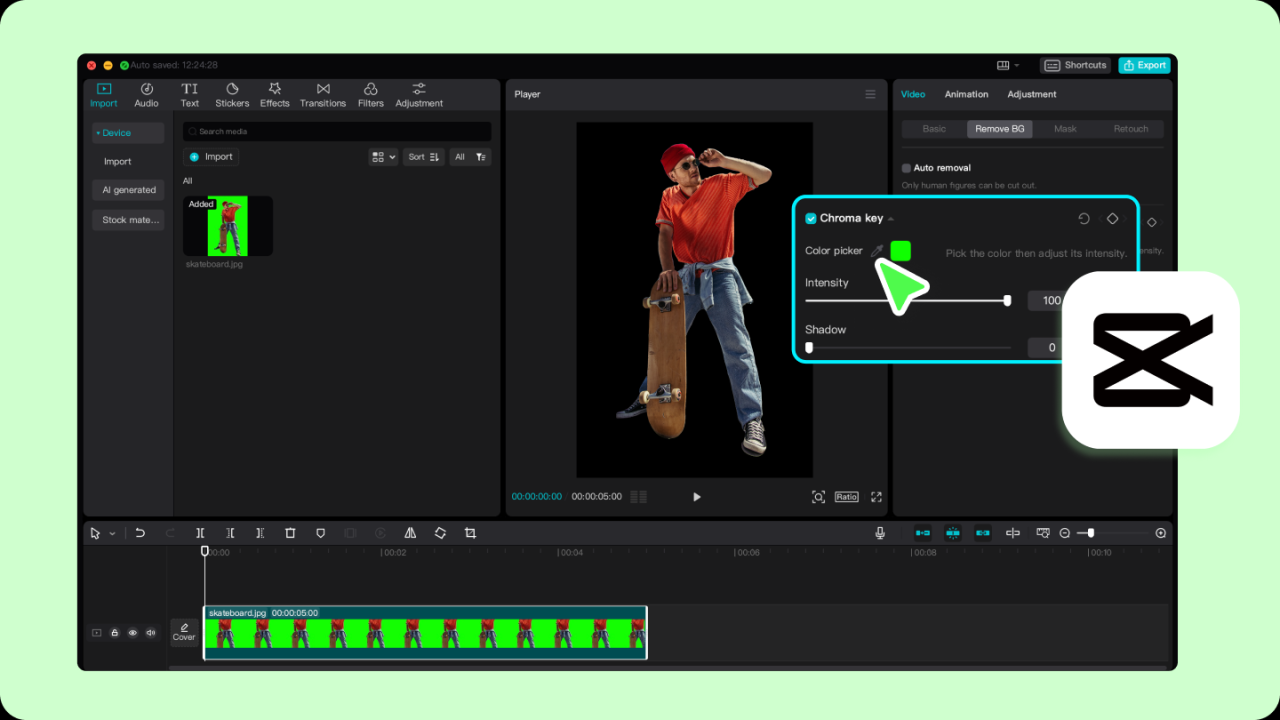
Even with the best intentions and equipment, the green screen process can present a few hurdles. Understanding these common challenges and knowing how to overcome them is crucial for achieving professional-looking results. This section will guide you through identifying and resolving typical issues, ensuring a smooth chroma keying experience.
Lighting Inconsistencies and Shadows
Uneven lighting is one of the most prevalent problems in green screen work. When the green screen background is not lit uniformly, it creates bright spots and dark shadows. These inconsistencies make it difficult for the software to differentiate between the green background and the subject, leading to a poor key.To achieve optimal results, it is essential to light the green screen separately from the subject.
This separation allows for precise control over the illumination of the background.
- Even Illumination: Aim for a consistent, flat light across the entire green screen. This can be achieved using multiple light sources, such as softboxes or LED panels, positioned to eliminate hotspots and shadows. A common setup involves placing two lights at a 45-degree angle to the screen, with additional fill lights if needed.
- Distance from Screen: Ensure your subject is positioned a sufficient distance away from the green screen. This prevents their own lighting from casting shadows onto the background, which can be a significant issue. A minimum distance of 6-10 feet is often recommended, depending on the studio space.
- Light Meter Usage: Utilize a light meter to check for consistent light levels across the green screen. This objective measurement helps identify and rectify any unevenness before you start filming.
Green Spill and Mitigation Techniques
Green spill occurs when the green light from the background reflects onto the edges of your subject, particularly on hair or lighter clothing. This unwanted green tinge can contaminate the edges of your subject, making it difficult to create a clean separation from the background.Fortunately, several techniques can effectively minimize or eliminate green spill.
- Subject Placement: As mentioned earlier, keeping the subject a good distance from the green screen is the first line of defense against spill.
- Background Lighting: Light the green screen slightly brighter than your subject. This can help overpower any subtle reflections. However, avoid overexposing the screen, as this can also cause issues.
- Keying Software Adjustments: Most chroma keying software offers specific tools to address green spill. These often include “despill” or “color correction” sliders that can selectively remove the green cast from the edges of your subject. Experiment with these settings carefully to avoid making the subject look unnatural.
- Physical Barriers: In some cases, strategically placing black flags or gobos between the green screen lights and the subject can help block any stray green light from reflecting onto them.
- Post-Production Color Correction: If some spill remains, subtle color correction in your editing software can help neutralize the green tint on the subject’s edges.
Handling Movement and Fine Details
Capturing dynamic movement and preserving fine details like hair or translucent objects can be challenging with green screens. Motion blur, pixelation, and the loss of fine elements are common issues that require careful attention during shooting and post-production.
- Camera Stability: Use a tripod or a stable camera rig to minimize camera shake. This is especially important when dealing with moving subjects.
- Shutter Speed: Adjust your camera’s shutter speed appropriately. A faster shutter speed can help freeze motion and reduce motion blur, making it easier to key out the background. However, be mindful of potential flicker if shooting under artificial lights.
- Subject Motion: Encourage subjects to move smoothly and deliberately. Avoid jerky or unpredictable movements that can be difficult to isolate from the background.
- Hair and Fine Details: For hair, ensure it is well-lit and slightly separated from the background. Using a fine-toothed comb or hairspray can help create a more defined edge. In post-production, specialized matte generation techniques within the chroma keying software are often employed to refine these fine details. This might involve using edge refinement tools or creating separate masks for hair.
- Translucent Objects: Handling translucent objects, such as glass or smoke, is particularly difficult. These objects often have varying levels of transparency and can interact with the green background in complex ways. In such cases, it is often best to avoid using a green screen altogether or to shoot them separately with different lighting and then composite them later. If a green screen is unavoidable, using a very dark or contrasting background can sometimes yield better results for these specific elements.
Advanced Techniques and Creative Applications

Moving beyond basic background replacement, green screen technology unlocks a universe of creative possibilities. This section explores advanced methods for achieving more dynamic and engaging visuals, integrating complex elements, and conceptualizing unique projects that push the boundaries of what’s possible with chroma keying.
Dynamic and Animated Backgrounds
Creating dynamic and animated backgrounds involves layering video footage or animated graphics behind your keyed subject. This can be achieved by compositing pre-rendered animations, live-action video clips, or even real-time generated graphics. The key is to ensure the motion and lighting of the background complement the subject, creating a believable and immersive environment. For instance, imagine a presenter discussing space exploration; a subtly animated starfield or a passing spaceship can add significant visual interest.
Methods for Dynamic Backgrounds
- Video Compositing: Overlaying high-definition video clips of environments, abstract patterns, or motion graphics onto a transparent background. This is a widely used technique in film and television.
- Motion Graphics: Utilizing software like Adobe After Effects or Apple Motion to create custom animations, text effects, and graphical elements that move and evolve. These can range from simple text crawls to complex 3D rendered scenes.
- Live Video Feeds: Integrating real-time video streams, such as weather maps, stock tickers, or even live camera feeds from other locations, to create interactive and responsive backgrounds.
- Parallax Scrolling: For 2D animations or graphics, creating a sense of depth by moving different layers at different speeds. This technique is common in web design and 2D games.
Integrating Multiple Green Screen Elements
Combining multiple green screen elements within a single scene requires careful planning and execution. This often involves layering several keyed elements on top of each other, each with its own background and lighting considerations. The goal is to create a cohesive composition where each element appears naturally integrated. For example, a character might be interacting with a virtual object that was also filmed against a green screen.
Techniques for Multi-Element Integration
- Layering and Compositing Order: Understanding the order in which elements are layered in your editing software is crucial. Elements that should appear “in front” of others need to be placed higher in the layer stack.
- Consistent Lighting: Ensuring that the lighting on each green-screened element matches the intended lighting of the final composite scene. This includes the direction, color, and intensity of light sources.
- Depth of Field and Focus: Mimicking the natural depth of field of a camera by applying selective blur to elements that should appear out of focus in the final scene.
- Shadow and Reflection Creation: Adding subtle shadows or reflections to keyed elements can significantly enhance their realism and integration into the background. This can be done manually or through specialized software tools.
Creative Ideas Beyond Simple Background Replacement
Green screen technology offers a powerful tool for storytelling and visual innovation, extending far beyond merely swapping out a static backdrop. It allows for the creation of fantastical worlds, impossible scenarios, and unique visual metaphors that would be otherwise unachievable or prohibitively expensive.
Conceptual Applications
- Creating Impossible Environments: Transporting subjects to alien planets, historical eras, or abstract conceptual spaces.
- Character Interaction with Virtual Elements: Enabling actors to interact with digital characters, props, or creatures that are added in post-production.
- Visual Metaphors and Symbolism: Using green screen to visually represent abstract concepts, emotions, or ideas. For instance, a character could be shown walking through a storm of numbers to represent financial anxiety.
- Transformations and Illusions: Creating visual effects like shapeshifting, teleportation, or disappearing acts.
- Educational Demonstrations: Visualizing complex scientific processes, anatomical structures, or historical events in an engaging and dynamic manner. For example, a biology lesson could feature a 3D rendered heart beating.
- Artistic Expression: Using green screen as a medium for abstract art, surreal imagery, or experimental video projects.
Potential Project Ideas
The versatility of green screen technology makes it suitable for a wide range of projects, from personal creative endeavors to professional productions. The following list provides a starting point for brainstorming your own unique applications.
Project Concepts
- “Dreamscape Traveler”: A short film where a character navigates through a series of surreal, dream-like environments, each visually distinct and created using green screen.
- “Interactive History Lesson”: A series of educational videos where a presenter interacts with historical figures or recreates pivotal moments from the past, all rendered with green screen backgrounds.
- “Virtual Product Showcase”: For e-commerce or marketing, creating dynamic product demonstrations where products are shown in various simulated environments or being used by virtual models.
- “Augmented Reality Storytelling”: Developing a narrative where characters interact with augmented reality elements that are seamlessly integrated into a real-world scene using green screen.
- “Animated Explainer Videos with a Twist”: Producing explainer videos where the presenter is not only explaining concepts but also actively participating in animated scenarios or manipulating virtual diagrams.
- “Sci-Fi Short Film with Creature Effects”: A narrative film featuring actors interacting with digitally created alien creatures or robots, all composited using green screen.
- “Music Video with Dynamic Visuals”: Creating a music video where the artist performs against a constantly changing, visually striking green screen background that complements the song’s mood and lyrics.
- “Virtual Event Hosting”: For online conferences or webinars, creating a professional and engaging studio environment with custom branding and dynamic backgrounds for hosts and presenters.
Best Practices for Realistic Results

Achieving a truly seamless and believable integration of your subject with a custom background requires meticulous attention to detail. This section focuses on the crucial elements that elevate your chroma-keyed footage from amateur to professional, ensuring your audience is immersed in the illusion rather than distracted by technical imperfections.The most impactful way to enhance realism is by meticulously matching the lighting conditions of your foreground subject to those of your chosen background.
This is not merely about aesthetics; it’s about creating a cohesive visual narrative that tricks the eye into accepting the composite as genuine.
Lighting Consistency
Inconsistent lighting is one of the most common tells of poor green screen work. If your subject is brightly lit from the front while the background is dimly lit and moody, the disconnect will be immediately apparent. The goal is to ensure the highlights, shadows, and overall color temperature of the light hitting your subject accurately reflect the light in the background image or video.
- Key Light Alignment: Position your key light (the main light source) to mimic the direction of the primary light in your background. If the background shows light coming from the upper left, your key light should also originate from the upper left relative to your subject.
- Fill Light and Shadow Detail: Use fill lights judiciously to control shadow areas. The fill light should be less intense than the key light and positioned to soften shadows without eliminating them entirely, ensuring they align with the shadow patterns in the background.
- Rim Lighting and Hair Lights: If the background suggests a light source from behind the subject (e.g., a sunset or a window), consider adding rim or hair lights. These lights should match the color and intensity of the background’s backlighting to create a natural halo effect and separate the subject from the background.
- Color Temperature Matching: Pay close attention to the color temperature of your lights. If your background has a warm, golden hour feel, use warmer-toned lights for your subject. Conversely, a cool, blue-toned background will require cooler lights. Tools like color temperature meters or gels can assist with this.
- Soft vs. Hard Light: The quality of light in the background (soft and diffused or hard and sharp) should be replicated on your subject. Soft light is generally more forgiving for green screen work as it creates gentler shadows.
Perspective and Scale Alignment
Beyond lighting, the perceived relationship between your subject and the background in terms of perspective and scale is paramount for believability. An object that appears too large or too small, or is positioned as if it doesn’t belong in the scene, will break the illusion.
- Camera Angle and Perspective: Ensure the camera angle used to film your subject matches the perspective of the background. If the background is shot from a low angle, your subject should also be filmed from a similar low angle. This ensures that lines and objects in both elements converge correctly.
- Focal Length Consistency: Using a similar focal length for both your subject footage and your background footage can help maintain consistent depth of field and parallax, making them appear to exist in the same space.
- Subject Placement: Carefully consider where your subject is placed within the background. Does it make sense for them to be standing there? Are they interacting with elements that are not present in the green screen shot?
- Scale References: If your background contains objects of known size (e.g., doors, furniture, people), use these as reference points to ensure your subject is scaled appropriately within the scene.
Color Grading Integration
Once your subject is keyed out, the final step in creating a realistic composite is to integrate it visually with the background through color grading. This involves adjusting the color and tonal characteristics of your subject footage to match the background.
- White Balance Matching: Ensure the white balance of your subject footage is adjusted to match the white balance of the background. If the background has a blue cast, your subject should also have a subtle blue cast applied.
- Exposure and Contrast Alignment: Adjust the exposure and contrast of your subject footage to match the overall brightness and contrast of the background. A subject that is too bright or too dark compared to the background will stand out.
- Saturation and Hue Adjustments: Fine-tune the saturation and hue of your subject to match the color palette of the background. This can involve subtly shifting colors to ensure they blend harmoniously.
- Adding Subtle Effects: For an extra layer of realism, consider adding subtle atmospheric effects to your subject footage that are present in the background, such as a slight haze, lens flares, or motion blur that corresponds to the background’s movement.
“The illusion of reality is built on the foundation of consistent light, believable scale, and harmonious color.”
Final Thoughts
In conclusion, mastering the art of green screen, or chroma keying, opens up a universe of creative potential for crafting custom backgrounds. By carefully considering equipment, lighting, material selection, camera techniques, and software application, you can overcome common challenges and achieve professional-level results. We’ve explored how to blend foreground subjects seamlessly with diverse backgrounds, paving the way for innovative storytelling and compelling visual effects that will captivate any audience.