Mastering the art of audio-video synchronization is fundamental to creating polished and professional video content. This comprehensive guide delves into the intricacies of ensuring your sound and visuals are perfectly aligned, transforming potentially jarring discrepancies into a seamless viewing experience.
We will explore the core reasons behind sync issues, from recording challenges to editing complexities, and provide actionable best practices. You’ll discover essential pre-production steps, effective techniques within popular editing software, and advanced solutions for even the most stubborn synchronization problems.
Understanding the Core Problem of Audio-Video Sync
Maintaining perfect synchronization between audio and video is paramount for creating a professional and engaging viewing experience. When these two elements drift apart, even by a fraction of a second, it can lead to viewer distraction, confusion, and a diminished perception of quality. This section delves into the fundamental reasons why this synchronization challenge arises and its impact.The discrepancy between audio and video tracks is not a new phenomenon, but rather a persistent technical hurdle in content creation.
It stems from the inherent differences in how audio and video data are captured, processed, and played back. Understanding these underlying causes is the first step towards effectively resolving sync issues.
Reasons for Audio-Video Desynchronization
Several factors contribute to audio and video tracks becoming out of sync. These can occur at various stages of the production workflow, from the initial recording to the final export.
- Independent Capture Mechanisms: In many production scenarios, audio and video are recorded by separate devices. For instance, a professional microphone might be capturing audio, while a camera records the video. These devices operate on different clock signals and may have their own internal timing mechanisms, which can lead to slight variations over time.
- Data Transfer and Processing Differences: When transferring footage from recording devices to editing software, or during the editing process itself, the way audio and video data are handled can introduce discrepancies. Different file formats, codecs, and processing speeds can all contribute to timing shifts.
- Buffering and Playback Issues: During playback on a computer or playback device, buffering can occur. If the audio buffer fills or empties at a different rate than the video buffer, it can result in a noticeable delay or lead.
- Variable Frame Rates: While less common in professional settings, some devices or software might record video with variable frame rates. This inconsistency in the rate at which frames are captured can make it challenging for editing software to maintain a stable sync with the audio track.
- Hardware Limitations: The processing power of the recording hardware, the editing computer, or the playback device can also play a role. Older or less powerful systems may struggle to keep up with high-resolution video and complex audio, leading to dropped frames or audio glitches that affect sync.
Common Technical Causes of Sync Drift
The technical causes of sync drift are varied and often interlinked, manifesting in different ways depending on the production environment.
Recording Stage Discrepancies
During the recording phase, even seemingly minor inconsistencies can snowball into significant sync problems later on.
- Camera and Audio Recorder Clock Mismatches: The internal clocks of cameras and external audio recorders are rarely perfectly synchronized. Even a difference of a few milliseconds per minute can lead to a noticeable drift over longer recordings. This is particularly true if timecode synchronization is not meticulously managed.
- Audio Interface Latency: When using external audio interfaces for recording, there can be inherent latency introduced by the interface itself and the drivers. This latency, if not properly compensated for, can cause the recorded audio to be slightly delayed relative to the video.
- Inconsistent Recording Media Speeds: While less common with modern, high-quality media, older or lower-quality storage devices could sometimes exhibit variations in write speeds, potentially affecting the integrity of the recorded data stream and its timing.
Editing Stage Challenges
The editing suite is where many sync issues are either resolved or, unfortunately, exacerbated if not handled with care.
- Codec and Container Differences: Different video and audio codecs compress data in various ways, and their processing demands can differ. When combining clips with different codecs or when the editing software needs to transcode them, timing information can be subtly altered. Similarly, the container format (e.g., MP4, MOV) can influence how audio and video streams are packaged and read.
- Software Processing Load: Editing software relies heavily on the computer’s processing power. If the system is under strain due to complex effects, multiple video layers, or high-resolution footage, it may struggle to process and display audio and video in perfect sync in real-time. This can lead to choppy playback and apparent sync issues.
- Import and Export Settings: Incorrect import settings, such as not specifying the correct frame rate or audio sample rate, can lead to immediate sync problems. Likewise, export settings that don’t match the source material or are not configured for optimal playback can introduce or worsen sync issues in the final output.
- Plugin Interference: Certain third-party plugins used for audio or video processing can sometimes introduce their own latency or timing quirks, inadvertently affecting the overall synchronization of the timeline.
Perceptual Impact of Poor Audio-Video Synchronization
The human brain is remarkably adept at detecting inconsistencies, especially when it comes to audio-visual information. When audio and video are out of sync, it triggers a negative perceptual response in viewers.
- Reduced Immersion and Engagement: Synchronization is fundamental to creating an immersive experience. When viewers have to consciously or subconsciously work to align what they see with what they hear, their engagement with the content plummets. They are pulled out of the narrative and become aware of the technical flaws.
- Distrust and Lack of Credibility: Poor sync can make content appear amateurish and unprofessional. This can erode the viewer’s trust in the presenter, the brand, or the information being conveyed. It suggests a lack of attention to detail, which can translate into a perception of lower overall quality.
- Cognitive Load and Fatigue: The brain expends extra effort trying to reconcile mismatched audio and visual cues. This increased cognitive load can lead to viewer fatigue, making them less likely to continue watching. It’s akin to trying to read a book with words that are slightly blurred – it’s tiring and frustrating.
- Misinterpretation of Information: In educational or instructional content, precise timing between visual demonstrations and spoken explanations is crucial. If these are out of sync, viewers might misinterpret instructions, miss key visual cues, or misunderstand the sequence of events, leading to ineffective learning.
- Discomfort and Nausea: In extreme cases, particularly with fast-paced action or certain types of content, significant audio-video desynchronization can even induce feelings of mild discomfort or nausea, similar to motion sickness. This is because the brain receives conflicting sensory information.
The ideal synchronization between audio and video is imperceptible. Any deviation, however small, becomes noticeable and detrimental to the viewer’s experience.
Pre-Production and Recording Best Practices for Perfect Sync
Ensuring audio and video remain perfectly synchronized from the outset is fundamental to a professional production. This section focuses on the proactive measures and techniques employed during pre-production and the recording phase to prevent sync issues before they even arise, making post-production significantly smoother.Adhering to a structured approach during these critical initial stages not only minimizes the risk of sync problems but also contributes to a more efficient and less stressful workflow.
By integrating these practices, you lay a robust foundation for high-quality audio-visual content.
Essential Steps for Initial Capture Sync
To guarantee audio and video stay in sync during the initial capture, a comprehensive checklist should be followed. This proactive approach addresses potential points of failure before they impact the recording.
The following checklist Artikels key steps to ensure synchronization from the moment recording begins:
- Slate Usage: Always use a physical or digital slate at the beginning of each take. The visual and audible “clap” provides a clear, distinct point for synchronization in post-production.
- Timecode Synchronization: If using multiple devices, ensure they are all set to the same timecode. This is especially crucial for professional shoots with multiple cameras and audio recorders.
- Reference Audio Monitoring: Continuously monitor the audio feed during recording to detect any discrepancies or dropouts immediately.
- Camera and Audio Recorder Proximity: Keep audio recorders as close to the sound source as practically possible to minimize room noise and potential interference.
- Stable Power Supply: Ensure all recording devices have a stable and sufficient power source to prevent unexpected shutdowns or glitches that could disrupt sync.
- Test Recordings: Conduct short test recordings at the start of each session and after any significant equipment changes to verify sync.
- Clear Communication: Establish clear communication protocols on set to ensure everyone is aware of recording starts and stops, especially when using slates.
Advantages of External Audio Recorders and Synchronization Methods
Utilizing external audio recorders offers significant advantages over relying solely on a camera’s built-in microphone. These recorders typically provide higher quality audio capture, more control over audio levels, and greater flexibility in placement.
The primary benefits of using external audio recorders include:
- Superior Audio Quality: Dedicated audio recorders are designed for optimal sound fidelity, capturing richer, cleaner audio with less background noise compared to camera microphones.
- Improved Signal-to-Noise Ratio: Higher quality preamplifiers in external recorders lead to a better signal-to-noise ratio, resulting in clearer audio.
- Increased Control: External recorders offer more granular control over gain, input levels, and monitoring, allowing for precise audio adjustments.
- Flexible Placement: They can be placed closer to the sound source, independent of the camera’s position, which is crucial for capturing dialogue or specific sounds effectively.
Synchronizing external audio recorders with video is achieved through several robust methods:
- Slate Synchronization: This is the most common and reliable method. The distinct visual and audible “clap” from a slate provides a clear waveform and visual cue that can be aligned in editing software. The operator calls out the scene and take number, which is also recorded for reference.
- Timecode Synchronization: For professional productions, using devices that support timecode is ideal. A master timecode generator can feed a timecode signal to both the camera and the external audio recorder, ensuring their recordings are perfectly aligned frame-by-frame. This can be achieved via physical cables or wireless transmission.
- Audio Sync (Beats or Natural Sounds): In situations where a slate is not feasible, editors can often sync audio by aligning distinct sounds, such as a sharp musical beat, a door slam, or even the ambient sound of the environment, if it’s consistent across both recordings. This method requires more careful listening and is less precise than timecode or slate synchronization.
Camera Settings and Audio Input Configurations for Synchronization
Optimizing camera settings and audio input configurations is crucial for preventing sync issues at the source. These settings directly influence how audio is captured and recorded in relation to the video signal.
The following configurations are essential for promoting synchronization:
- Disable Automatic Gain Control (AGC) on Camera: AGC can cause audio levels to fluctuate unpredictably, making synchronization more difficult. It’s best to disable AGC and manually control audio gain.
- Set Appropriate Audio Input Levels: Ensure that the audio input levels on the camera are set correctly. Aim for a healthy signal that is not clipping (distorting) but is also not too low, which can introduce noise. A common target is to have peaks around -12 dBFS.
- Use External Microphone Inputs: Whenever possible, connect external microphones or audio recorders to the camera’s dedicated XLR or professional audio inputs. These inputs are designed for higher quality audio capture and offer better control.
- Configure Sample Rate and Bit Depth: Ensure that the sample rate and bit depth settings on both the camera and the external audio recorder are identical. Mismatched settings can lead to audio artifacts or sync drift. Standard settings are typically 48 kHz sample rate and 24-bit depth.
- Record Audio at Camera if Possible: If using an external recorder, consider also recording a backup audio track directly into the camera. This provides an additional reference point and a safety net if the primary external recording encounters issues.
- Camera Frame Rate and Audio Sample Rate Consistency: While not always directly linked to sync drift, ensuring that the camera’s frame rate (e.g., 24fps, 30fps) and the audio recorder’s sample rate (e.g., 48kHz) are standard and consistent across all devices is good practice for overall media integrity.
On-Set Communication and Verification Workflow for Sync
A well-defined workflow for on-set communication and verification is vital for ensuring that sync issues are identified and addressed in real-time, rather than discovered later in post-production. This involves clear roles and consistent checks.
The following workflow facilitates effective on-set communication and sync verification:
- Pre-Shoot Briefing: Before the first take, the director, cinematographer, and sound recordist should briefly discuss the sync strategy, including the use of slates, timecode, and any specific audio requirements.
- Slate Operator’s Role: The designated slate operator is responsible for clearly announcing the scene and take number, and ensuring the slate is visible and audible for each take.
- Sound Recordist’s Monitoring: The sound recordist must continuously monitor the audio levels and quality through headphones, listening for any anomalies, and communicating potential issues to the director or assistant director immediately.
- Camera Operator’s Visual Check: The camera operator should be aware of the slate’s position and ensure it’s captured clearly in the frame during the clap. They should also be attentive to any visual cues that might indicate sync problems, such as audio waveforms on their monitor if available.
- Immediate Post-Take Review: After each take, a brief review should occur. The sound recordist can verbally confirm sync to the director or assistant director based on their monitoring, and a quick playback of the first few seconds of the take, including the slate clap, can be performed on camera or a playback monitor to visually confirm sync.
- Designated Sync Person: In larger productions, a dedicated assistant director or production assistant might be responsible for overseeing sync verification and ensuring all parties are aware of any potential problems.
- Communication Channel: Establish a clear and direct communication channel (e.g., walkie-talkies) for the sound recordist and camera operator to quickly relay any sync concerns to the director or assistant director.
Syncing Techniques in Video Editing Software
Once your footage is captured with the best possible practices in mind, the next crucial step is to bring your audio and video together seamlessly within your editing software. This section will delve into the various techniques available to achieve that perfect synchronization, from manual adjustments to leveraging the power of automated tools. Mastering these methods will significantly elevate the professionalism of your final video product.The goal of audio-video synchronization in editing is to ensure that the sound perfectly aligns with the visual action, creating an immersive and believable experience for the viewer.
Even with careful recording, minor discrepancies can arise, and addressing them effectively is a hallmark of skilled video editing.
Manual Alignment of Audio and Video Clips
Manually aligning audio and video clips is a fundamental skill in video editing. It involves precise adjustments made directly within the editing timeline. This method offers the highest degree of control, allowing editors to fine-tune the sync down to the frame.Common editing platforms like Adobe Premiere Pro, Final Cut Pro, DaVinci Resolve, and Avid Media Composer all provide intuitive tools for this process.
The general approach involves placing the audio and video clips on their respective tracks and then visually or audibly identifying a common point of reference.The process typically follows these steps:
- Import your video clips (which often contain a reference audio track) and your separate, higher-quality audio files into your editing project.
- Place the video clip on the video track and the corresponding audio clip on an audio track in your timeline.
- Locate a distinct, simultaneous event in both the video and audio. This could be a clap, a spoken word with a visible mouth movement, or a sharp percussive sound.
- Zoom in closely on the timeline around this reference point.
- Select the audio clip and nudge it forward or backward frame by frame until the visual and audible cues are perfectly aligned. Most editors use keyboard shortcuts for fine adjustments (e.g., arrow keys).
- Listen back to the section repeatedly to confirm the synchronization.
- Repeat this process for all relevant audio and video clips.
For highly critical sync points, zooming in to the individual frame level is essential. This ensures that the audio begins at the exact moment the visual action occurs.
Using Visual Cues and Waveform Analysis for Precise Synchronization
Visual cues and waveform analysis are powerful tools that significantly enhance the accuracy of audio-video synchronization. They provide objective references that go beyond simple listening.Visual cues are the observable events within the video footage that have a corresponding sound. Examples include:
- A clapboard (or “clapper”) being struck: The visual of the board closing and the sharp sound of the clap are a definitive sync point.
- A person speaking: The movement of the lips and the start of the spoken word should align.
- A percussive action: The striking of a drum, a door slamming, or a footstep.
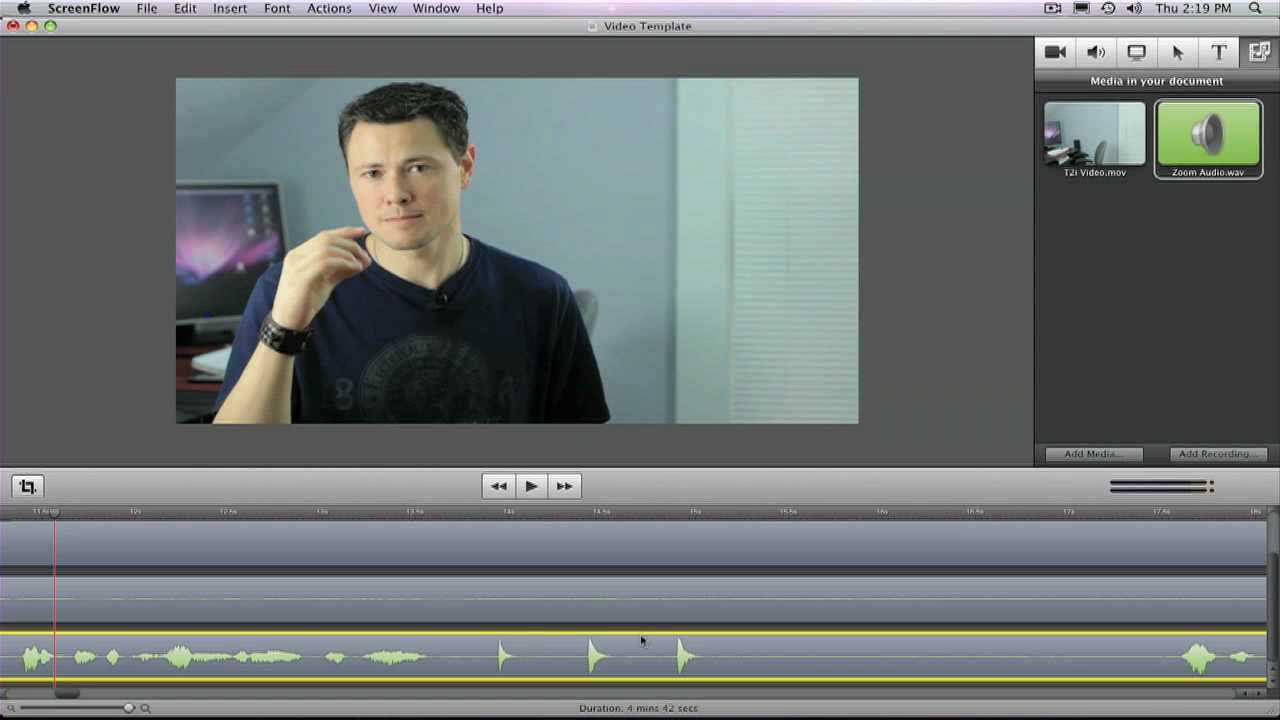
Waveform analysis, on the other hand, visualizes the audio signal as a graph. The peaks and troughs of the waveform correspond to the amplitude of the sound. This offers a precise way to match audio events.In most editing software, when you place an audio clip on the timeline, its waveform is displayed. If you have a video clip with its original audio, you can often see a representation of that audio waveform superimposed or alongside the video track.The process using waveforms involves:
- Zooming into the timeline to view both the video and audio waveforms clearly.
- Identifying a prominent spike or peak in the audio waveform that corresponds to a distinct sound event (e.g., a clap, a sharp consonant like ‘p’ or ‘t’).
- Simultaneously observing the video frame at that precise moment for the visual confirmation of the event.
- Nudging the audio clip until the peak in its waveform perfectly aligns with the visual cue and the corresponding peak in the video’s original audio waveform (if available).
This dual approach of visual confirmation and waveform alignment is highly effective for achieving professional-level sync.
Automated Synchronization Features
Many modern video editing applications offer automated synchronization features, often referred to as “multi-cam sync” or “sync clip.” These tools are designed to significantly speed up the synchronization process, especially when dealing with multiple cameras and separate audio recordings.The core principle behind these features is to analyze common elements in the audio tracks of multiple clips and automatically align them based on these similarities.
This often works best when there’s a distinct sound present in all recorded sources, such as a clap, a spoken word, or a specific musical cue.Comparison of Automated Synchronization Features:
| Editing Software | Feature Name | How it Works | Pros | Cons |
|---|---|---|---|---|
| Adobe Premiere Pro | Merge Clips / Multicam Sequence | Analyzes audio waveforms across selected clips and aligns them based on common audio. Can also sync by timecode or in/out points. | Highly effective with clear audio references. Integrates seamlessly into multicam workflows. | Can sometimes struggle with very quiet or noisy audio. Manual fine-tuning may still be necessary. |
| Final Cut Pro | Synchronize Clips | Analyzes audio from multiple clips and matches them to a primary clip. | Fast and efficient for standard sync tasks. Offers robust multicam editing capabilities. | Less effective if audio is significantly different or heavily masked by background noise. |
| DaVinci Resolve | Sync Clips / Multicam | Offers robust audio analysis for synchronization. Allows syncing based on audio, timecode, or markers. | Powerful and flexible, especially in the Fairlight audio page. Excellent for complex projects. | The interface can be more complex for beginners compared to others. |
| Avid Media Composer | Sync Clip / Multicam | Advanced audio analysis and timecode-based syncing. | Industry-standard for large productions. Highly reliable and precise. | Steeper learning curve. Can be resource-intensive. |
While automated features are incredibly convenient, it’s crucial to remember that they are not infallible. Always review the synchronized footage carefully to ensure perfect alignment, especially for critical dialogue or action sequences.
Step-by-Step Procedure for Synchronizing Multi-Camera Footage with Separate Audio
Synchronizing multi-camera footage with separate audio is a common scenario in filmmaking, interviews, and event coverage. This process requires careful organization and leveraging the right tools within your editing software.The following steps Artikel a typical procedure for achieving this:
- Organize Your Media: Before importing, ensure all your video clips (from each camera) and your separate audio files are clearly named and organized into folders. This is crucial for efficient workflow.
- Import Media: Import all your video clips and separate audio files into your editing project.
- Create a Master Audio Clip (Optional but Recommended): If you have a single, high-quality audio recording that covers the entire event (e.g., from a boom mic), consider syncing that to a timecode reference or a specific video clip first. This master audio can then be used as a reference for other clips.
- Select Clips for Synchronization: In your project bin or media browser, select all the video clips and their corresponding separate audio files that you want to synchronize together.
- Initiate Synchronization: Right-click on the selected clips and choose the “Synchronize Clips” or “Merge Clips” option (the exact wording varies by software).
- Choose Synchronization Method: In the dialog box that appears, select “Audio” as the primary synchronization method. Ensure that the software is set to use the separate audio files. You might also have options to use timecode or specific in/out points if available.
- Create a Multicam Sequence/Edit: Once the clips are synchronized, the software will typically prompt you to create a “Multicam Sequence” or a “Multicam Edit.” This is a special type of timeline that allows you to switch between camera angles during playback.
- Review and Refine: Play back the synchronized multicam sequence. Listen carefully for any instances where the audio is not perfectly aligned with the video.
- Manual Adjustments: If you find any sync issues, open the multicam clip in its dedicated editor or switch to a standard timeline view. Zoom in on the problematic sections and make fine, frame-by-frame manual adjustments to the audio or video clips as needed, using the techniques described earlier.
- Final Check: After making any necessary adjustments, perform a final, thorough review of the entire sequence to ensure consistent and perfect synchronization across all camera angles and audio.
The key to success with multi-camera synchronization is meticulous organization and a thorough understanding of your editing software’s capabilities. By following these steps, you can efficiently bring together complex multi-camera shoots into a perfectly synced final product.
Advanced Synchronization Solutions and Tools
While many sync challenges can be overcome with standard editing software, complex projects or specific technical requirements often necessitate more specialized approaches. This section delves into advanced solutions, encompassing both software and hardware, that provide robust capabilities for achieving and maintaining perfect audio-video synchronization, even in demanding scenarios.
Specialized Software and Plugins for Complex Sync Challenges
For situations where built-in editing tools fall short, a variety of specialized software and plugins offer powerful features to tackle intricate synchronization issues. These tools often employ more sophisticated algorithms and offer greater control over the synchronization process, allowing for precise adjustments that might be impossible with standard methods.
- PluralEyes (Red Giant): This industry-standard software is renowned for its ability to automatically sync multiple audio and video clips based on their waveforms. It can handle numerous cameras and audio recorders simultaneously, significantly reducing manual syncing time. PluralEyes analyzes the audio from each clip and matches it to a reference audio track, or syncs all tracks to each other. It supports a wide range of file formats and integrates seamlessly with popular editing software like Final Cut Pro, Premiere Pro, and Avid Media Composer.
- Syncaila: Another advanced audio-to-video synchronization tool, Syncaila utilizes AI-powered analysis to achieve highly accurate sync, even with challenging audio conditions like background noise or overlapping dialogue. It excels in scenarios with significant drift over time, common in long recordings or when using different clock sources.
- Advanced Timecode Synchronization Plugins: For users working with professional workflows that rely heavily on timecode, specific plugins can offer deeper integration and control. These might include tools that allow for the precise alignment of clips based on embedded timecode metadata, ensuring that even minor discrepancies are resolved with extreme accuracy.
Hardware Solutions for Live Production and Large-Scale Projects
In live production environments or for very large-scale projects involving numerous sources, hardware solutions play a crucial role in ensuring that audio and video remain synchronized from the outset. These devices often manage the timing signals across all components of the production.
- Genlock and Timecode Generators: In professional video production, especially for live events or multi-camera shoots, genlock (generator locking) and timecode synchronization are paramount. A central sync generator distributes a stable reference signal (like black burst or word clock) to all cameras, video switchers, and audio recorders. This ensures that all devices operate on the same timing pulse, preventing drift.
- Audio Embedders/De-embedders: These devices are used to embed audio signals into SDI video streams or extract audio from them. When working with digital video, ensuring that the audio and video are correctly paired and timed within the stream is critical. Advanced embedders can manage multiple audio channels and ensure their synchronization with the video frames.
- Networked Audio-Video Solutions: For large distributed systems or IP-based production workflows, specialized hardware and software that manage synchronized audio and video streams over networks are employed. These solutions often use protocols like PTP (Precision Time Protocol) to ensure extremely tight synchronization across multiple devices connected via Ethernet.
Techniques for Synchronizing Audio at Different Sample Rates or Frame Rates
Discrepancies in sample rates (for audio) or frame rates (for video) can introduce sync issues. Specialized techniques and software functionalities are available to address these common problems.
When audio is recorded at a different sample rate than the project timeline or other audio tracks, or when video is captured at varying frame rates, resampling and re-timing become necessary. Most modern video editing and audio workstation software have built-in capabilities to handle this, but understanding the underlying principles is key to achieving optimal results.
- Automatic Resampling: Video editing software typically detects the sample rate of imported audio and automatically resamples it to match the project’s sample rate. Similarly, audio editing software can resample audio to match the host application’s settings. While convenient, it’s good practice to verify this process.
- Manual Resampling and Pitch Shifting: In some advanced audio editors or plugins, you can manually control resampling. This is useful if the automatic process introduces audible artifacts or if you need to preserve the original pitch while changing the duration (time stretching) or change the pitch while preserving the duration (pitch shifting).
- Frame Rate Conversion for Video: When dealing with video recorded at different frame rates, editing software can perform frame rate conversions. This usually involves either duplicating or dropping frames to match the target frame rate. For smoother results, especially with fast motion, interpolation techniques might be employed, though these can sometimes introduce visual artifacts.
- Using a Common Reference: The most robust approach is to ensure all source material is converted to a common, intended sample rate and frame rate before importing into your editing software. This can be done using dedicated audio conversion tools (like Audacity, Adobe Audition) or video transcoding software (like HandBrake, Adobe Media Encoder).
Strategies for Correcting Sync Issues in Already Recorded Footage
Even with the best pre-production practices, out-of-sync footage can occur. Fortunately, several strategies and tools can help rectify these issues after recording.
Correcting sync issues in post-production often involves a combination of automated tools and manual adjustments. The goal is to align the audio and video so that they appear to have been captured simultaneously, masking any discrepancies that arose during recording.
- Waveform Analysis and Manual Adjustment: In your editing software, visually compare the audio waveforms of the different tracks. Look for distinct spikes or patterns that correspond to specific sounds (e.g., a clap, a sharp percussive sound). You can then manually nudge the audio or video clips frame by frame until these visual cues align.
- Using Sync Markers: If you intentionally created sync markers during recording (e.g., a clap, a slate), these become invaluable in post-production. Align the visual marker in the video (the clap itself) with the peak of the corresponding audio waveform.
- Automated Sync Tools within Editing Software: Most professional non-linear editing (NLE) systems have built-in automated sync features. You typically select the video clip and its corresponding audio clip(s), and the software analyzes the audio waveforms to automatically align them. This is often the quickest method for straightforward sync issues.
- Time Remapping and Speed Adjustments: For footage with gradual drift, where the audio and video slowly diverge over time, you might need to use time remapping or speed adjustment tools. This involves subtly speeding up or slowing down either the audio or video track to bring them back into alignment. This requires careful, frame-by-frame adjustments to avoid introducing noticeable speed changes.
- Using External Synchronization Software: As mentioned earlier, dedicated tools like PluralEyes or Syncaila can be used to re-sync clips that have significant drift. You export the out-of-sync clips, process them in the specialized software, and then import the newly synced clips back into your editing timeline.
- Timecode Synchronization (if applicable): If your footage was recorded with timecode, you can leverage this metadata. Many editing systems can automatically sync clips based on matching timecode, or use timecode as a reference for manual alignment.
Troubleshooting Common Synchronization Issues
Even with the best pre-production and editing practices, synchronization issues can sometimes arise. Fortunately, most common problems have straightforward solutions. This section will guide you through diagnosing and resolving these pesky sync glitches, ensuring your final video is as smooth as possible.When audio and video don’t align perfectly, it can be distracting and unprofessional. Understanding how to identify and fix these issues quickly will save you time and frustration during the post-production process.
We will explore various scenarios and provide actionable steps to bring your audio and video back into harmony.
Resolving Audio Dropouts and Crackles Affecting Sync
Audio dropouts or crackles can create the illusion of sync problems, even if the underlying tracks are technically aligned. These issues often stem from data transfer bottlenecks, insufficient processing power, or problems with the audio file itself. Diagnosing the root cause is the first step to effective resolution.To address these audio imperfections, consider the following methods:
- Investigate Playback Hardware: Ensure your audio interface drivers are up-to-date and that your system is not overloaded with other demanding applications. Sometimes, simply closing unnecessary programs can free up resources.
- Check Audio File Integrity: Corrupted audio files can lead to dropouts. Try re-importing the audio track or, if possible, re-exporting it from its source. If the issue persists across different playback environments, the file itself might be compromised.
- Optimize Playback Settings: In your video editing software, adjust buffer settings for your audio device. A larger buffer size can sometimes prevent dropouts by giving your system more time to process the audio data, though it may introduce slight latency.
- Render Audio Separately: For particularly problematic audio clips, consider rendering them as a separate audio file (e.g., WAV) and then re-importing that rendered file into your project. This can sometimes “clean up” the audio data.
Fixing Subtle, Creeping Sync Drift
Sync drift is a more insidious problem where the audio and video gradually fall out of sync over the course of a longer clip. This often happens due to variations in frame rates, variable frame rate (VFR) footage, or inconsistencies in how the editing software handles different media types. The key to fixing this is to identify the point where the drift begins and apply a correction.Here are methods to address creeping sync drift:
- Analyze Frame Rates: Verify that all your footage and project settings use consistent frame rates. Variable frame rate footage, common from screen recordings or some mobile devices, is a frequent culprit. Transcoding VFR footage to a constant frame rate (CFR) before editing is highly recommended.
- Identify the Drift Point: Play through the clip and note the exact moment the sync begins to noticeably deviate. This will be your anchor point for correction.
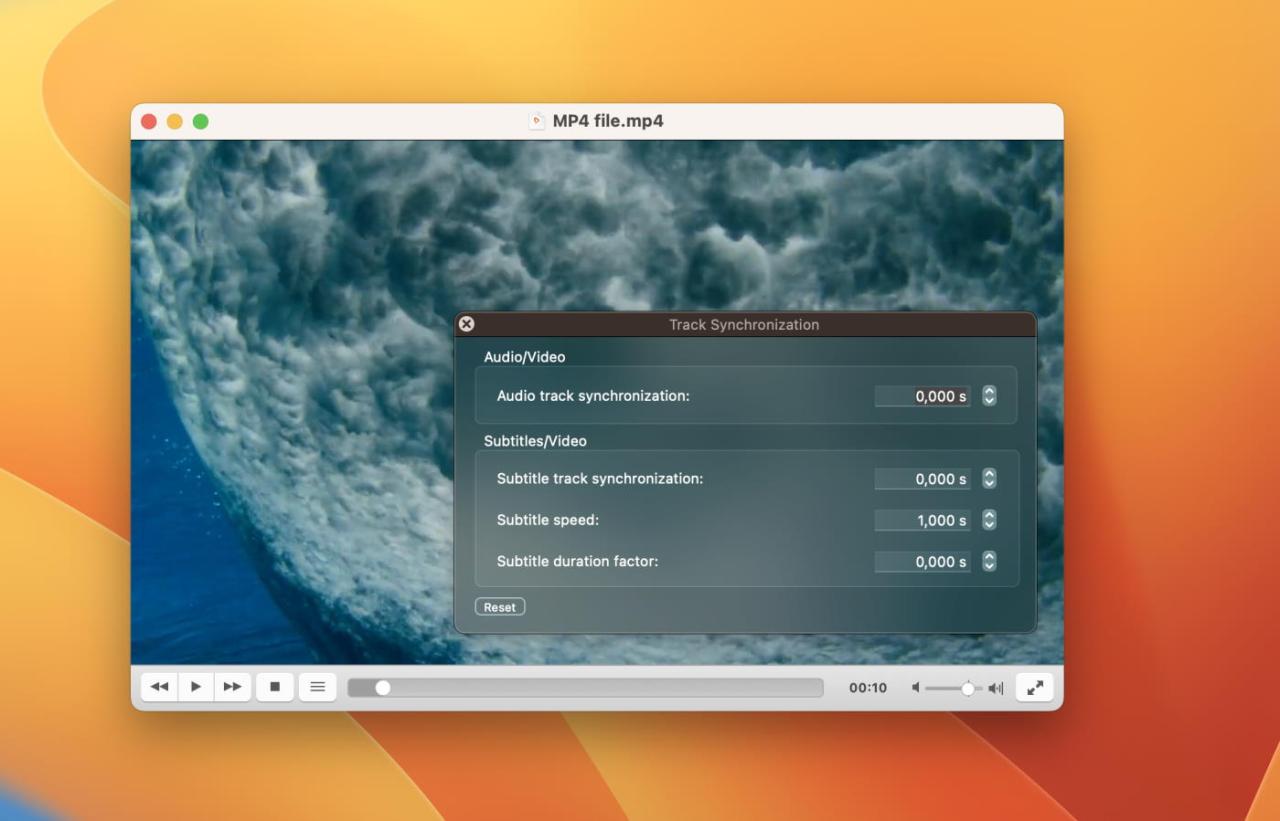
- Apply Global Offset: If the drift is consistent throughout the clip, you can often apply a global audio offset. In your editing software, select the audio track and shift it forward or backward by a small increment (e.g., a few frames or milliseconds) until it realigns with the video at the end of the problematic section.
- Use Time Remapping: For more complex drift patterns, time remapping might be necessary. This allows you to adjust the speed of either the audio or video track at specific points to compensate for the drift. This is a more advanced technique that requires careful adjustment.
- Check for Audio/Video Mismatches: Sometimes, the issue is not drift but a fundamental mismatch between the audio and video streams, especially if they were recorded on separate devices. Ensure that the audio track is precisely aligned with its corresponding video frames at the beginning of the clip.
Handling Sync Problems Caused by Different Playback Devices or Codecs
Synchronization issues can also manifest differently depending on the playback environment. Codecs and the devices used for playback can introduce their own interpretations and processing of audio and video, leading to perceived sync discrepancies.To navigate these device and codec-related sync challenges:
- Standardize Codecs: During the editing process, it’s best practice to work with intermediate codecs that are less prone to issues. Common choices include ProRes or DNxHD/HR. Avoid working directly with highly compressed delivery codecs like H.264 or H.265 until the final export.
- Test on Target Devices: Always test your video on the devices and platforms where it will be viewed. A video that plays perfectly on your editing machine might exhibit sync issues on a specific smart TV, mobile device, or web browser.
- Understand Codec Behavior: Different codecs handle audio and video streams with varying degrees of independence. Some codecs may have built-in buffering or frame rate adjustments that can affect sync. Research the behavior of the codecs you are using.
- Export with Appropriate Settings: When exporting, ensure your settings match the intended playback environment. For web playback, using codecs optimized for streaming and ensuring a constant frame rate is crucial. For broadcast, adhere to professional broadcast standards.
Troubleshooting Guide for Common Sync Errors During Export and Rendering
Exporting and rendering are critical stages where subtle sync issues can become glaringly apparent. These problems can arise from the rendering engine’s interpretation of your timeline, processor load, or incorrect export settings.Here is a troubleshooting guide for common sync errors encountered during export and rendering:
- Verify Project Settings: Before exporting, double-check that your project’s frame rate, resolution, and audio sample rate are correctly set and consistent with your source media and desired output.
- Render with a Proxy Workflow: If you’re experiencing performance issues during rendering that might affect sync, consider using proxy files. Proxies are lower-resolution versions of your footage that make editing and rendering smoother.
- Disable Hardware Acceleration (Temporarily): In some cases, hardware acceleration for rendering can cause sync problems. Try disabling it in your editing software’s preferences and see if the export sync improves. Remember to re-enable it for faster rendering once the sync issue is resolved.
- Check for Audio/Video Track Discrepancies: Ensure no audio or video tracks have been accidentally stretched, compressed, or had their speed altered without your intention on the timeline. Even slight discrepancies can be amplified during export.
- Export in Chunks (for very long projects): For extremely long projects, try exporting smaller sections of the video at a time. If a specific section consistently exhibits sync issues, it can help isolate the problem to that particular part of the timeline.
- Use a Different Render Queue: If your primary rendering application or queue is behaving erratically, try exporting through an alternative render queue or even using a dedicated encoding application like Adobe Media Encoder or DaVinci Resolve’s Deliver page, which can offer more robust rendering options.
Visualizing Synchronization
Ensuring audio and video are perfectly aligned is crucial for a professional and immersive viewing experience. While technical methods are essential, visual confirmation within your editing software is a powerful and indispensable step. This section will guide you through leveraging visual cues to achieve flawless synchronization.Visualizing synchronization involves a keen observation of how audio and video elements interact on your timeline.
It’s about training your eyes and ears to recognize the subtle discrepancies that can detract from your final product. By understanding what to look for, you can proactively identify and correct any sync issues, leading to a polished and professional outcome.
Audio Waveform and Video Frame Alignment
The most fundamental visual cue for synchronization lies in the relationship between audio waveforms and their corresponding video frames. When audio and video are perfectly in sync, specific audio events will directly correspond to visual actions.
Perfectly aligned audio waveforms and video frames exhibit a direct correlation. For instance:
- A clap or sharp percussive sound: On the audio waveform, this will appear as a distinct, sharp spike. Visually, this spike should coincide precisely with the moment the two hands (or objects) make contact on screen.
- Dialogue spoken by a character: The waveform for speech will show distinct patterns corresponding to the phonemes and syllables. The visual representation of the character’s mouth opening and closing should perfectly match these waveform patterns.
- A footstep or impact: A clear audio transient will appear on the waveform, and this should align with the visual of the foot hitting the ground or the object making contact.
When examining your timeline, look for these precise moments of correlation. Any lag or lead between the audio spike and the visual action indicates a sync issue.
Achieving Perfect Lip-Sync Visually
Lip-sync is perhaps the most critical aspect of audio-video synchronization, especially in dialogue-heavy content. Achieving it visually means ensuring that a character’s lip movements precisely match the spoken words.
To achieve perfect lip-sync visually:
- Focus on mouth movements: Observe the character’s mouth as they speak. Different vowel and consonant sounds create distinct shapes and movements of the lips, jaw, and tongue.
- Compare with audio: Play the footage back at a normal speed, then slow it down, and even frame-by-frame if necessary. Listen to the dialogue while simultaneously watching the character’s lips. The visual articulation of the lips should mirror the sounds being produced.
- Identify common discrepancies: If the lips appear to be moving slightly before or after the sound is heard, there’s a sync issue. For example, if you see the “M” sound forming before the “M” is heard, or the “O” sound lingering after the word has finished, adjustments are needed.
- Use waveform analysis: The audio waveform can be a helpful guide. Peaks and troughs in the waveform often correspond to specific phonetic sounds. You can then visually match these waveform features to the corresponding lip shapes.
It’s a meticulous process that requires patience and a good ear, but the visual confirmation of synchronized lip movements is paramount for viewer immersion.
Using Markers and Guides to Maintain Sync
Markers and guides are invaluable tools within video editing software that help you visually track and maintain synchronization throughout your project. They act as anchor points and visual aids to keep your audio and video elements aligned.
Here’s how to effectively use markers and guides for synchronization:
- Initial Sync Points: When you first bring your footage into the editing software, identify a clear, simultaneous audio-visual event (like a clap or a sharp sound). Place a marker on both the audio and video tracks at this exact point. This establishes your initial synchronization reference.
- Marking Key Actions: As you edit, place markers on significant audio events (e.g., a punch sound, a musical beat) and their corresponding visual actions. This creates a visual roadmap of your synchronized points.
- Using Guides for Alignment: Many editing programs allow you to create vertical or horizontal guides. You can align these guides with your markers to ensure that specific elements remain in sync across different clips or sequences. For example, you might set a guide at the exact point where a character’s dialogue begins and ensure all subsequent dialogue clips start at that guide.
- Color-Coding Markers: To enhance clarity, use different colors for markers representing audio sync points versus video sync points, or for different types of events. This visual differentiation makes it easier to quickly identify and manage your synchronization references.
- Auditory Confirmation with Visual Cues: While markers are visual, they also aid auditory confirmation. When you jump to a marker, you are instantly brought to a point where you expect audio and video to be aligned, allowing for quick listening and visual checks.
By diligently using markers and guides, you create a visual framework that prevents drift and ensures that your audio and video remain locked together, even in complex edits.
Wrap-Up
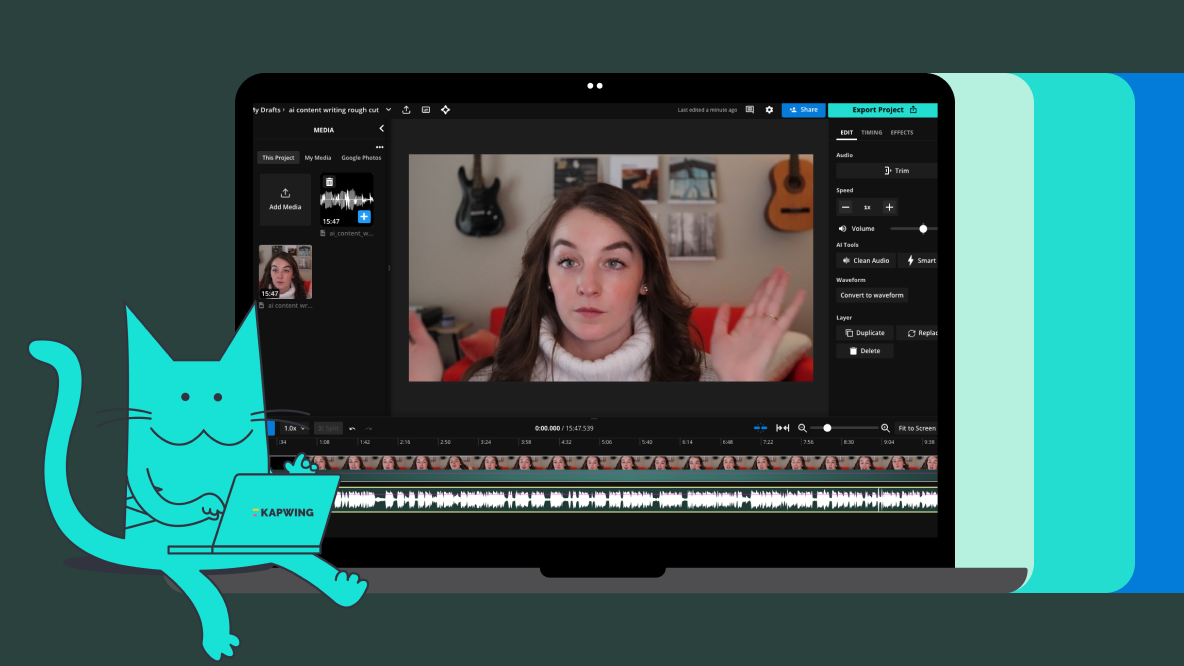
By understanding the root causes of synchronization drift and implementing the strategies Artikeld, you can confidently achieve perfect audio-video alignment in all your projects. This guide equips you with the knowledge and tools to troubleshoot common issues and refine your workflow, ensuring your audience remains fully immersed in your content without distraction.