How to Record Your Screen for Tutorials and Demos is your essential guide to mastering the art of creating clear and effective visual content. This comprehensive resource will walk you through every step, from understanding the foundational principles of screen recording to refining your final output for maximum impact.
Whether you’re aiming to educate, demonstrate a process, or share your expertise, this guide demystifies the entire screen recording journey. We’ll explore the necessary tools, the best practices for setting up your recording environment, and the core techniques that will make your tutorials shine. You’ll learn how to capture your screen with precision, incorporate engaging elements, and even delve into advanced features for a professional finish.
Understanding the Basics of Screen Recording
.webp "PowerPoint Screen Recording Full Tutorial | Easy Step-by-Step")
Screen recording is an invaluable tool for creating engaging and informative tutorials and demonstrations. It allows you to visually capture and share processes, software functionalities, and digital workflows with clarity and precision. This method transcends static images and lengthy written instructions, offering a dynamic and interactive learning experience for your audience.The fundamental purpose of screen recording is to provide a visual narrative of digital actions.
Whether you are demonstrating how to use a new software application, guiding users through a complex online process, or showcasing a creative digital project, screen recording offers an intuitive way to convey information. It bridges the gap between knowing how to do something and being able to teach it effectively.
Essential Components for Effective Screen Recording
To produce high-quality screen recordings, several key components are necessary. These elements work in conjunction to ensure your recordings are clear, professional, and easy to follow.
- Screen Recording Software: This is the core tool that captures your computer screen. Options range from built-in operating system tools (like QuickTime Player on macOS or Xbox Game Bar on Windows) to robust third-party applications offering advanced features such as annotation, editing, and highlight options.
- Microphone: Clear audio is crucial for tutorials. A good quality microphone, whether an external USB microphone or a headset with a decent mic, ensures your narration is audible and free from distracting background noise.
- Computer with Sufficient Processing Power: Screen recording can be resource-intensive. A computer that can handle running the software you are demonstrating, the recording software itself, and audio capture simultaneously without lagging is essential for a smooth recording.
- Optional: Webcam: For a more personal touch, a webcam can be used to record your face alongside the screen capture, allowing viewers to connect with you on a more personal level and see your reactions or expressions.
Primary Benefits of Using Screen Recordings for Educational Content
The adoption of screen recordings in educational content offers numerous advantages that enhance the learning process and improve knowledge retention.
- Enhanced Clarity and Comprehension: Visual demonstrations are often easier to understand than written explanations, especially for technical or procedural tasks. Viewers can follow along step-by-step as actions unfold on screen.
- Improved Engagement: Dynamic visual content is more engaging than static text or images. Screen recordings can hold a viewer’s attention longer, leading to better absorption of information.
- Accessibility and Reusability: Screen recordings can be easily shared online, accessed on demand, and rewatched as many times as needed. This makes learning flexible and caters to different learning paces.
- Demonstration of Nuance and Detail: Complex interfaces, subtle interactions, or intricate workflows can be shown with precision, highlighting details that might be missed in other formats.
- Reduced Learning Curve: For software or digital tools, screen recordings significantly shorten the time it takes for new users to become proficient, as they can see exactly where to click and what to expect.
Types of Content Effectively Showcased Through Screen Recordings
Screen recordings are versatile and can be employed to showcase a wide array of digital content. Their effectiveness lies in their ability to illustrate dynamic processes and interactive elements.
Software Demonstrations and Tutorials
This is perhaps the most common application. Screen recordings are ideal for showing users how to navigate software interfaces, perform specific tasks within an application, or understand the functionality of a new program. For example, a tutorial on using a photo editing software could demonstrate layer manipulation, filter application, and export settings step-by-step.
Web Application Walkthroughs
Guiding users through websites, online platforms, or web-based tools is another strong use case. This could include demonstrating how to fill out an online form, navigate an e-commerce site, or use a project management dashboard. The ability to show clicks, hovers, and dynamic content updates is crucial here.
Coding and Development Demonstrations
Developers can use screen recordings to showcase code snippets, explain debugging processes, demonstrate the functionality of a new feature, or walk through the setup of a development environment. This is particularly useful for sharing code logic and execution flow.
Presentation and Slide Show Narration
While traditional presentation software can record audio, screen recording allows for the integration of on-screen actions with the slides. This could involve demonstrating how to create a specific chart in a spreadsheet program while it’s being presented, or showing live website examples referenced in a presentation.
Gaming and Gameplay Tutorials
For the gaming community, screen recordings are essential for sharing gameplay, demonstrating strategies, explaining game mechanics, or creating walkthroughs for specific levels or challenges.
Workflow and Process Demonstrations
Any digital workflow, from setting up a social media campaign to managing files on a cloud storage service, can be effectively demonstrated. This helps others understand efficient methods and best practices.
“Visual learning, especially when combined with clear narration, significantly boosts retention and comprehension.”
Choosing the Right Screen Recording Software
Selecting the appropriate screen recording software is a pivotal step in creating effective tutorials and demos. The tool you choose will directly impact the quality, ease of use, and professional polish of your final output. This section will guide you through understanding the available options, from free utilities to advanced paid solutions, and how to align your choice with your specific needs and operating system.
Comparing Popular Free Screen Recording Tools
For those beginning their screen recording journey or working with budget constraints, numerous free tools offer robust functionality. Understanding their strengths and weaknesses can help you make an informed decision without immediate financial investment.
- OBS Studio: A powerful, open-source option widely praised for its versatility. Its strengths lie in its extensive customization options, ability to record multiple sources (screen, webcam, audio), and live streaming capabilities. However, its feature-rich interface can present a steeper learning curve for beginners.
- ShareX: Primarily known for its screenshot capabilities, ShareX also offers excellent screen recording features. It excels in providing a wide array of annotation tools, easy sharing options, and a lightweight footprint. Its primary weakness is that its interface is less intuitive for dedicated video recording compared to specialized tools.
- Xbox Game Bar (Windows): Built directly into Windows 10 and 11, this tool is incredibly accessible for basic recording needs. It’s simple to use, allowing for quick recording of applications and games. However, its functionality is limited; it lacks advanced editing features, customization for recording areas, and often has restrictions on what it can record.
- QuickTime Player (macOS): Similar to Xbox Game Bar, QuickTime Player is a native macOS application offering straightforward screen recording. It’s user-friendly for basic recordings and can export in various formats. Its limitations include a lack of advanced editing tools and limited control over audio input sources.
Selecting Paid Screen Recording Software Based on Feature Requirements
When free tools fall short or you require advanced capabilities, paid software often provides a more streamlined and professional experience. The key is to identify the features most critical to your workflow.
- Advanced Editing Capabilities: If your tutorials require trimming, cutting, adding text overlays, callouts, or transitions, look for software with an integrated editor. Tools like Camtasia or Adobe Captivate offer comprehensive editing suites.
- High-Resolution Recording and Frame Rates: For crisp, professional-looking demos, ensure the software supports recording at resolutions like 1080p or 4K and offers adjustable frame rates (e.g., 30fps, 60fps) to capture smooth motion.
- Webcam and Microphone Integration: Many tutorials benefit from a picture-in-picture view of the presenter. Software that seamlessly integrates webcam recording alongside screen capture is essential. Also, consider options for detailed audio control, such as noise reduction and separate audio track recording.
- Annotation and Highlighting Tools: For instructional purposes, the ability to draw on the screen, highlight cursors, or zoom into specific areas during recording is invaluable.
- Format Export Options: Consider the platforms where you’ll be sharing your tutorials. Software that can export to common formats like MP4, MOV, or even animated GIFs can save you time and effort.
- Customizable Recording Areas: Beyond full-screen recording, the ability to select specific windows or custom regions of your screen is crucial for focused demos.
When evaluating paid options, consider a trial period to test the software’s performance and features within your specific use case before committing to a purchase.
Factors for Choosing Software Across Different Operating Systems
The operating system you use can significantly influence your software choices. While cross-platform compatibility is increasing, some tools are platform-specific or perform better on certain systems.
- Windows: Windows users have a vast array of options, from the built-in Xbox Game Bar for basic needs to powerful paid solutions like Camtasia, Movavi Screen Recorder, and Bandicam. OBS Studio is also a popular cross-platform choice that runs exceptionally well on Windows.
- macOS: macOS users benefit from the simplicity of QuickTime Player for basic tasks. For more advanced features, ScreenFlow is a highly regarded native macOS application known for its intuitive interface and robust editing tools. OBS Studio and other cross-platform options are also readily available.
- Linux: Linux users often lean towards open-source solutions. OBS Studio is a dominant force, offering extensive functionality. Other options include Kazam, SimpleScreenRecorder, and vokoscreenNG, each with varying levels of complexity and features. The availability of command-line tools also provides advanced users with powerful scripting and recording capabilities.
When selecting software, always check for compatibility and performance specifically on your version of the operating system.
Checklist of Essential Features for Tutorial and Demo Screen Recording Software
To ensure your chosen software is well-suited for creating instructional content, use this checklist to evaluate its capabilities.
| Feature | Importance for Tutorials/Demos | Notes |
|---|---|---|
| Screen Recording (Full Screen, Window, Region) | Essential | Flexibility to capture only what’s relevant. |
| Webcam Recording (Picture-in-Picture) | Highly Recommended | Adds a personal touch and allows for presenter reactions. |
| Audio Recording (Microphone, System Audio) | Essential | Clear narration and capturing application sounds. |
| Cursor Highlighting/Emphasis | Highly Recommended | Guides the viewer’s attention to specific actions. |
| Annotation Tools (Drawing, Text, Shapes) | Highly Recommended | Explaining steps visually, adding context. |
| Zoom and Pan Capabilities | Recommended | Focusing on intricate details within the screen. |
| Basic Editing (Trim, Cut, Merge) | Recommended | Removing mistakes and improving flow. |
| Export Options (MP4, MOV, GIF) | Essential | Compatibility with various platforms. |
| Adjustable Frame Rates and Resolution | Recommended | Ensuring smooth playback and visual clarity. |
| Intuitive User Interface | Essential | Reduces learning curve and increases efficiency. |
Setting Up Your Recording Environment
Preparing your computer and workspace is a crucial step before you hit the record button. A well-prepared environment ensures a smooth recording session, minimizes distractions, and ultimately leads to a more professional-looking tutorial or demo. This section will guide you through the essential steps to get your system ready for optimal performance.This involves a systematic approach to decluttering your digital space, optimizing your display, and ensuring your audio is crystal clear.
By addressing these foundational elements, you lay the groundwork for a successful recording experience.
Computer Preparation for Smooth Recording
A clean and optimized computer system is paramount for uninterrupted screen recording. This involves closing unnecessary programs, managing startup applications, and ensuring sufficient system resources are available.Here’s a step-by-step process to prepare your computer:
- Close Unnecessary Applications: Before starting, close all applications that are not directly related to your tutorial or demo. This includes web browsers with multiple tabs open, email clients, instant messaging apps, and any other software that might consume significant processing power or memory.
- Disable Background Processes: Check your system’s Task Manager (Windows) or Activity Monitor (macOS) for any resource-intensive background processes that aren’t essential. End these processes to free up system resources.
- Manage Startup Programs: Review the applications that launch automatically when your computer starts. Disable any non-essential programs from starting up to reduce initial system load.
- Clear Desktop and Downloads Folder: A cluttered desktop can be distracting both visually and for your computer’s performance. Organize or move files from your desktop and downloads folder into appropriate directories.
- Update Software and Drivers: Ensure your operating system, screen recording software, and any other relevant applications or hardware drivers are up to date. Updates often include performance improvements and bug fixes.
- Free Up Disk Space: Insufficient disk space can slow down your computer and potentially interrupt recording. Delete unnecessary files, uninstall unused programs, or move large files to an external drive.
Managing Background Applications and Notifications
Interruptions from background applications and notifications can significantly disrupt the flow of a tutorial or demo, detracting from its professionalism. Proactive management of these elements is key to maintaining focus and delivering a polished presentation.To ensure a seamless recording experience, consider the following best practices:
- Enable “Do Not Disturb” or Focus Modes: Most operating systems offer a “Do Not Disturb” or similar focus mode that silences notifications from applications and system alerts. Activate this feature before you begin recording.
- Turn Off Chat and Messaging Alerts: Applications like Slack, Microsoft Teams, or social media messengers can be a major source of interruption. Ensure all notifications from these platforms are disabled.
- Schedule Background Tasks: If your system has scheduled tasks (e.g., backups, software updates), try to schedule them for times when you are not recording.
- Minimize Browser Tab Usage: If you need to use a web browser, keep only the essential tabs open. Close any tabs that are not directly relevant to the content you are demonstrating.
- Inform Colleagues or Household Members: If possible, communicate your recording schedule to colleagues or family members to minimize unexpected interruptions from external sources.
Optimizing Screen Resolution and Display Settings
The clarity and readability of your screen content are vital for viewers to follow along with your tutorial or demo. Proper screen resolution and display settings ensure that text, icons, and other visual elements are sharp and easy to see.To achieve optimal visual clarity for your recordings:
- Select an Appropriate Resolution: While a higher resolution (e.g., 1920×1080 or higher) generally provides more detail, ensure it is compatible with your recording software and the intended viewing platform. For many tutorials, a resolution that balances detail with file size is ideal. Consider recording at your monitor’s native resolution for the sharpest image.
- Adjust Scaling and Text Size: If you are using a high-resolution display, text and icons might appear very small. Adjust the scaling settings in your operating system to make elements larger and more readable without sacrificing overall screen real estate. Aim for a balance where content is clearly visible but doesn’t occupy an excessive amount of space.
- Disable Screen Savers and Sleep Modes: Ensure that your screen saver is turned off and that your computer is set to not go to sleep or hibernate during the recording session. These can interrupt the recording process.
- Consider a Consistent Background: A clean and uncluttered desktop background can prevent distractions. Solid colors or simple patterns are often preferred over busy images.
Ensuring Clear Audio Input
High-quality audio is as important as clear visuals for effective screen recording. Viewers are more likely to abandon a tutorial with poor audio than one with slightly less-than-perfect visuals. This section covers microphone setup and ambient noise reduction strategies.A well-configured audio setup ensures your voice is heard clearly and without distracting background noise.
- Select the Right Microphone: For tutorials and demos, an external microphone is highly recommended over a built-in laptop microphone. Options range from USB microphones to lavalier (clip-on) microphones. Choose one that suits your budget and recording environment.
- Position Your Microphone Correctly: For most microphones, positioning it about 6-12 inches from your mouth, slightly off to the side, helps to minimize plosive sounds (like “p” and “b”) and breath noise. Experiment with placement to find the sweet spot.
- Test Your Microphone Levels: Before recording, use your operating system’s sound settings or your recording software’s audio input level meter to check your microphone’s volume. Speak at a normal conversational volume and adjust the input gain so that your voice peaks in the healthy range (typically around -12dB to -6dB) without clipping or distorting.
- Reduce Ambient Noise: Identify and minimize sources of background noise. This includes turning off fans, air conditioning units, or any other appliances that produce a hum. Close windows and doors to block out external sounds.
- Use a Pop Filter or Windscreen: A pop filter or windscreen can significantly reduce the impact of plosive sounds and improve the clarity of your voice.
- Record in a Quiet Space: Choose a room with soft furnishings (carpets, curtains, upholstered furniture) that can help absorb sound and reduce echo or reverb, creating a more acoustically dead environment.
Recording Your Screen: Core Techniques
Now that you have a solid understanding of the basics, chosen your software, and prepared your recording environment, it’s time to dive into the practical aspects of capturing your screen. This section will guide you through the fundamental techniques to ensure your recordings are effective and professional.Mastering these core techniques will allow you to create clear, engaging, and informative tutorials and demos that effectively communicate your message to your audience.
Initiating and Stopping a Screen Recording
The process of starting and ending a screen recording is typically straightforward, designed for ease of use even for beginners. Most screen recording software provides intuitive controls to manage your recording sessions efficiently.The common methods for initiating a recording include:
- Clicking a prominent “Record” button within the software’s interface.
- Using a keyboard shortcut, often customizable within the software’s settings. This is particularly useful for seamless transitions without interrupting your workflow.
- Selecting a specific hotkey combination that immediately begins the recording process.
Similarly, stopping a recording can be achieved through:
- Clicking a “Stop” button, which is usually a distinct icon, often a square.
- Pressing the same keyboard shortcut or hotkey used to start the recording.
- Accessing a system tray or menu bar icon provided by the recording software.
It is highly recommended to familiarize yourself with your chosen software’s specific start and stop methods before beginning an important recording.
Selecting Recording Areas
Choosing what to record is crucial for maintaining focus and clarity in your demonstrations. Screen recording software offers flexibility in defining the capture area, allowing you to present only the relevant parts of your screen.You can typically choose between two primary modes for screen capture:
- Full-Screen Recording: This mode captures everything displayed on your monitor, ideal for comprehensive overviews or when the entire screen’s content is relevant.
- Region or Window Recording: This allows you to select a specific portion of your screen or a particular application window. This is exceptionally useful for tutorials focusing on a single application or a specific task, reducing distractions and guiding the viewer’s attention precisely where you want it.
To select a specific region, you will usually be prompted to click and drag a bounding box over the desired area after initiating the recording or selecting the capture mode. For window recording, you might simply click on the target window.
Recording System and Microphone Audio Simultaneously
Capturing both system audio (sounds from your computer, like application notifications or video playback) and microphone audio (your voice narration) is essential for creating comprehensive and engaging tutorials. This dual audio recording ensures that viewers can hear both what is happening on your screen and your explanations.Most modern screen recording software includes robust audio recording capabilities. Here’s how to manage them:
- Enabling System Audio: Look for an option within the software’s settings or recording preferences labeled “Record System Audio,” “Desktop Audio,” or similar. Ensure this is toggled on.
- Enabling Microphone Audio: Similarly, find an option for “Record Microphone Audio” or “Use Microphone.” Select your desired microphone from the available input devices if multiple are present.
- Adjusting Audio Levels: It’s good practice to test your audio levels before a full recording. Many programs offer a visual meter to help you set appropriate volumes for both system and microphone audio, preventing distortion or an overly quiet recording.
For the most professional sound, ensure your microphone is positioned correctly and minimize background noise.
Adding Annotations, Highlights, and Visual Cues
Enhancing your recordings with visual aids significantly improves comprehension and engagement. Many screen recording tools offer built-in annotation features that can be used during a live recording session.These features allow you to draw attention to specific elements on your screen in real-time. Common annotation tools include:
- Pointers and Cursors: Some software can highlight your mouse cursor, making it easier for viewers to follow along.
- Drawing Tools: You can often draw shapes, lines, and freehand drawings directly onto the screen. This is perfect for circling important buttons, drawing arrows to indicate steps, or sketching out concepts.
- Text Overlays: Adding text labels or short descriptions can provide context or emphasize key information.
- Highlights and Spotlights: These tools can illuminate specific areas of your screen, drawing the viewer’s eye to critical components.
To utilize these features during a recording, you will typically find a toolbar or a set of shortcut keys that activate these annotation tools. Experimenting with these during practice sessions will help you integrate them smoothly into your live recordings, making your tutorials more dynamic and informative.
Advanced Recording Features and Customization
Beyond the fundamental aspects of screen recording, modern software offers a rich set of advanced features and customization options that can significantly enhance the quality and professionalism of your tutorials and demos. These tools allow for greater control over the recording process, enabling you to create more engaging and informative content tailored to specific needs.By leveraging these advanced capabilities, you can transform a basic screen recording into a polished and effective communication tool.
This section will delve into some of the most impactful features available, providing insights into how to utilize them for optimal results.
Webcam Integration for Picture-in-Picture Recordings
Incorporating your webcam feed into screen recordings, often referred to as picture-in-picture (PiP), adds a personal touch and can improve viewer engagement. This feature allows your audience to see your reactions, expressions, and even gestures, making the tutorial feel more like a direct interaction.The implementation of webcam integration typically involves selecting your webcam as a secondary recording source within the screen recording software.
Most applications provide options to:
- Position the webcam feed: You can usually drag and drop the webcam window to any corner of the screen or a desired location.
- Resize the webcam feed: Adjust the size of the webcam window to be a small overlay or a more prominent element, depending on the desired emphasis.
- Select webcam resolution and frame rate: Choose settings that balance visual quality with file size and system performance.
- Apply visual effects: Some software offers basic filters or border options for the webcam feed.
When planning your PiP recording, consider the content of your screen. Ensure the webcam feed does not obscure crucial information or actions being demonstrated on the screen. A common practice is to place it in a corner that is less likely to be used for critical UI elements or text.
Timed and Scheduled Recordings
For scenarios where you need to record specific segments of your screen or initiate recordings at a predetermined time, timed and scheduled recording features are invaluable. These functionalities offer automation and precision, reducing the need for constant manual intervention.Timed recordings allow you to set a duration for the recording session. Once the specified time elapses, the recording automatically stops. This is particularly useful for capturing short, precise actions or ensuring that recordings do not run excessively long.Scheduled recordings take this a step further by enabling you to set a future start time and, optionally, an end time or duration for a recording.
This is ideal for:
- Capturing system updates or background processes that occur at specific times.
- Recording webinars or online events that you cannot attend live.
- Ensuring consistent recording schedules for ongoing projects.
To utilize these features, you typically access a dedicated scheduling or timer section within your screen recording software. Here, you will define the start time, duration, and potentially the specific area of the screen to be recorded, or if the entire screen should be captured. It is crucial to ensure your computer remains powered on and the software is running at the scheduled time.
Frame Rates and Video Quality Adjustment
The frame rate (FPS – Frames Per Second) and overall video quality are critical determinants of a recording’s smoothness, clarity, and file size. Adjusting these settings allows you to optimize your recordings for different platforms and purposes.Frame rate dictates how many still images (frames) are displayed per second, influencing the perceived fluidity of motion.
- Higher frame rates (e.g., 60 FPS) result in smoother motion, which is ideal for recording fast-paced action, gaming, or dynamic animations.
- Lower frame rates (e.g., 24-30 FPS) can significantly reduce file size and are often sufficient for tutorials that involve static elements, text, or slower interactions.
Video quality, often controlled by bitrates or resolution settings, affects the sharpness and detail of the recorded video.
- Higher resolutions (e.g., 1080p, 4K) provide greater detail but result in larger file sizes.
- Lower resolutions (e.g., 720p) are suitable for web-based tutorials where bandwidth might be a concern or for demonstrations where intricate detail is not paramount.
- Bitrate refers to the amount of data used per second of video. Higher bitrates generally mean better quality but larger files.
When adjusting these settings, consider your target audience and the platform where the video will be hosted. For YouTube, a balance between 1080p and a moderate bitrate is often recommended. For internal demos, file size might be a higher priority. Experimentation is key to finding the optimal settings for your specific needs.
Workflow for Using Hotkeys and Keyboard Shortcuts
Efficiently controlling your screen recording process without constantly reaching for your mouse can dramatically improve workflow and reduce distractions. Hotkeys and keyboard shortcuts provide a streamlined method for managing recording actions.A well-defined workflow involving hotkeys can make the difference between a clunky recording session and a smooth, professional one. Consider the following for integration:
- Start/Stop Recording: This is the most fundamental shortcut. Assign a key combination that is easy to remember and unlikely to be pressed accidentally during your demonstration.
- Pause/Resume Recording: Useful for taking short breaks, addressing interruptions, or preparing the next step without creating separate clips.
- Take Screenshots: Many screen recording tools also offer screenshot functionality. Having a dedicated hotkey for this can be useful for capturing specific moments or error messages.
- Toggle Webcam: If you use picture-in-picture, a shortcut to turn your webcam on or off can be very convenient.
- Mute/Unmute Microphone: Essential for controlling audio input, especially if background noise is a concern.
- Annotation Tools: Some advanced software allows hotkeys to activate drawing tools, highlight specific areas, or zoom in on parts of the screen.
To implement this effectively, dedicate some time to explore the hotkey settings within your chosen software. Create a personal cheat sheet or even print out the key combinations for quick reference during your initial recording sessions. As you become more familiar, these shortcuts will become second nature, allowing you to focus entirely on delivering your content.
Recording Specific Types of Content
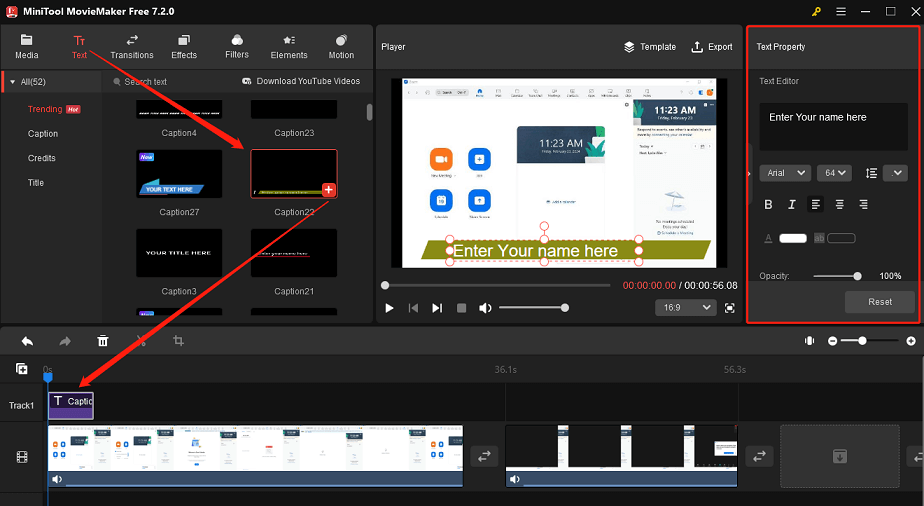
This section delves into the practical application of screen recording for various distinct content categories. By understanding the nuances of each type, you can tailor your recording process for optimal clarity, engagement, and technical quality, ensuring your tutorials and demonstrations are as effective as possible.
Exporting and Sharing Your Recordings
Once you have successfully captured your screen recording, the next crucial step is to export and share it effectively. This involves selecting the right file format, optimizing export settings for various platforms, and efficiently uploading your content to reach your intended audience. A well-executed export and sharing strategy ensures your tutorials and demos are accessible and engaging.
Video File Formats for Screen Recordings
Choosing the appropriate video file format is essential for balancing quality, file size, and compatibility. Different formats are suited for various purposes, from simple sharing to professional editing workflows. Understanding these differences will help you make informed decisions for your screen recordings.Here are some common video file formats and their typical use cases:
- MP4 (MPEG-4 Part 14): This is the most widely used and versatile format. It offers a good balance between quality and file size, making it ideal for web streaming, social media sharing, and general playback on most devices. MP4 is supported by virtually all modern operating systems and media players.
- MOV (QuickTime File Format): Developed by Apple, MOV files are often used in professional video editing and production. They can support higher quality and more advanced features but tend to result in larger file sizes compared to MP4. MOV is commonly used with Apple software like Final Cut Pro.
- AVI (Audio Video Interleave): An older format, AVI can offer good quality but often results in very large file sizes and may have compatibility issues with some newer devices or software. It’s less common for screen recordings intended for broad distribution.
- WMV (Windows Media Video): Developed by Microsoft, WMV is primarily used on Windows operating systems. It can offer good compression and quality but may require specific codecs for playback on non-Windows platforms.
- MKV (Matroska Video): A flexible container format that can hold multiple audio and video tracks, subtitles, and chapter information. MKV is known for its ability to support a wide range of codecs and is often favored for high-definition content and for its open-source nature.
Export Settings for Different Platforms
Optimizing your export settings is key to ensuring your screen recordings look and perform well on their intended platforms. Factors like resolution, frame rate, and bitrate play a significant role in the final output. Tailoring these settings will enhance viewer experience and reduce unnecessary loading times.When exporting your screen recordings, consider the following for popular platforms:
- YouTube: For YouTube, a resolution of 1080p (1920×1080) or 720p (1280×720) at 30 frames per second (fps) is generally recommended. Use the H.264 (AVC) codec, which is widely supported and offers good compression. A bitrate between 5,000 and 10,000 kbps for 1080p is a good starting point. Higher bitrates can improve quality but increase file size.
- Social Media (Facebook, Instagram, LinkedIn): These platforms often have stricter file size and duration limits. For shorter clips, 720p at 30 fps is often sufficient. The H.264 codec is standard. Bitrates can be lower, typically in the range of 2,000 to 5,000 kbps for 720p, to ensure faster uploads and playback. Always check the specific platform’s recommended video specifications.
- Webinars and Online Courses: For platforms like Zoom or dedicated learning management systems (LMS), maintaining a balance between quality and file size is important for smooth streaming. 720p or 1080p at 30 fps with the H.264 codec is common. Bitrates can be adjusted based on the expected internet speeds of your audience, generally between 3,000 and 8,000 kbps.
- Internal Use or Archiving: If the recording is for internal purposes or long-term archiving and file size is not a primary concern, you might opt for higher resolutions (e.g., 4K) and higher bitrates to preserve maximum detail. However, for most tutorial and demo purposes, standard HD settings are sufficient.
Video Compression Strategies
Compressing video files is vital for reducing their size, making them easier to upload, download, and stream without sacrificing too much visual or audio quality. Effective compression ensures a better user experience by minimizing loading times and data usage.Here are effective strategies for compressing video files:
- Use Efficient Codecs: Codecs are algorithms that compress and decompress video data. H.264 (AVC) is a highly efficient codec widely used for its excellent compression ratios. Newer codecs like H.265 (HEVC) offer even better compression at the same quality level but may have less universal compatibility.
- Adjust Bitrate: The bitrate determines the amount of data used per second of video. Lowering the bitrate will reduce file size but can also lead to a loss of detail and introduce artifacts, especially in fast-moving scenes. Experiment with different bitrates to find the optimal balance for your content.
- Lower Resolution: If your recording is in a higher resolution than necessary for its intended platform (e.g., 4K for a platform that only supports 720p), downscaling the resolution will significantly reduce file size.
- Reduce Frame Rate: For content that doesn’t involve rapid motion (like many software tutorials), a frame rate of 24 or 25 fps can be sufficient and reduce file size compared to 30 or 60 fps.
- Utilize Compression Software: Tools like HandBrake, Adobe Media Encoder, or online video converters offer advanced options for re-encoding and compressing videos with various settings.
Uploading and Sharing Finished Tutorials and Demos
The final stage of your screen recording process is making it accessible to your audience. This involves a systematic approach to uploading and sharing, ensuring your content reaches the right people efficiently and effectively.A structured process for uploading and sharing includes the following steps:
- Final Review and Quality Check: Before uploading, watch your exported video one last time to catch any errors, ensure audio is clear, and confirm visual quality meets your standards.
- Choose the Right Platform: Select the platform that best suits your audience and the type of content. Popular choices include YouTube, Vimeo, your own website, or specific learning platforms.
- Optimize Metadata: For platforms like YouTube, craft a compelling title, detailed description, and relevant tags. This improves searchability and helps users discover your content.
- Upload the Video: Initiate the upload process on your chosen platform. Ensure you have a stable internet connection, especially for larger files.
- Configure Privacy Settings: Decide whether your video will be public, unlisted (accessible via link only), or private.
- Share the Link: Once uploaded and processed, share the direct link to your video through email, social media, relevant forums, or embed it on your website or blog.
- Promote Your Content: Actively promote your tutorial or demo through your marketing channels to drive views and engagement.
Last Point
By following the insights and techniques provided, you’ll be well-equipped to produce polished and informative screen recordings. From selecting the right software to editing and sharing your work, this guide empowers you to confidently create tutorials and demos that resonate with your audience. Embrace the power of visual storytelling and elevate your content creation to new heights.