How to Export Your Video with the Best Settings for YouTube is your essential guide to ensuring your content shines on the world’s largest video platform. This comprehensive exploration will navigate you through the technical intricacies of video export, transforming your raw footage into a polished, high-quality presentation optimized for maximum viewer engagement.
We will delve into YouTube’s specific recommendations, covering crucial aspects like frame rate, aspect ratio, and resolution to guarantee your videos display flawlessly across all devices. Understanding the nuances of video codecs, bitrates, and audio settings is paramount for delivering a superior viewing experience, and this guide breaks down these complex topics into actionable advice. Furthermore, we will explore file format best practices, software-specific export procedures, and the advanced considerations for HDR and 4K content, ensuring your productions are future-ready.
Understanding YouTube’s Recommended Export Settings
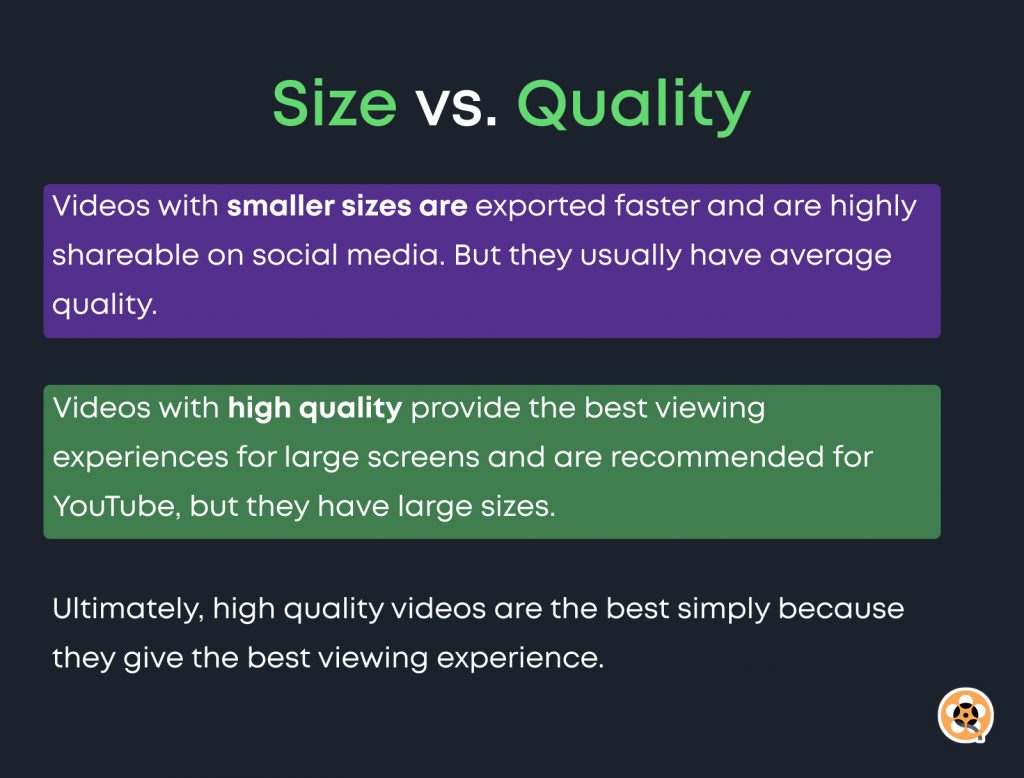
To ensure your videos look their absolute best on YouTube and are accessible to the widest audience, adhering to their recommended export settings is paramount. These guidelines help maintain video quality, ensure smooth playback across various devices, and optimize the uploading process. By understanding and implementing these standards, you contribute significantly to a professional presentation of your content.YouTube’s recommendations are designed to balance visual fidelity with efficient streaming.
They provide a framework that works well with their adaptive bitrate technology, allowing viewers with different internet speeds to experience your video without excessive buffering. Familiarizing yourself with these settings will empower you to make informed decisions during your video editing and export workflow.
YouTube’s Official Recommendations for Video Export
YouTube provides specific guidance on various technical aspects of video export to achieve optimal results. These recommendations cover aspects like container format, video codec, audio codec, and bitrate, all of which play a crucial role in the final quality and compatibility of your uploaded video.The primary recommendations for export settings are as follows:
- Container: MP4 is the most recommended container format for uploads to YouTube. It offers good compression and broad compatibility.
- Video Codec: H.264 (also known as AVC) is the preferred video codec. It provides a good balance between compression efficiency and visual quality, making it ideal for streaming.
- Audio Codec: AAC-LC (Advanced Audio Coding – Low Complexity) is the recommended audio codec. It offers excellent audio quality with efficient compression.
- Frame Rate: Maintaining your original frame rate is generally best, but specific recommendations exist for common frame rates.
- Resolution and Aspect Ratio: YouTube supports a wide range of resolutions and aspect ratios, with specific recommendations for optimal display.
Ideal Frame Rate for Various Video Types
The frame rate of your video significantly impacts its perceived smoothness and motion. YouTube supports several standard frame rates, and choosing the correct one ensures your content is displayed as intended, whether it’s fast-paced action or a more cinematic presentation. It’s generally advisable to export at the same frame rate your video was shot at to avoid any unnatural motion artifacts.The ideal frame rates for videos uploaded to YouTube are:
- 24 fps: This is the standard for cinematic films and often used for a traditional, film-like look.
- 25 fps: Commonly used for PAL regions (Europe, Australia, parts of Asia and Africa) and often seen in broadcast television.
- 30 fps: A very common frame rate for web video, vlogs, and many YouTube productions, offering a good balance of smoothness and file size.
- 48 fps: Used for some high-frame-rate content, offering exceptionally smooth motion.
- 50 fps: Another common frame rate for PAL regions, providing smoother motion than 25 fps.
- 60 fps: Ideal for high-action content like gaming, sports, or tutorials where smooth motion is critical. It results in very fluid playback.
When exporting, aim to match the frame rate of your original footage. If your footage is 30 fps, export at 30 fps. If it’s 60 fps, export at 60 fps. Exporting at a different frame rate than your source material can lead to judder or a choppy appearance.
Optimal Aspect Ratio for YouTube Videos
The aspect ratio defines the proportional relationship between the width and height of your video. YouTube is designed to display videos across a wide array of devices, from large desktop monitors to small mobile screens. Using the correct aspect ratio ensures your video fills the screen appropriately without letterboxing or pillarboxing, providing an immersive viewing experience.The universally optimal aspect ratio for YouTube videos is:
– :9 (Widescreen)
This aspect ratio is the standard for most modern displays, including televisions and computer monitors, and is what YouTube’s player defaults to. Uploading your video in this format ensures it will play correctly on most devices without distortion.While 16:9 is standard, YouTube also supports vertical video (9:16) for Shorts. For standard video uploads, sticking to 16:9 is highly recommended for broad compatibility and optimal presentation.
Standard Resolution Options for YouTube Uploads
Resolution refers to the number of pixels that make up the image displayed on your screen, typically expressed as width x height. Higher resolutions offer greater detail and clarity, providing a more premium viewing experience, especially for viewers with high-resolution displays. YouTube supports a range of resolutions, allowing you to upload content that matches the quality of your original footage and the expectations of your audience.YouTube offers several standard resolution options, each with its benefits:
- 4K (3840 x 2160): Offers the highest level of detail and clarity. Videos uploaded in 4K can benefit from YouTube’s higher bitrate encoding, resulting in exceptional visual quality even for viewers watching in 1080p.
- 1440p (2560 x 1440): Also known as 2K, this resolution provides a significant improvement in detail over 1080p and is a great option for high-quality content.
- 1080p (1920 x 1080): This is the Full HD standard and remains a very popular choice for YouTube creators, offering a good balance of quality and file size.
- 720p (1280 x 720): High Definition (HD) is still widely used, especially for content that may not require extreme detail or for viewers with lower bandwidth.
When choosing a resolution, it’s best to export at the highest resolution your source footage allows. For instance, if you shot in 4K, export in 4K. YouTube will then process this high-resolution file and provide multiple viewing options to users. Even if a viewer watches in 1080p, a 4K source file often results in a sharper 1080p playback due to YouTube’s re-encoding process.
Video Codec and Bitrate Considerations
Understanding the right video codec and bitrate is crucial for achieving a balance between excellent visual quality and manageable file sizes when uploading to YouTube. These settings directly influence how your video looks and how quickly it uploads, so making informed choices here can significantly enhance your viewer’s experience and streamline your workflow.
Common Video Codecs for YouTube
YouTube supports a variety of video codecs, but some are more widely recommended due to their efficiency and compatibility. The primary goal is to compress your video data effectively without sacrificing too much visual fidelity.
- H.264 (AVC): This is the most widely used and compatible video codec. It offers a good balance between compression efficiency and quality, making it an excellent choice for most YouTube uploads. H.264 is supported by a vast range of devices and software, ensuring your video will play smoothly for most viewers.
- H.265 (HEVC): This is a more advanced codec that offers significantly better compression than H.264, meaning you can achieve similar quality at a lower bitrate, or higher quality at the same bitrate. While it’s becoming more prevalent, some older devices or software might not support it as readily. For 4K content, H.265 can be particularly beneficial due to its superior compression capabilities.
- VP9: Developed by Google, VP9 is an open and royalty-free codec that YouTube uses extensively for its own streaming. It offers compression efficiency comparable to H.265. While YouTube may re-encode your video to VP9, uploading in a compatible format like H.264 or H.265 is generally recommended for broader compatibility and control.
Recommended Bitrate Ranges for YouTube
Bitrate refers to the amount of data used per second of video. A higher bitrate generally means better quality but also a larger file size. YouTube provides recommended bitrates to help you achieve optimal results for different resolutions.
The following are YouTube’s recommended bitrates for SDR (Standard Dynamic Range) content. For HDR (High Dynamic Range) content, higher bitrates are generally advised.
| Video Resolution | Frame Rate | Bitrate (Mbps) |
|---|---|---|
| 2160p (4K) | 24, 25, 30 | 53-68 |
| 2160p (4K) | 48, 50, 60 | 68-85 |
| 1440p (2K) | 24, 25, 30 | 16-23 |
| 1440p (2K) | 48, 50, 60 | 23-31 |
| 1080p (Full HD) | 24, 25, 30 | 8-12 |
| 1080p (Full HD) | 48, 50, 60 | 12-18 |
| 720p (HD) | 24, 25, 30 | 4-6 |
| 720p (HD) | 48, 50, 60 | 6-9 |
Impact of Bitrate on Video Quality and File Size
Choosing the right bitrate is a balancing act. A higher bitrate will result in a sharper, more detailed image with fewer compression artifacts, especially in fast-moving scenes or areas with fine detail. However, this also means a larger file size, which can lead to longer upload times. Conversely, a lower bitrate will produce a smaller file but may introduce visible artifacts like blockiness, banding, or a loss of detail, particularly in complex visual elements.
“For optimal YouTube uploads, aim for the higher end of the recommended bitrate range for your specific resolution and frame rate, especially if your content is visually rich or features fast motion.”
For example, uploading a 1080p video at 8 Mbps will likely result in a noticeable difference in quality compared to uploading it at 12 Mbps. The 12 Mbps version will appear cleaner, with better color reproduction and less digital noise. However, the file size for the 12 Mbps version will be approximately 50% larger than the 8 Mbps version.
Best Practice for Audio Codec Selection
For audio, YouTube generally prefers uncompressed or losslessly compressed audio formats to ensure the highest fidelity.
- AAC-LC (Advanced Audio Coding – Low Complexity): This is the most common and widely recommended audio codec for YouTube. It provides excellent audio quality at reasonable bitrates. YouTube generally recommends an audio bitrate of 384 kbps for stereo or mono content.
- Uncompressed Audio (PCM): While not directly uploaded, ensuring your source audio is uncompressed (like WAV) before encoding to AAC-LC will preserve the best possible quality. YouTube will re-encode your audio, so starting with the highest quality is always best.
Audio Settings for Optimal Sound Quality
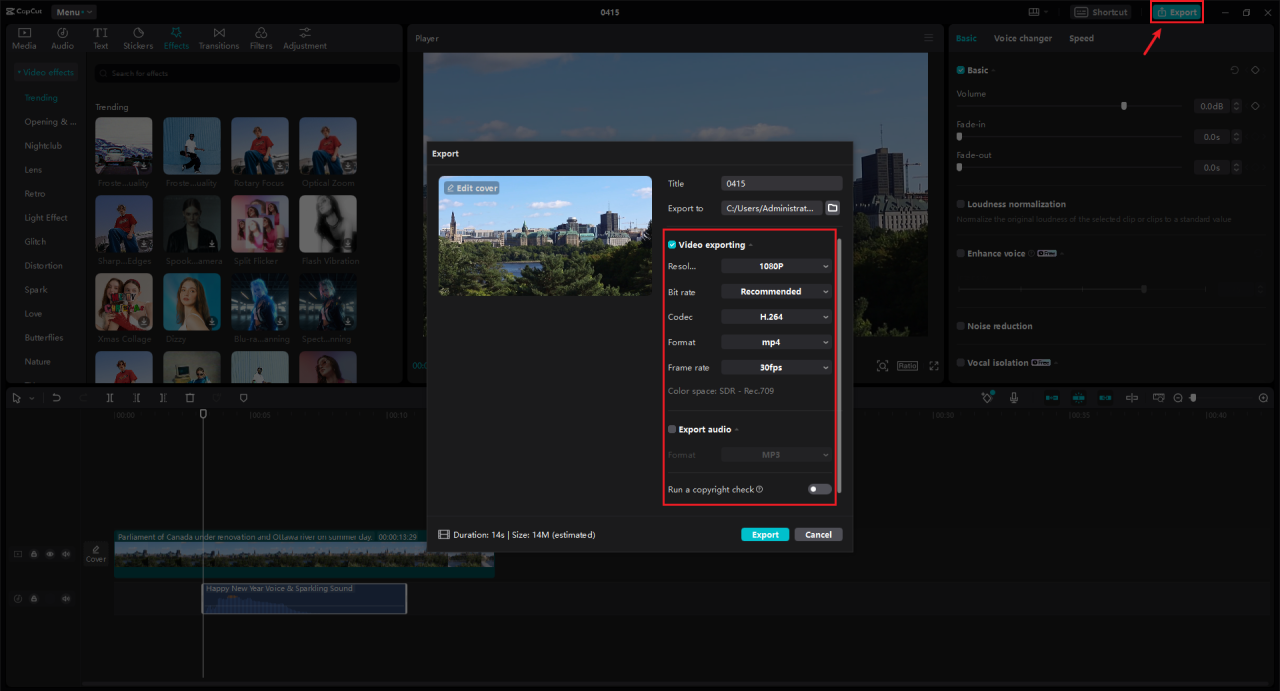
While video quality often takes center stage, exceptional audio is equally crucial for an engaging YouTube experience. Poor audio can quickly disengage viewers, regardless of how visually stunning your content might be. Ensuring your audio is clear, crisp, and well-balanced will significantly enhance viewer retention and overall satisfaction. This section will guide you through the essential audio settings to achieve professional-sounding results for your YouTube uploads.Optimizing your audio involves several key considerations, from the fundamental settings like sample rate and channels to the finer details of bitrate and format.
By understanding these elements, you can ensure your sound is as polished as your visuals, creating a truly immersive viewing experience.
Recommended Audio Sample Rate and Channels for YouTube
YouTube supports a range of audio configurations, but adhering to specific recommendations will ensure broad compatibility and optimal playback quality across various devices and platforms. These settings form the foundation of your audio track’s fidelity.The recommended audio sample rate for YouTube is 48 kHz (48,000 samples per second). This rate is standard in the video and broadcast industry and provides a good balance between audio quality and file size.
While higher sample rates like 96 kHz are possible, they often offer diminishing returns for typical online video content and can result in larger file sizes without a noticeable improvement in perceived quality for most viewers.Regarding audio channels, YouTube strongly recommends using stereo audio. This means your audio track will have two distinct channels: left and right. Stereo audio creates a sense of space and depth, making the listening experience more dynamic and engaging.
While mono audio (a single channel) is compatible, it lacks the immersive quality of stereo and is generally only suitable for specific types of content, such as voice-overs or interviews where spatial separation is not a priority.
Ideal Audio Bitrate for Clear and Crisp Sound
The audio bitrate determines the amount of data used per second to represent your audio. A higher bitrate generally translates to better audio quality, but it also increases file size. Finding the right balance is key to delivering clear, crisp sound without unnecessarily inflating your video’s overall size.For YouTube, a common and highly effective audio bitrate is 384 kbps (kilobits per second) for stereo audio.
This bitrate is part of the H.264 codec, which is widely used for YouTube uploads. At 384 kbps, your audio will be encoded using the AAC (Advanced Audio Coding) codec, which is known for its efficiency and excellent sound reproduction capabilities. This bitrate is sufficient to capture the nuances of most audio recordings, ensuring that dialogue is intelligible, music is rich, and sound effects are impactful.Using a bitrate lower than 192 kbps for stereo audio can start to introduce noticeable compression artifacts, leading to a loss of clarity and detail.
Conversely, while higher bitrates are technically possible, the audible difference between 384 kbps and significantly higher values is often imperceptible to the average listener on standard playback systems. Therefore, 384 kbps is widely considered the sweet spot for achieving professional-sounding audio on YouTube.
Benefits of Using Stereo Versus Mono Audio for YouTube Content
The choice between stereo and mono audio significantly impacts how your audience perceives the sound in your videos. Stereo audio offers a more realistic and engaging listening experience, while mono audio has its specific applications.The primary benefit of stereo audio is its ability to create a sense of spatial realism. By using two distinct audio channels, stereo sound can mimic how we hear in the real world, with sounds originating from different directions.
This can:
- Enhance immersion: Viewers feel more “present” in the scene when sounds move around them or are placed to their left or right.
- Improve clarity for complex soundscapes: In videos with multiple sound elements, such as music, dialogue, and ambient sounds, stereo separation helps to distinguish each element, preventing them from becoming muddled.
- Add impact to music and sound effects: Music can feel richer and more dynamic, and sound effects can be more impactful when panned appropriately in the stereo field.
Mono audio, on the other hand, uses a single channel for all sound. While it lacks the spatial depth of stereo, it can be beneficial in situations where:
- Focus is on a single sound source: For example, a clear voice-over where the primary goal is intelligibility, or a simple musical performance without complex arrangements.
- Compatibility with older or simpler playback systems: Though less common now, some older devices or systems might default to mono playback.
- Reducing file size is a critical concern: Mono audio files are inherently smaller than stereo files with the same bitrate.
However, for the vast majority of YouTube content, particularly vlogs, documentaries, cinematic shorts, and gaming videos, stereo audio is the preferred choice for its superior listening experience.
Common Audio Formats Compatible with YouTube Uploads
YouTube is quite flexible with the audio formats it accepts, ensuring that most video editing software can export compatible files. The platform primarily uses AAC (Advanced Audio Coding) for audio encoding when processing uploaded videos. Therefore, exporting your audio in a format that can be easily converted to AAC, or directly in a compatible format, is ideal.Here are some of the most common and recommended audio formats for YouTube uploads:
- AAC (Advanced Audio Coding): This is YouTube’s preferred audio codec. If your video editing software allows you to export directly with AAC audio, this is an excellent choice. It offers superior audio quality at lower bitrates compared to older codecs like MP3.
- MP3 (MPEG-1 Audio Layer III): While not as efficient as AAC, MP3 is a universally compatible format and is widely supported. If AAC is not an option, exporting with MP3 at a high bitrate (e.g., 320 kbps) is a reliable alternative. YouTube will re-encode MP3 audio to AAC.
- PCM (Pulse-Code Modulation): This is an uncompressed audio format, often found in WAV or AIFF files. While it offers the highest fidelity, it results in very large file sizes. YouTube can handle PCM, but it’s generally more efficient to use a compressed format like AAC or MP3 unless you have a specific reason to maintain uncompressed audio throughout your workflow.
When exporting your video, ensure that your audio settings within the video export presets align with these recommendations. Most video editing software will allow you to select the audio codec, bitrate, and channel configuration during the export process. For example, in Adobe Premiere Pro, when exporting to H.264, you would select AAC as the audio codec and choose a bitrate of 384 kbps for stereo.
File Format and Container Recommendations
Choosing the right file format and container is crucial for ensuring your video uploads smoothly to YouTube and maintains its quality. This section will guide you through the most effective options available.A container format acts as a wrapper for your video and audio streams, along with metadata like subtitles and chapter information. Think of it as a box that holds all the different pieces of your video together in a way that’s easily understood by playback devices and platforms like YouTube.
Common and Recommended File Formats for YouTube
YouTube supports a wide range of video file formats, but some are more universally compatible and recommended for optimal performance.
- MP4 (MPEG-4 Part 14): This is the most widely recommended and compatible format for YouTube. It offers a good balance between file size and quality.
- MOV (QuickTime File Format): While also supported, MOV files can sometimes be larger than MP4s and may require additional processing by YouTube.
- AVI (Audio Video Interleave): An older format that is generally less efficient for web streaming and can result in larger file sizes.
- WMV (Windows Media Video): Another format that, like AVI, is not as optimized for web delivery as MP4.
The Purpose of a Container Format
The container format dictates how the video and audio data are organized and stored within a single file. It determines which codecs can be used to compress and decompress the video and audio streams.
The container format is essential for interoperability, ensuring that your video can be played back on various devices and platforms.
Advantages of Using MP4 for YouTube
MP4 has become the de facto standard for online video sharing due to its numerous advantages.
- High Compatibility: MP4 files are compatible with almost all modern devices, web browsers, and operating systems.
- Efficient Compression: When paired with codecs like H.264 (AVC) or H.265 (HEVC), MP4 offers excellent compression, resulting in smaller file sizes without significant loss of visual quality.
- Streaming Optimization: MP4 is well-suited for streaming, allowing YouTube to deliver your video to viewers efficiently.
- Widespread Adoption: Most video editing software and hardware export to MP4 by default, making it a convenient choice.
Standard File Extension for YouTube Uploads
The standard and most recognized file extension for YouTube uploads is .mp4. While YouTube may accept other extensions, consistently using .mp4 ensures the smoothest upload and processing experience.
Export Settings for Different Software
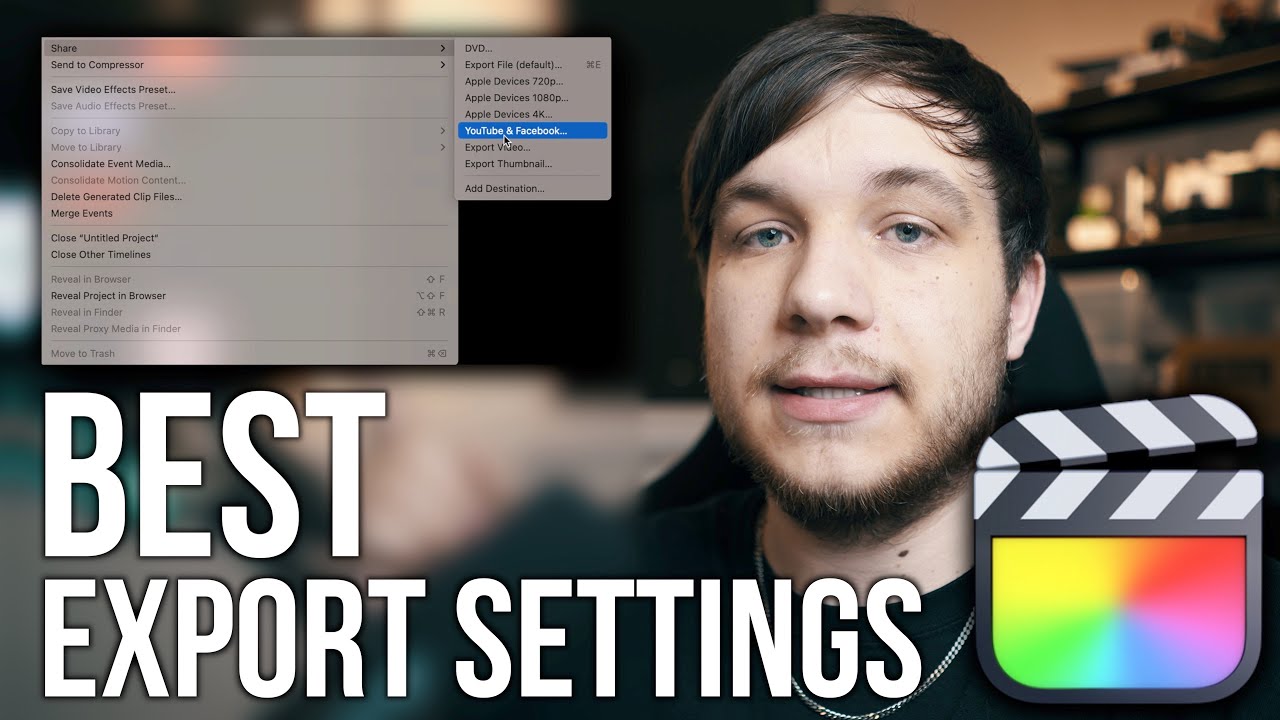
Navigating the export process can vary significantly depending on the video editing software you use. Each program offers a unique interface and a specific set of options, but the underlying principles of optimal YouTube export remain consistent. This section provides step-by-step guidance for some of the most popular editing platforms to help you achieve the best possible results for your YouTube videos.Understanding the export presets and custom settings within your chosen software is crucial for maintaining video quality, ensuring compatibility, and minimizing file sizes.
We’ll cover industry-standard professional software as well as widely used free alternatives, ensuring you have the knowledge to export effectively regardless of your toolkit.
Adobe Premiere Pro Export Settings
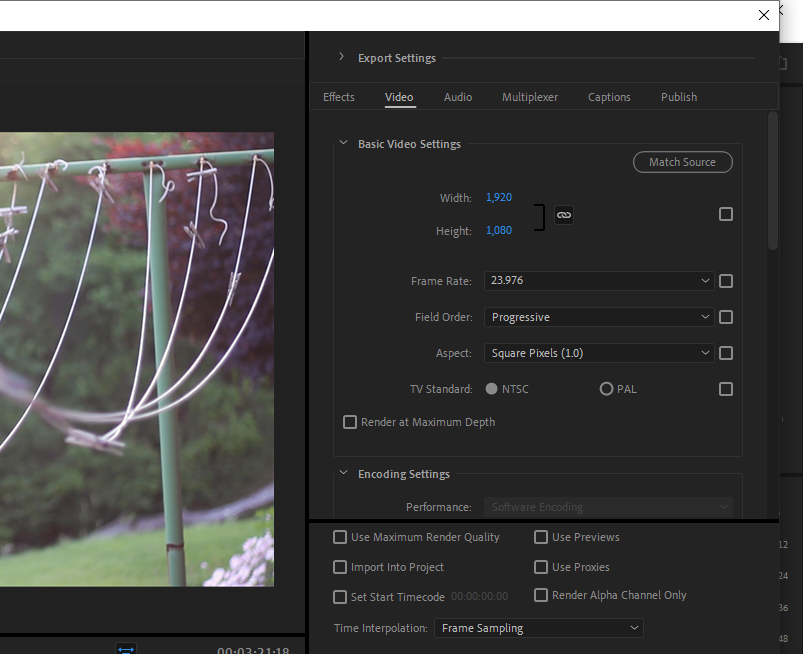
Adobe Premiere Pro is a powerful professional video editing suite. Exporting for YouTube from Premiere Pro involves selecting the correct format, preset, and then fine-tuning specific parameters to match YouTube’s recommendations.Follow these steps for optimal YouTube export from Adobe Premiere Pro:
- Go to File > Export > Media.
- In the Export Settings window, set the Format to H.264. This is YouTube’s preferred codec.
- For the Preset, select YouTube 1080p Full HD or YouTube 2160p 4K Ultra HD, depending on your project’s resolution. These presets are a good starting point.
- Under the Video tab:
- Ensure Export Video is checked.
- Verify that Width and Height match your sequence settings.
- Set Frame Rate to match your sequence (e.g., 23.976, 25, 29.97, 59.94 fps).
- Set Field Order to Progressive.
- Set Aspect to Square Pixels (1.0).
- Under Bitrate Settings:
- Set Bitrate Encoding to VBR, 1 pass for shorter projects or faster exports, or VBR, 2 pass for maximum quality, especially for longer or more complex videos. VBR (Variable Bitrate) is generally recommended over CBR (Constant Bitrate) for better efficiency.
- Target Bitrate: For 1080p (1920×1080) at 24-30 fps, aim for 8-12 Mbps. For 1080p at 48-60 fps, aim for 12-18 Mbps. For 4K (3840×2160) at 24-30 fps, aim for 35-45 Mbps. For 4K at 48-60 fps, aim for 53-68 Mbps.
- Maximum Bitrate: Set this slightly higher than the Target Bitrate, typically 1.5 to 2 times the target for VBR, 2 pass. For example, if the target is 10 Mbps, set the maximum to 15-20 Mbps.
- Check Use Maximum Render Quality for the best possible scaling and detail.
- Under the Audio tab:
- Ensure Export Audio is checked.
- Set Audio Format to AAC.
- Set Audio Codec to AAC.
- Set Sample Rate to 48000 Hz.
- Set Channels to Stereo.
- Set Audio Quality to High.
- Set Bitrate (kbps) to 192 or 320 for excellent audio quality.
- Choose your Output Name and location.
- Click Export.
For critical projects where quality is paramount, using VBR, 2 pass is recommended, though it will increase export time.
Final Cut Pro Export Settings
Final Cut Pro offers a streamlined export process, often with intuitive presets tailored for platforms like YouTube. The key is to select the right preset and verify the underlying settings.Here’s how to export from Final Cut Pro for YouTube:
- With your project open, go to File > Share > Master File.
- In the Share window, select the Settings tab.
- Under Format, choose Video and Audio.
- Under Encoder Preset, select YouTube & Vimeo HD 1080p or YouTube & Vimeo 4K 2160p. These presets are optimized for YouTube.
- Click Next… to choose a save location and name your file.
- Click Save.
While the presets are convenient, you can further customize by clicking the ‘Change’ button next to Encoder Preset if you need to fine-tune specific parameters like bitrate or resolution, though for most users, the default YouTube presets will suffice.
DaVinci Resolve Export Settings
DaVinci Resolve is renowned for its professional color grading and editing capabilities. Its export options are comprehensive, allowing for precise control over the final output.Follow these steps to export from DaVinci Resolve for YouTube:
- Navigate to the Deliver page (the rocket icon at the bottom).
- In the Render Settings panel on the left, under Render Preset, select Custom.
- Under Format, choose MP4.
- Under Codec, select H.264.
- Under Resolution, ensure it matches your project’s resolution (e.g., 1920×1080 for 1080p, 3840×2160 for 4K).
- Under Frame Rate, select the appropriate frame rate for your project.
- Under Export Color Space Tag, choose Rec.709.
- Under Encoder Profile, select High.
- Under Advanced Settings:
- Bit Rate Settings:
- Set Mode to CBR or VBR – Quality Based Pass. VBR (Quality Based) is generally preferred for a balance of quality and file size.
- Target Bitrate: For 1080p (1920×1080) at 24-30 fps, aim for 8-12 Mbps. For 1080p at 48-60 fps, aim for 12-18 Mbps. For 4K (3840×2160) at 24-30 fps, aim for 35-45 Mbps. For 4K at 48-60 fps, aim for 53-68 Mbps.
- Keyframe Interval: Set to Automatic or 2 seconds.
- Quality Level: If using VBR, select Best or Faster Encoding depending on your priority.
- Encode Mode: For optimal quality, select 2 Pass if available and your priority is quality over speed. Otherwise, 1 Pass is acceptable.
- Bit Rate Settings:
- Under Audio Settings:
- Set Codec to AAC.
- Set Bit Depth to 24-bit Integer.
- Set Sample Rate to 48000 Hz.
- Set Bit Rate (kbps) to 192 or 320.
- Choose a file name and location for your export.
- Click Add to Render Queue and then Render All.
DaVinci Resolve’s flexibility allows for very precise control. For YouTube, H.264 with AAC audio in an MP4 container is the standard.
Export Process in Popular Free Video Editing Software
Many excellent free video editing software options are available that can produce high-quality exports suitable for YouTube. While the interface and specific terminology might differ, the core principles of choosing the right codec, resolution, frame rate, and bitrate remain the same.Here’s a general approach for exporting from popular free editors like Shotcut, OpenShot, or Kdenlive:
- Locate the Export or Render Option: In most free editors, you’ll find an “Export,” “Render,” or “Save Project As” option within the File menu or a dedicated export button.
- Select a Preset or Profile: Look for presets specifically designed for YouTube or general HD/4K exports. Common options include “YouTube 1080p,” “YouTube 4K,” or profiles for H.264/MP4.
- Choose the Container and Codec:
- Container: Select MP4 (often denoted as .mp4).
- Video Codec: Choose H.264 (also known as AVC).
- Configure Resolution and Frame Rate: Ensure these settings match your project’s original resolution and frame rate (e.g., 1920×1080, 25fps, 30fps, 60fps).
- Set the Bitrate: This is where you’ll often need to manually input values. Use the recommended bitrates for YouTube as Artikeld previously (e.g., 8-12 Mbps for 1080p, 35-45 Mbps for 4K). Some software might offer quality settings (e.g., “High Quality”) which implicitly control bitrate.
- Audio Settings:
- Audio Codec: Select AAC.
- Sample Rate: Set to 48000 Hz.
- Bitrate: Use 192 kbps or 320 kbps for good audio fidelity.
- Progressive Scan: Ensure the export is set to Progressive (not Interlaced).
- Naming and Saving: Choose a clear file name and select the destination folder for your exported video.
- Start Export: Initiate the rendering process.
It’s always a good practice to perform a short test export with your chosen settings and upload it to YouTube (as an unlisted video) to check for any visual or audio artifacts before rendering your entire project. This helps ensure your settings are truly optimal.
Optimizing for High Dynamic Range (HDR) and 4K Content
As video technology advances, creators have more tools than ever to deliver stunning visual experiences. High Dynamic Range (HDR) and 4K resolutions offer significantly improved detail, color vibrancy, and contrast, making your content more immersive. To ensure your viewers can appreciate these enhancements on YouTube, it’s crucial to configure your export settings correctly. This section will guide you through the specific requirements for exporting HDR and 4K video to YouTube, ensuring your high-quality footage translates beautifully to the platform.
HDR Video Export Settings for YouTube
Exporting HDR content requires adherence to specific standards to ensure proper playback across compatible devices. YouTube supports HDR uploads and will automatically create an SDR (Standard Dynamic Range) version for viewers without HDR displays. For optimal HDR presentation, the following settings are recommended.
- Color Primaries: For HDR, the color primaries should be set to Rec. 2020. This wider color gamut is essential for displaying the expanded range of colors that HDR can produce, offering more vibrant and lifelike hues compared to the Rec. 709 standard used for SDR.
- Transfer Characteristics: Use PQ (Perceptual Quantizer), also known as ST.2084. This transfer function is designed to map the wide luminance range of HDR content effectively, ensuring that both bright highlights and deep shadows are preserved with detail.
- Max Luminance: While YouTube handles the final display mapping, it’s beneficial to export with a higher peak luminance if your mastering display supports it. Common HDR mastering targets are 1000 nits or higher. YouTube will tone-map this down for SDR viewers while preserving the HDR intent for compatible displays.
- Bit Depth: A minimum of 10-bit color depth is essential for HDR. This allows for smoother color gradients and reduces the risk of banding, especially in areas with subtle color transitions. Higher bit depths (like 12-bit) can also be used if your workflow supports it.
Color Space Importance for HDR Exports
The color space is fundamental to how colors are represented and interpreted. For HDR, the standard is Rec. 2020, which encompasses a much larger range of colors than the Rec. 709 standard used for SDR. Utilizing Rec.
2020 ensures that the full spectrum of colors captured by your camera and intended by your grading process can be accurately conveyed. If you export HDR content using an SDR color space like Rec. 709, you will lose the benefits of HDR’s wider color gamut, resulting in a less impactful and less vibrant image. Therefore, ensuring your export project is set to Rec.
2020 is a critical step for HDR success.
Recommended Bit Depth for 4K and HDR Content
For both 4K and HDR content, a bit depth of at least 10 bits is highly recommended. This is because higher resolutions and wider dynamic ranges require more data to represent color and tonal information accurately.
- 10-bit: Provides 1,024 shades of each primary color (red, green, blue), resulting in over a billion possible colors. This is crucial for smooth gradients, preventing banding, and preserving fine detail in both bright and dark areas, especially important for HDR’s expanded contrast.
- 12-bit: Offers 4,096 shades per primary color, resulting in over 68 billion colors. While not always strictly necessary for YouTube uploads, 12-bit can offer further improvements in color fidelity and smoother transitions, especially in complex grading scenarios. If your editing software and camera support 12-bit, it can be beneficial for archival or highly demanding projects.
YouTube’s processing pipeline is designed to handle 10-bit content effectively for HDR playback.
Encoder Settings for Efficient 4K Video Delivery
Delivering 4K video efficiently means balancing file size with visual quality. YouTube uses Google’s VP9 and AV1 codecs for efficient compression, especially for higher resolutions. When exporting from your editing software, consider these settings to prepare your 4K content for optimal delivery.
- Codec: While YouTube will re-encode your video, exporting in a high-quality, widely compatible codec like H.264 (AVC) or H.265 (HEVC) is recommended. H.265 is generally more efficient, offering similar quality at a lower bitrate, which is beneficial for 4K.
- Bitrate: For 4K content (3840×2160), YouTube recommends variable bitrates.
- For SDR 4K, a common recommendation is around 35-68 Mbps for H.264.
- For HDR 4K, the recommended bitrates are higher, often in the range of 53-85 Mbps for H.264 to preserve the additional dynamic range and color information.
Using a VBR (Variable Bitrate) setting, ideally 2-pass, allows the encoder to allocate more data to complex scenes and less to simpler ones, leading to better overall quality for a given file size.
- Frame Rate: Maintain the original frame rate of your footage (e.g., 24fps, 30fps, 60fps). YouTube supports a wide range of frame rates. For smoother motion, especially in action or gaming content, higher frame rates like 60fps are often preferred.
- Keyframe Interval: Setting keyframes every 1-2 seconds (e.g., 24-48 frames for 24fps footage) can improve playback efficiency for streaming.
By paying close attention to these encoder settings, you ensure that your 4K footage is compressed in a way that maximizes quality while minimizing unnecessary file bloat, preparing it for YouTube’s advanced processing.
Understanding Bitrate Types: Variable vs. Constant
When exporting your video for YouTube, understanding the nuances of bitrate types is crucial for achieving the best balance between visual quality and file size. This section will delve into Variable Bitrate (VBR) and Constant Bitrate (CBR), explaining their functionalities and helping you make informed decisions for your uploads.
Variable Bitrate (VBR) Explained
Variable Bitrate (VBR) is a method of encoding where the bitrate allocated to the video stream fluctuates dynamically based on the complexity of the scene. In simpler terms, VBR assigns more data to scenes with intricate details, fast motion, or significant color changes, and less data to static or less detailed scenes. This intelligent allocation of resources ensures that the encoder focuses its efforts where they are most needed, leading to a more efficient use of data.VBR can be further categorized into single-pass and multi-pass encoding.
- Single-Pass VBR: This is the fastest method, where the encoder analyzes and encodes the video in one go. While efficient, it may not always achieve the optimal quality-to-size ratio as it doesn’t have a chance to review the entire video before making encoding decisions.
- Two-Pass VBR: This is generally the preferred method for achieving the highest quality. In the first pass, the encoder analyzes the entire video to identify areas of high and low complexity. In the second pass, it uses this information to encode the video, allocating bitrates more precisely to ensure that detail-rich sections receive sufficient data without wasting bits on simpler areas.
This results in superior visual fidelity for a given file size.
Constant Bitrate (CBR) for Specific Scenarios
Constant Bitrate (CBR) is a method where the encoder allocates a fixed bitrate to the video stream throughout the entire duration of the video, regardless of the scene’s complexity. This means that every second of the video is allocated the same amount of data.CBR is particularly beneficial in specific scenarios:
- Live Streaming: For live broadcasts, a stable and predictable bitrate is essential to ensure smooth playback for viewers and to avoid buffering issues. CBR provides this consistency.
- Bandwidth-Constrained Environments: In situations where upload or download bandwidth is limited and needs to be consistently managed, CBR can be a reliable choice.
- Compatibility with Older Devices or Players: Some older hardware or software players might perform better with a constant bitrate stream, as they are not designed to handle the fluctuations of VBR.
While CBR ensures consistency, it can be less efficient in terms of file size compared to VBR for the same perceived quality, as it allocates data even to simple scenes where it’s not strictly necessary.
Comparing VBR and CBR for YouTube Uploads
When uploading to YouTube, the primary goal is to achieve the best possible visual quality while keeping the file size manageable.
- Quality: For most video content intended for YouTube, 2-pass VBR generally offers superior visual quality compared to CBR at the same file size. This is because VBR intelligently distributes the available bitrate, prioritizing detail where it matters most. CBR, on the other hand, might result in noticeable compression artifacts in complex scenes if the constant bitrate is too low, or unnecessarily large file sizes if it’s set too high.
- File Size: VBR is typically more efficient in terms of file size. By allocating more bits to complex scenes and fewer to simple ones, it can achieve a comparable or even better visual quality than CBR with a smaller overall file. This can be advantageous for faster upload times and for users with limited internet data.
For YouTube, the platform re-encodes all uploaded videos, and its algorithms are optimized to handle various bitrates effectively. However, starting with a well-encoded VBR file generally provides a better source for YouTube’s processing.
Choosing 2-Pass VBR for Maximum Quality
For creators who prioritize the absolute best visual fidelity for their YouTube uploads, especially for high-resolution content like 4K or HDR, employing 2-pass VBR is highly recommended. The process involves:
- First Pass (Analysis): The video encoder scans the entire video file to analyze the complexity of each frame and scene. It identifies areas that require more data to maintain detail and areas that can be represented with less data.
- Second Pass (Encoding): Using the data gathered from the first pass, the encoder then proceeds to encode the video. It dynamically adjusts the bitrate, allocating more bits to demanding scenes and fewer to simpler ones, ensuring that the overall quality is maximized within the target bitrate.
This meticulous approach ensures that the final video file is optimized for both visual detail and efficient data usage, providing YouTube with the highest quality source material for its own re-encoding process. While 2-pass VBR takes longer to encode than single-pass VBR or CBR, the resulting improvement in video quality is often well worth the extra time.
Ensuring Color Accuracy During Export
Maintaining the integrity of your video’s colors from editing to final export is crucial for delivering a professional and visually appealing product on YouTube. Inconsistent or shifted colors can detract from your message and make your content appear amateurish. This section will guide you through the essential steps to ensure your colors remain accurate throughout the export process.The process of maintaining color accuracy involves understanding and correctly applying color profiles, selecting appropriate color spaces, and implementing specific settings that prevent unwanted shifts.
By paying close attention to these details, you can ensure that viewers see your video exactly as you intended, preserving the artistic vision and emotional impact of your work.
Color Profile Management
Color profiles are essential metadata that describe the color characteristics of a device or image. When exporting, ensuring your video project and export settings align with the correct color profiles prevents discrepancies in how colors are interpreted and displayed across different platforms.When working with video footage, it’s vital to understand the color profile of your source material. Most modern cameras record footage in a specific color space, and this information should be preserved during the editing process.
If your editing software supports it, ensure that your project is set to the same color space as your footage. This forms the foundation for accurate color representation.
Selecting the Correct Color Space for Export
Choosing the right color space for your YouTube export is paramount to ensuring that the colors you see on your editing monitor are accurately represented on YouTube’s platform and across various viewer devices. YouTube primarily supports the Rec. 709 color space for standard dynamic range (SDR) content.For standard definition and high definition content, the Rec. 709 color space is the industry standard.
It defines the primary colors, white point, and gamma curve for broadcast television and online video. When exporting, selecting Rec. 709 ensures that your video’s colors are interpreted and displayed consistently by most devices. If your footage was shot in a wider color gamut, such as Rec. 2020, and you are exporting for SDR, you will need to ensure a proper color space conversion occurs during export to fit within the Rec.
709 limitations.
Preventing Color Shifts During Export
Color shifts can occur during export due to mismatches in color management settings between your editing software and the intended playback environment, or due to the limitations of the chosen codec or file format. Proactive steps can mitigate these issues.To prevent color shifts, adhere to the following best practices:
- Use a Calibrated Monitor: Before you begin editing or exporting, ensure your display is properly calibrated. A calibrated monitor provides an accurate representation of colors, acting as your baseline for all color decisions.
- Match Software Settings to Footage: In your editing software, verify that the project’s color space and gamma settings match your source footage. This is the first line of defense against color discrepancies.
- Avoid Unnecessary Color Space Conversions: If your footage is already in Rec. 709, aim to export directly to Rec. 709 without intermediate conversions unless absolutely necessary. Each conversion can introduce subtle shifts.
- Understand LUTs (Look-Up Tables): If you are using LUTs, ensure they are applied correctly and that you understand how they will affect your color space. Some LUTs are designed for specific color spaces and may cause issues if misapplied.
- Preview Your Export: Before committing to a final, high-resolution export, perform a short test export with your chosen settings. Review this test footage on different devices and platforms if possible to catch any unexpected color changes.
The Role of Gamma Settings
Gamma settings are fundamental to how brightness and contrast are represented in your video, directly impacting the perceived color and detail in both shadows and highlights. Correct gamma settings ensure that your video’s tonal range is displayed consistently across different viewing environments.Gamma refers to the relationship between the numerical value of a pixel and its actual brightness. Different color spaces have associated gamma curves.
For example, Rec. 709 typically uses a gamma of 2.4 for broadcast and a gamma of 2.2 for computer displays. When exporting for YouTube, it’s generally recommended to export with a gamma that is compatible with common viewing devices.
For standard YouTube viewing, exporting with a gamma of 2.2 is often recommended, as it aligns well with the typical brightness and contrast levels of computer monitors and many mobile devices. However, if your content is intended for HDR playback or specific professional workflows, gamma settings may differ. Always consult the recommended specifications for the intended viewing platform.
When exporting, ensure that your software’s gamma settings are set appropriately. Some software may automatically handle gamma correction based on the chosen color space, while others require manual adjustment. Misconfigured gamma settings can lead to washed-out or overly dark images, significantly impacting the visual quality and color accuracy of your exported video.
Preparing for Different YouTube Platforms and Devices
To ensure your video content reaches the widest possible audience with the best possible viewing experience, it’s crucial to consider the diverse platforms and devices through which viewers will access YouTube. This involves tailoring your export settings to optimize for everything from a small smartphone screen to a large 4K smart TV, and even the unique format of YouTube Shorts.Exporting with compatibility in mind means your video will look and sound great regardless of how it’s being watched.
This is particularly important as viewer habits continue to diversify, with many people consuming content on the go, on dedicated home entertainment systems, or through short-form vertical video platforms.
Mobile Device Compatibility
Mobile devices, from smartphones to tablets, are a primary way many users consume YouTube content. To ensure your videos are enjoyable on these smaller, portable screens, it’s essential to focus on settings that prioritize clarity, efficient data usage, and smooth playback.When exporting for mobile, consider the following:
- Resolution: While 1080p (1920×1080) is generally excellent, for maximum compatibility and smaller file sizes, exporting at 720p (1280×720) can be a good option, especially if your content doesn’t rely heavily on fine detail. YouTube will upscale 720p content effectively.
- Aspect Ratio: Maintain the standard 16:9 aspect ratio for most content. This is the default for most mobile YouTube players.
- Bitrate: Lower bitrates are beneficial for mobile users with limited data plans or weaker internet connections. For 1080p, aim for around 5-8 Mbps for SDR content, and for 720p, 2.5-4 Mbps is often sufficient.
- Frame Rate: Stick to standard frame rates like 24, 25, 30, or 60 frames per second (fps) depending on your source material. Higher frame rates (60fps) provide smoother motion, which is particularly appreciated on mobile for fast-paced content like gaming or sports.
- Codec: H.264 (AVC) is the most universally compatible codec for mobile devices.
Smart TV and Large Display Optimization
For viewers using smart TVs, large monitors, or even projectors, the emphasis shifts towards maximizing visual fidelity and immersion. These larger screens can showcase higher resolutions and more detailed imagery.To optimize for smart TVs and large displays:
- Resolution: Exporting in 4K (3840×2160) or at least 1080p (1920×1080) is highly recommended. These resolutions take full advantage of the capabilities of modern large displays, providing a crisp and detailed viewing experience.
- Bitrate: Higher bitrates are essential to maintain the quality of 4K and high-resolution content on large screens. For 4K SDR content, YouTube recommends a bitrate between 35-68 Mbps. For 1080p, aim for 8-12 Mbps for SDR.
- HDR (High Dynamic Range): If your content was shot and edited in HDR, ensure you are exporting with HDR settings enabled. This will allow for a wider range of colors and contrast, which is especially impactful on HDR-compatible TVs. YouTube supports HDR10 and HLG formats.
- Audio: High-quality audio, such as stereo or even surround sound (if applicable and encoded correctly), will significantly enhance the viewing experience on larger setups, often paired with dedicated sound systems.
Exporting for YouTube Shorts
YouTube Shorts is a vertical video format designed for quick, engaging content. Exporting specifically for Shorts requires a different approach to aspect ratio and resolution.Key considerations for YouTube Shorts exports include:
- Aspect Ratio: The standard aspect ratio for Shorts is 9:16. This means your video will be taller than it is wide.
- Resolution: The recommended resolution for Shorts is 1080×1920. While YouTube may support higher resolutions, this is the optimal size for vertical playback.
- Length: Shorts are typically under 60 seconds, so ensure your exported video adheres to this limit.
- File Size: Given the nature of short-form content, keeping file sizes manageable is important for quick uploads and playback, even on mobile.
- Codec: H.264 (AVC) is generally the best choice for broad compatibility with the Shorts player.
It’s important to frame your content within the 9:16 aspect ratio during editing to avoid important elements being cropped out when viewed in the Shorts feed.
Desktop Computer Viewing Enhancements
Desktop computers, with their typically larger screens and stable internet connections, offer a versatile viewing environment. While many settings overlap with other platforms, some nuances can further enhance the desktop experience.For optimal desktop viewing:
- Resolution: 1080p (1920×1080) is the standard and most common resolution for desktop viewing. However, if your content is high-quality, exporting in 1440p (2560×1440) or 4K can provide a noticeably sharper image for users with larger monitors and high-resolution displays.
- Bitrate: For 1080p SDR content, a bitrate between 8-12 Mbps is excellent. For 1440p, aim for 16-24 Mbps, and for 4K, follow the recommendations for large displays (35-68 Mbps).
- Frame Rate: Maintaining your source frame rate (e.g., 30fps or 60fps) will ensure smooth motion that is pleasing on desktop monitors.
- Color Accuracy: Ensuring your export settings maintain the color profile you intended is crucial for viewers on desktops who may have calibrated monitors. Using a standard color space like Rec. 709 for SDR content is recommended.
Desktop users often have the bandwidth and screen real estate to appreciate higher fidelity, making it a good place to showcase your best export settings.
Common Export Pitfalls and How to Avoid Them
Even with the best intentions and a solid understanding of YouTube’s recommended settings, it’s common to encounter a few bumps in the road during the video export process. These issues can range from minor visual glitches to outright export failures, leading to frustration and wasted time. Fortunately, most common export pitfalls are preventable with careful attention to detail and a systematic approach.
This section will highlight these frequent errors and provide practical solutions to ensure your exported videos are polished and ready for upload.Identifying and addressing these common problems proactively will save you significant troubleshooting time and ensure a smoother workflow. By understanding the root causes of these issues, you can implement preventative measures and confidently export your videos with the highest possible quality.
Pixelation and Blurriness
Pixelation and blurriness in your exported video are often a direct result of insufficient bitrate or incorrect resolution settings. When the bitrate is too low for the amount of detail in your video, the encoder has to discard information, leading to blocky artifacts and a loss of sharpness. Similarly, exporting at a resolution lower than your source footage or lower than YouTube’s recommended settings for your content type can also result in a degraded image.To avoid pixelation and blurriness:
- Ensure your export bitrate is set appropriately for your video’s resolution and frame rate. For 1080p at 30fps, a minimum of 8 Mbps for SDR and 15 Mbps for HDR is recommended. For 4K content, these numbers increase significantly.
- Always export at the same resolution as your source footage, or at a higher resolution if you’ve downscaled for a specific purpose and are confident in the quality.
- Double-check that your export settings match YouTube’s recommended specifications for the content you are uploading.
- If you are using a variable bitrate (VBR) setting, ensure you are using a two-pass encoding method. This allows the encoder to analyze the footage first and allocate bitrate more effectively, resulting in better quality.
Audio Sync Problems
Audio sync issues, where the sound and video are out of alignment, can be incredibly distracting for viewers. These problems often arise from discrepancies in frame rates between your editing software and your export settings, or from using incompatible audio codecs. Another common cause is attempting to export very long videos without sufficient processing power, which can lead to dropped frames or audio glitches.To prevent audio sync problems:
- Maintain a consistent frame rate throughout your project. Ensure your project’s frame rate in your editing software matches your intended export frame rate.
- Avoid changing audio sample rates during export unless absolutely necessary. Stick to standard rates like 48 kHz.
- When exporting, choose an audio codec that is widely compatible, such as AAC.
- For lengthy projects, consider exporting in smaller chunks if you encounter sync issues, and then reassembling them in a separate project.
- Ensure your editing software and export settings are updated to the latest versions, as these often include bug fixes for sync issues.
Oversized Files and Maintaining Quality
One of the challenges of exporting high-quality video is managing file size. While you want to retain as much detail and fidelity as possible, excessively large files can lead to long upload times and consume unnecessary storage space. The key is to find the optimal balance between file size and visual quality.Strategies for avoiding oversized files while maintaining quality include:
- Bitrate Optimization: This is the most critical factor. As discussed earlier, selecting the appropriate bitrate for your content’s resolution and frame rate is paramount. For instance, exporting a simple talking-head video at the same bitrate as a fast-action cinematic sequence would result in an unnecessarily large file with no perceivable quality improvement.
- Codec Selection: Using efficient video codecs like H.265 (HEVC) can significantly reduce file size compared to older codecs like H.264, especially for 4K content, without a noticeable drop in quality. However, ensure your target audience and their playback devices support HEVC.
- Resolution and Frame Rate: While exporting at higher resolutions and frame rates is often desirable, consider if it’s truly necessary for your content. If your video will be primarily viewed on mobile devices, exporting in 4K might be overkill and lead to unnecessarily large files.
- Color Depth and Chroma Subsampling: For most standard YouTube uploads, 8-bit color depth and 4:2:0 chroma subsampling are sufficient and help keep file sizes manageable. Only delve into higher bit depths (like 10-bit) or different chroma subsampling if your content specifically requires it (e.g., heavy color grading with subtle gradients).
Troubleshooting Export Failures
Export failures can be frustrating, but they are often resolvable by systematically identifying the cause. Common reasons for export failures include software glitches, insufficient disk space, corrupted source files, or complex project elements that the encoder struggles with.Here are tips for troubleshooting export failures:
- Check Disk Space: Ensure you have ample free space on your hard drive where you are exporting the file. Exporting often requires significantly more space than the final file size due to temporary files.
- Restart Your Software and Computer: A simple restart can often resolve temporary software glitches or memory issues that might be causing the export to fail.
- Simplify Your Project: If your project involves numerous effects, complex timelines, or multiple layers, try exporting in smaller sections or disabling certain effects temporarily to pinpoint the problematic element.
- Verify Source File Integrity: Ensure your source video and audio files are not corrupted. Try re-importing them into your project.
- Update Your Software: Make sure your video editing software and its export codecs are up to date. Developers frequently release patches to fix bugs that cause export issues.
- Export in a Different Format/Codec: If one export setting fails, try exporting with a different, more basic codec like H.264 at a moderate bitrate. If this succeeds, you can then try re-encoding the resulting file to your desired YouTube settings.
- Monitor System Resources: During export, monitor your computer’s CPU and RAM usage. If they are consistently maxed out, it might indicate your system is struggling to handle the export, and you may need to optimize your project or consider exporting on a more powerful machine.
Final Review
Mastering the art of video export for YouTube is a pivotal step in elevating your content from good to exceptional. By adhering to the principles of optimal resolution, frame rate, bitrates, and audio configurations, you ensure your videos not only look and sound fantastic but also load efficiently for viewers worldwide. This journey through export settings empowers you to overcome common pitfalls, maintain creative integrity, and present your work in the best possible light, ultimately fostering a more engaged and satisfied audience.