Embarking on your video editing journey with DaVinci Resolve can seem daunting, but this comprehensive guide is designed to demystify the process. We will navigate through the essential features, from understanding the interface to mastering fundamental editing techniques, ensuring you gain the confidence to bring your creative visions to life. Prepare to unlock the potential of professional-grade editing, even as a beginner.
This guide meticulously breaks down the core functionalities of DaVinci Resolve, covering everything you need to know to get started. We’ll explore importing and organizing your media, applying basic cuts and trims, enhancing your video with transitions and effects, refining your audio, and even touching upon the fundamentals of color correction. By the end, you’ll possess a solid foundation for creating polished and engaging video content.
Understanding the DaVinci Resolve Interface
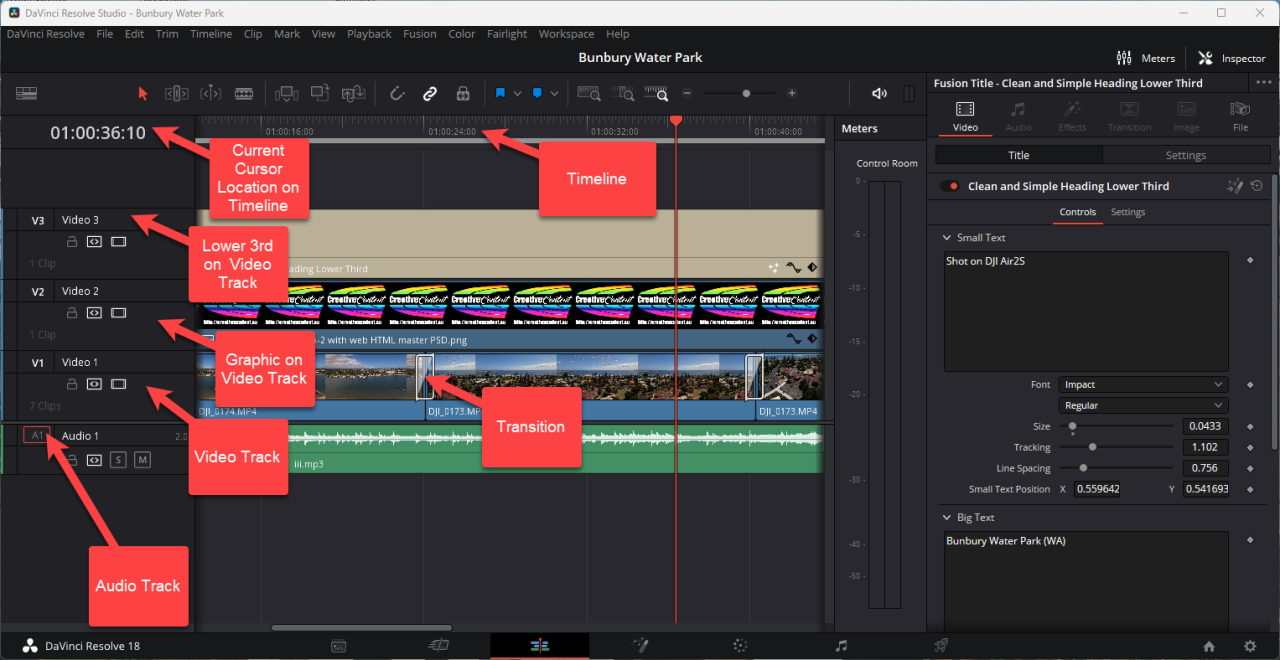
Welcome to the exciting world of video editing with DaVinci Resolve! As you embark on your editing journey, familiarizing yourself with the software’s interface is the crucial first step. DaVinci Resolve, while incredibly powerful, can seem a bit daunting at first glance. However, by understanding its core components and how they work together, you’ll be navigating it with confidence in no time.
This section will guide you through the primary windows and panels, explaining their functions and how to optimize your workspace for efficiency.DaVinci Resolve is designed with a modular approach, meaning different tasks are handled in dedicated “pages.” These pages are accessed via tabs at the bottom of the interface, allowing you to seamlessly transition between importing footage, editing, color correction, audio mixing, and rendering your final video.
Each page presents a specialized set of tools and layouts tailored to its specific purpose.
Primary Windows and Panels
The DaVinci Resolve interface is organized into several key windows and panels, each serving a distinct function to facilitate the editing process. Understanding these elements is fundamental to efficient workflow.
The Media Pool
The Media Pool is your central hub for all imported assets. This is where you’ll find your video clips, audio files, images, and any other media you’ve brought into your project. It’s organized into bins, which are like folders, allowing you to categorize and manage your media effectively. You can preview clips here, check their metadata, and prepare them for editing.
The Edit Page
The Edit Page is the primary workspace for assembling your video. It features a timeline at the bottom where you arrange and trim your clips, add transitions, and apply basic effects. Above the timeline, you’ll find the viewer, which displays your video playback, and the inspector, where you can adjust the properties of selected clips, such as scaling, position, and opacity.
The Cut Page
The Cut Page is a streamlined version of the Edit Page, designed for rapid assembly of rough cuts. It offers a simpler interface with features like “smart conform” and “sync clips” to speed up the initial editing process. While less feature-rich than the Edit Page, it’s excellent for quickly piecing together footage before diving into more detailed edits.
The Deliver Page
Once your edit is complete, the Deliver Page is where you export your final video. Here, you’ll choose your rendering settings, including format, resolution, codec, and quality. DaVinci Resolve offers a wide array of presets for popular platforms like YouTube, Vimeo, and various professional formats, making it easy to prepare your video for its intended destination.
Common Keyboard Shortcuts for Navigation
Efficiently navigating DaVinci Resolve significantly speeds up your editing workflow. Mastering a few key shortcuts can make a substantial difference in your productivity.Here are some essential keyboard shortcuts for navigating the interface:
- Spacebar: Play/Pause playback.
- J, K, L: Rewind (J), Stop (K), Fast Forward (L) playback.
- Arrow Keys (Left/Right): Move playback head one frame at a time.
- Home/End: Go to the beginning/end of the timeline.
- Ctrl + Z (Cmd + Z on Mac): Undo.
- Ctrl + Shift + Z (Cmd + Shift + Z on Mac): Redo.
- Ctrl + S (Cmd + S on Mac): Save project.
- Tab: Switch between the Media Pool and the timeline.
Essential Workspace Customization Options
DaVinci Resolve’s interface is highly customizable, allowing you to tailor your workspace to your specific editing style and the task at hand. Personalizing your layout can lead to a more intuitive and efficient editing experience.To optimize your workspace:
- Undocking and Resizing Panels: Most panels can be undocked by clicking and dragging their title bars. You can then resize them or move them to different monitor setups. This is particularly useful for dedicating more screen real estate to the timeline or viewer.
- Saving Custom Workspaces: Once you’ve arranged your panels to your liking, you can save this layout as a custom workspace. Go to “Workspace” > “Save Current Workspace” and give it a descriptive name. You can then easily switch back to this layout from the “Workspace” menu.
- Toggling Panels: DaVinci Resolve allows you to show or hide specific panels to declutter your interface. For example, you can hide the Media Pool when you’re focused on editing or expand the Inspector to see all its controls.
- Using the “Small Keyboard” and “Large Keyboard” Views: For specific tasks like audio editing on the Fairlight page, you can access specialized keyboard layouts by clicking the keyboard icon in the toolbar.
By understanding and utilizing these interface elements and customization options, you’ll be well on your way to mastering DaVinci Resolve and editing your first video with greater ease and efficiency.
Importing and Organizing Your Footage
Welcome back! With the DaVinci Resolve interface demystified, our next crucial step is to bring your raw video and audio files into the project and establish a clear organizational system. This foundational step is paramount for an efficient and stress-free editing experience, preventing lost files and confusion down the line.DaVinci Resolve offers a robust Media Pool for managing all your project assets.
Proper organization here will not only save you time during editing but also make future revisions or re-exports much simpler. We will guide you through the process of importing your media and implementing best practices for its organization.
Importing Video and Audio Files
Bringing your media into DaVinci Resolve is a straightforward process, ensuring all your project elements are accessible within the application. This is the first interaction you’ll have with your raw footage within the editing environment.To import your files, follow these steps:
- Navigate to the “Media” page, typically found at the bottom-left corner of the DaVinci Resolve interface.
- In the Media Storage browser on the left, locate the folders on your computer that contain your video and audio files.
- You can either drag and drop the desired files directly from the Media Storage browser into the Media Pool (the central area displaying your imported clips) or right-click on the selected files and choose “Add to Media Pool.”
- DaVinci Resolve will then process and display thumbnails of your imported clips in the Media Pool.
Organizing Media within the Media Pool
A well-organized Media Pool is the backbone of an efficient editing workflow. DaVinci Resolve provides powerful tools, such as bins and metadata, to keep your project assets tidy and easily discoverable.The Media Pool is where all your imported video, audio, and image files reside. To maintain order, especially in larger projects, it’s highly recommended to utilize bins.
Utilizing Bins for Media Organization
Bins function like folders within the Media Pool, allowing you to group related clips together. This is incredibly useful for segmenting your footage by scene, location, character, or any other logical category that suits your project.To create and use bins:
- Right-click within an empty area of the Media Pool and select “New Bin.”
- Name the bin descriptively (e.g., “Day 1 – Exterior Shots,” “Interviews,” “B-Roll – Cityscape”).
- Drag and drop your imported clips into their respective bins.
Leveraging Metadata for Enhanced Organization
Metadata provides additional information about your clips, making them even easier to search and sort. DaVinci Resolve allows you to add and edit various metadata fields.You can add metadata by:
- Selecting a clip in the Media Pool.
- Right-clicking and choosing “Clip Attributes.”
- Within the Clip Attributes window, you can edit fields like “Reel,” “Scene,” “Take,” and add custom notes.
- This information can then be used for sorting and filtering clips within the Media Pool.
For instance, if you have multiple takes of the same shot, assigning unique “Take” numbers and “Scene” information in the metadata will allow you to quickly find the best take for editing.
Creating Proxy Media for Smoother Playback
Working with high-resolution footage, especially from professional cameras, can strain your computer’s resources, leading to choppy playback. Proxy media are lower-resolution copies of your original files that DaVinci Resolve can use for editing, significantly improving performance.The benefits of creating proxy media include:
- Smoother Playback: Edit complex timelines without lag or dropped frames.
- Faster Rendering: While final renders will still use the original high-resolution files, the editing process itself becomes much quicker.
- Reduced System Strain: Less demand on your CPU and GPU, making your editing experience more comfortable.
To create proxy media:
- In the Media Pool, select the clips for which you want to create proxies.
- Right-click on the selected clips and choose “Generate Proxy Media.”
- You will be prompted to select a proxy resolution and format. For most editing purposes, “DNxHD/HR SQ” or “ProRes Proxy” at a resolution of 1080p or 720p is sufficient.
- DaVinci Resolve will then generate these proxy files.
- To enable proxy playback, go to the playback menu in the top-right of the viewer and select “Proxy Settings” > “Generate Optimized Media and Proxy” or “Use Proxy Media.” You can toggle proxy usage on and off from this menu.
Workflow for Managing Multiple Video Clips and Assets
A structured workflow is essential when dealing with numerous video clips, audio tracks, graphics, and other assets. This ensures that your project remains manageable and that you can easily locate and utilize any element at any time.A recommended workflow involves:
- Pre-Import Organization: Before even opening DaVinci Resolve, organize your raw footage on your computer into logical folders. This initial step saves significant time later.
- Importation Strategy: Import your media into DaVinci Resolve using the Media page.
- Bin Creation: Immediately create bins in the Media Pool to categorize your imported footage (e.g., by camera, date, scene, type of shot).
- Metadata Tagging: As you import, or shortly after, tag your clips with relevant metadata. This includes scene numbers, take numbers, shot descriptions, and any other useful identifiers.
- Proxy Generation: For performance, generate proxy media for all your primary footage.
- Dedicated Asset Bins: Create separate bins for different types of assets, such as “Music,” “Sound Effects,” “Graphics,” “Lower Thirds,” and “Color Grades.”
- Version Control (Optional but Recommended): For complex projects, consider using naming conventions or even separate project files for different versions or stages of your edit.
This systematic approach ensures that as your project grows, your Media Pool remains a clear and navigable space, allowing you to focus on the creative aspects of editing rather than searching for files.
Basic Editing Techniques on the Timeline
With the foundational steps of setting up your project and importing your media now complete, we move into the heart of video editing: manipulating your footage on the timeline. This is where your raw clips are transformed into a coherent story. DaVinci Resolve offers a powerful and intuitive timeline interface that allows for precise control over every aspect of your edit.
Understanding these core editing techniques will enable you to assemble your video with efficiency and creativity.The timeline in DaVinci Resolve is your digital canvas where you arrange, cut, and refine your video clips. It’s a chronological representation of your project, allowing you to visualize the flow of your narrative and make adjustments with immediate feedback. Mastering these basic techniques is crucial for building a strong foundation in video editing.
Creating a New Project and Timeline
Before you can begin editing, you need to establish a workspace. In DaVinci Resolve, this begins with creating a new project and then setting up a timeline within that project.DaVinci Resolve organizes your work into projects. Each project can contain multiple timelines, allowing you to manage different versions or sections of your video independently.To create a new project:
- Launch DaVinci Resolve.
- On the Project Manager screen, click “New Project.”
- Enter a descriptive name for your project in the “Project Name” field.
- Click “Create.”
Once your project is open, you’ll need a timeline to place your clips on.
- Navigate to the “Edit” page by clicking the scissors icon at the bottom of the DaVinci Resolve window.
- If a default timeline isn’t already present, go to “File” > “New Timeline.”
- A “Create Timeline” dialog box will appear. You can choose to create a timeline based on your first clip’s settings or manually configure the settings. For beginners, using the first clip’s settings is often the simplest approach.
- Give your timeline a descriptive name (e.g., “Main Edit,” “Introduction Sequence”).
- Click “Create.”
Your new timeline will now appear in the Media Pool and the timeline view in the Edit page.
Cutting, Trimming, and Splitting Video Clips
These are the fundamental operations for shaping your video content on the timeline. They allow you to remove unwanted sections, adjust the duration of clips, and divide them into smaller segments.Cutting, trimming, and splitting are essential for refining your footage and ensuring that only the desired parts of your clips are used in the final edit.
Cutting Clips
Cutting refers to removing a section from the middle of a clip or removing the beginning or end of a clip.
- Select the clip you want to edit on the timeline.
- Position the playhead (the vertical line indicating the current playback position) at the point where you want to make a cut.
- Press the “Blade” tool shortcut, which is ‘B’ on your keyboard. Your cursor will change to a blade icon.
- Click on the playhead position on the clip to make a cut, splitting the clip into two separate parts.
- To remove unwanted sections, select the unwanted portion and press the “Delete” key.
Trimming Clips
Trimming involves adjusting the start or end point of a clip without necessarily splitting it.
- Ensure you are not in “Blade” mode. Press ‘A’ to return to the “Selection” tool.
- Hover your mouse cursor over the beginning or end of a clip on the timeline. The cursor will change to a trim icon (a bracket with an arrow).
- Click and drag the edge of the clip inward to shorten it, or outward to extend it (if there is additional media available).
Splitting Clips
Splitting a clip creates two distinct clips at a specific point, allowing for independent manipulation. This is achieved using the “Blade” tool as described in the cutting section.
Rearranging Clips and Creating a Basic Narrative Flow
Once your clips are on the timeline and you’ve performed initial cuts and trims, you’ll want to arrange them to tell your story. The timeline allows for flexible rearrangement.Creating a narrative flow involves sequencing your clips in a logical and engaging order that guides the viewer through your intended message or story.To rearrange clips:
- Use the “Selection” tool (‘A’).
- Click and drag a clip on the timeline to a new position.
- As you drag, other clips will shift to accommodate the moved clip.
To create a basic narrative flow:
- Consider the beginning, middle, and end of your video.
- Place your introductory clips first, followed by the main content, and then your concluding segments.
- Listen to the pacing. Does the sequence feel natural? Are there any abrupt transitions that need smoothing?
- Experiment with different orders. Sometimes, a slight change in sequence can significantly impact the story’s impact.
Ripple Delete and Slip Edits for Precise Timing
These advanced editing techniques offer greater control and efficiency when refining your edit, particularly for achieving precise timing and seamless transitions.Ripple delete removes a clip or a gap and automatically shifts subsequent clips to fill the void, maintaining the timeline’s continuity. Slip edits allow you to adjust the in and out points of a clip without changing its duration on the timeline, effectively sliding the content within its existing frame.
Ripple Delete
Ripple delete is invaluable for quickly removing unwanted sections and ensuring your timeline remains compact.
- To perform a ripple delete on a clip: Select the clip you wish to remove. Press “Delete.” All clips to the right of the deleted clip will automatically shift to the left, closing the gap.
- To perform a ripple delete on a gap: Place the playhead at the beginning of the gap. Press “Delete.” The gap will be removed, and subsequent clips will shift left.
- Alternatively, right-click on the clip or gap and select “Ripple Delete.”
Slip Edits
Slip edits are used to change the portion of a clip that is displayed without altering the clip’s duration or the position of surrounding clips. This is useful for finding the perfect moment within a longer take.
- Ensure you are in “Selection” mode (‘A’).
- Hover your mouse cursor over the
-center* of a clip on the timeline. The cursor will change to a “slip” icon (two arrows pointing in opposite directions). - Click and drag left or right. You will see a preview of the clip’s content at the playhead position. Dragging left moves the in-point forward (showing later content), and dragging right moves the out-point backward (showing earlier content).
- The duration of the clip on the timeline remains unchanged, but the actual footage displayed within that duration has shifted.
Adding Transitions and Effects
Now that your clips are assembled on the timeline, it’s time to elevate your video by adding visual and auditory enhancements. Transitions help smooth the flow between shots, while effects can add emphasis, style, or correct imperfections. We’ll also explore how to manage audio levels and create engaging picture-in-picture compositions.
Applying Video Transitions
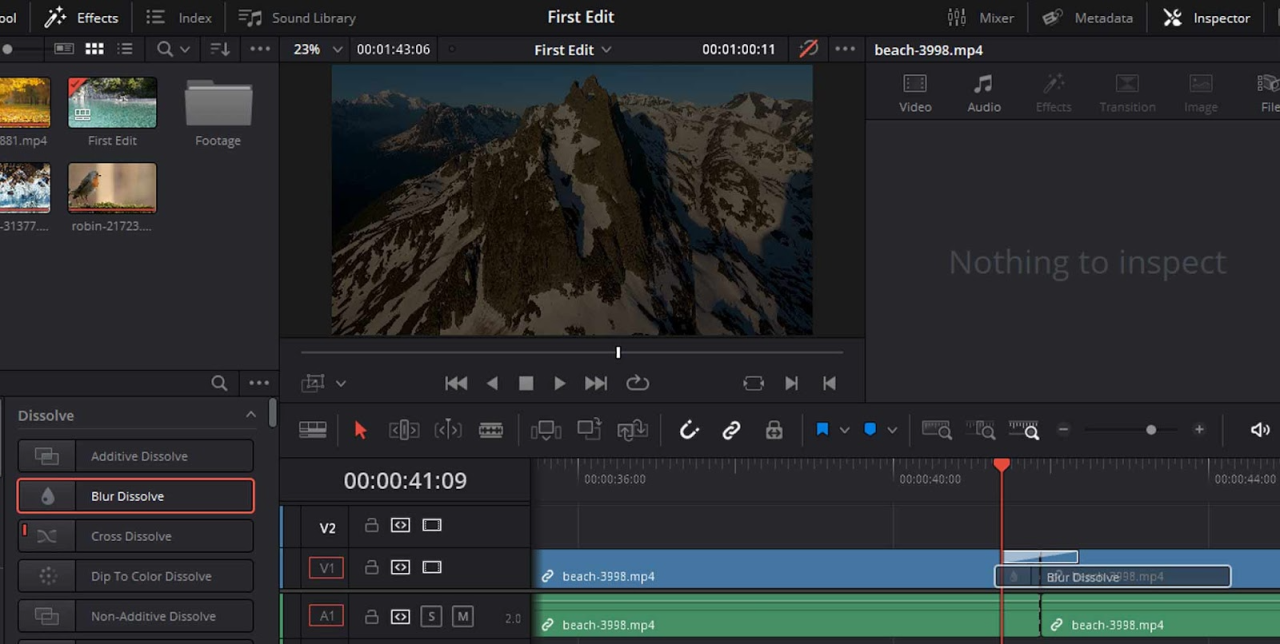
Transitions are crucial for guiding the viewer’s eye and creating a professional look. DaVinci Resolve offers a wide array of built-in transitions that can be easily applied to your timeline.To add a transition, navigate to the “Effects Library” on the top left of your DaVinci Resolve workspace. Within the Effects Library, select “Video Transitions.” Here, you will find various categories such as “Dissolve,” “Wipe,” and “3D.” Drag and drop your desired transition from the Effects Library onto the cut point between two clips on your timeline.
The transition will appear as a colored bar on the timeline, indicating its presence. You can then click on the transition on the timeline to adjust its duration, alignment, and other parameters in the Inspector panel.Some common and effective transitions include:
- Cross Dissolve: A smooth fade from one clip to the next, ideal for conveying the passage of time or a gentle shift in scene.
- Dip to Black/White: A transition where the current clip fades to black or white before the next clip appears. This can signify a significant break or a dramatic moment.
- Wipe: One clip replaces another by being “wiped” away in a specific direction or pattern. This can add a dynamic feel to your edits.
Utilizing Basic Visual Effects
Visual effects allow you to manipulate your footage to achieve specific aesthetic goals or correct framing issues. DaVinci Resolve provides powerful tools for these adjustments.The Inspector panel, accessible by selecting a clip on the timeline and clicking the Inspector icon (a small gear or wrench), is where you’ll control most visual effects.Key basic visual effects include:
- Scaling: Adjusts the size of your video clip. You can zoom in or out to focus on specific details or fit your footage to the frame.
- Cropping: Removes unwanted portions of the video frame. This is useful for reframing shots or removing distracting elements.
- Positioning: Controls the placement of your video clip within the frame. This works in conjunction with scaling and cropping to precisely position your footage.
For example, to zoom in on a subject, select the clip, go to the Inspector, and increase the “Zoom” value under the “Transform” section. You can then adjust the “Position” to keep your subject centered.
Applying Simple Audio Effects
Audio is just as important as video in storytelling. DaVinci Resolve offers straightforward ways to enhance your audio.Audio adjustments are primarily made within the Inspector panel when an audio clip is selected, or directly on the audio track in the Fairlight page for more advanced control.Essential audio effects include:
- Volume Adjustments: Control the overall loudness of your audio clips. This is crucial for ensuring dialogue is clear and music is not overpowering.
- Fades (In and Out): Gradually increase or decrease the volume of an audio clip at the beginning or end. This creates a smooth entry and exit for sound, preventing jarring cuts.
To apply a fade-out to an audio clip, select the clip, go to the Inspector, and under the “Volume” section, you can keyframe the volume to decrease to zero over a specified duration. Alternatively, you can right-click on the audio clip on the timeline and select “Add Transition” > “Audio Transitions” > “Constant Power” or “Linear Fade” for a quick fade.
Layering Multiple Video Clips for Picture-in-Picture
Picture-in-picture (PiP) effects allow you to display one video clip within a smaller frame over another video clip. This is commonly used for reaction shots, demonstrations, or showcasing multiple angles simultaneously.To create a picture-in-picture effect:
- Place your main background video clip on a lower video track (e.g., V1).
- Place the secondary video clip you want to appear in the smaller frame on a higher video track (e.g., V2).
- Select the secondary video clip (on V2) on the timeline.
- In the Inspector panel, adjust the “Scale” to reduce its size.
- Adjust the “Position” to move the smaller clip to your desired location on the screen (e.g., a corner).
- You can also use the “Cropping” controls to further refine the visible area of the smaller clip if needed.
This layering technique is fundamental for creating dynamic visual compositions and conveying complex information efficiently.
Working with Audio in Your Video
Audio is a critical component of any video, often as important as the visuals themselves. In DaVinci Resolve, you have powerful tools to ensure your sound is clear, balanced, and enhances your storytelling. This section will guide you through essential audio editing techniques, from basic adjustments to adding music and cleaning up unwanted noise.
Properly managing your audio can significantly elevate the professionalism and impact of your video. This includes ensuring dialogue is clear, background music complements the mood without overpowering, and any distracting sounds are minimized.
Adjusting Audio Levels and Balancing Sound
Achieving a balanced audio mix is fundamental for a pleasant viewing experience. This involves setting appropriate levels for different audio elements, such as dialogue, music, and sound effects, so they work harmoniously.
Within DaVinci Resolve, you can control audio levels directly on the timeline using the audio track’s volume line. This line represents the gain applied to the audio clip. You can create keyframes on this line to adjust the volume dynamically throughout the clip, allowing for smooth fades and precise control.
- Clip Volume: Right-click on an audio clip and select “Show Clip Volume” to reveal the volume line. Dragging this line up or down adjusts the overall gain of the clip.
- Keyframing Volume: To create dynamic volume changes, position the playhead where you want a change to occur, hold down Ctrl (or Cmd on Mac) and click on the volume line to create a keyframe. Repeat this process to set different volume levels at various points in time, creating smooth transitions between them.
- Mixer Panel: For a more comprehensive overview and control of all audio tracks, use the Fairlight page. The Mixer panel provides individual faders for each track, allowing you to balance the overall levels of dialogue, music, and sound effects against each other.
Adding Background Music and Sound Effects
Music and sound effects are powerful tools for setting the mood, conveying emotion, and adding depth to your video. DaVinci Resolve provides flexibility in how you integrate these elements.
When adding background music, it’s crucial to ensure it supports your visuals without distracting from the main content, such as dialogue. Similarly, sound effects should be used judiciously to enhance realism or create emphasis.
- Importing Audio: Drag and drop your music or sound effect files directly into the Media Pool or onto an empty audio track on the timeline.
- Layering Audio: You can place multiple audio clips on different tracks to layer them. For example, place dialogue on one track, background music on another, and sound effects on a third.
- Adjusting Music Levels: Background music is often mixed at a lower volume than dialogue. Use keyframes on the music track’s volume line to duck the music when characters are speaking and bring it up during quieter moments or scene transitions.
- Placing Sound Effects: Sync sound effects precisely with the actions on screen. For instance, if a door closes in your video, place the “door closing” sound effect at the exact moment of the visual cue.
Performing Basic Audio Cleanup
Even with well-recorded audio, some degree of cleanup might be necessary to remove unwanted background noise, hums, or pops, ensuring a professional sound.
DaVinci Resolve’s Fairlight page offers dedicated tools for audio restoration and enhancement. These tools can significantly improve the clarity of your audio without drastically altering the original sound.
- Noise Reduction: In the Fairlight page, select the audio clip you want to clean. In the Inspector panel, navigate to the “Dynamics” section and find the “Noise Reduction” effect. You can apply this effect and adjust its parameters to target and reduce persistent background noise.
- De-Esser: This tool helps to reduce harsh “s” sounds (sibilance) in vocal recordings, which can be particularly useful for spoken word content.
- De-Hummer: Use this to eliminate persistent low-frequency hums, often caused by electrical interference.
- EQ (Equalization): While not strictly cleanup, EQ can be used to shape the tonal quality of your audio. You can use it to cut out muddy low frequencies or boost clarity in the mid-range.
Syncing External Audio with Video Footage
When recording audio separately from your video camera (e.g., using an external microphone or recorder), syncing this audio to your footage is a crucial step for professional results.
DaVinci Resolve offers robust automatic and manual syncing capabilities, ensuring your audio and video are perfectly aligned. Misaligned audio can quickly break the immersion and perceived quality of your video.
- Automatic Sync: Select the video clip and its corresponding external audio clip in the Media Pool. Right-click and choose “Link Clips.” DaVinci Resolve will attempt to automatically sync them based on waveform analysis.
- Manual Sync: If automatic sync fails or for finer control, you can manually sync. Place both the video and audio clips on separate tracks on the timeline. Listen for a distinct sound in both clips (like a clap or a sharp spoken word) and visually align these points on the waveforms. You can nudge the audio clip left or right frame by frame for precise synchronization.
- Waveform Visualization: The audio waveforms displayed on the timeline are invaluable for syncing. Look for distinct peaks and valleys that correspond to the same sounds in both clips.
Color Correction and Grading Fundamentals
Now that you’ve mastered the basics of editing, it’s time to elevate your video’s visual appeal by diving into the world of color. Color correction and color grading are essential post-production processes that transform raw footage into a polished, professional-looking piece. While often used interchangeably, they serve distinct purposes in shaping the emotional impact and aesthetic of your film.Color correction is the foundational step, focusing on fixing and balancing the colors in your footage to ensure they appear natural and consistent.
Think of it as making sure all your white objects are actually white and that skin tones look accurate. Color grading, on the other hand, is the artistic stage where you apply a specific look or style to your footage, evoking a particular mood or atmosphere. This is where you can make a sunny day look even more vibrant or a dramatic scene feel more somber.
Color Correction vs. Color Grading Explained
Understanding the difference between these two processes is key to effective video finishing. Color correction aims for accuracy and consistency, while color grading aims for style and emotion.
- Color Correction: This involves adjusting exposure, white balance, and contrast to achieve a neutral and accurate representation of the scene. The goal is to fix any technical issues with the color and ensure that different shots within the same scene match each other.
- Color Grading: This is the creative application of color to enhance the narrative and visual style of your video. It involves making stylistic choices about color to evoke specific emotions, create a unique aesthetic, or tell a story more effectively. For example, a warm, golden tone might be used for a romantic scene, while cool blues could convey a sense of isolation.
Using the Color Wheels for Primary Adjustments
The Color Wheels are powerful tools within DaVinci Resolve’s Color page, offering intuitive control over the primary color and luminance adjustments. These wheels allow you to make broad changes to the shadows, midtones, and highlights of your image.DaVinci Resolve’s Color page is organized into several sections, with the Color Wheels being a central component for making fundamental adjustments. They are designed to be user-friendly, even for beginners.
Understanding the Color Wheel Controls
Each Color Wheel represents a specific range of luminance in your image and allows you to manipulate its color and brightness.
- Lift (Shadows): This wheel controls the darkest areas of your image. Moving the wheel adjusts the color cast and brightness of the shadows.
- Gamma (Middletones): This wheel affects the mid-range tones. Adjusting the gamma wheel impacts the overall brightness and color of the middle grays.
- Gain (Highlights): This wheel targets the brightest areas of your image. Manipulating the gain wheel alters the color and brightness of the highlights.
- Offset: This control affects the entire image uniformly, making it useful for overall brightness and color shifts.
- Luminance Slider: Each wheel also has a slider that directly controls the luminance (brightness) of that specific range.
To make an adjustment, simply click and drag the colored circle within a wheel. Dragging towards the center of the wheel decreases saturation, while dragging away from the center increases it. Dragging the wheel itself changes the hue (color).
Monitoring Video Levels with Scopes
Scopes are essential visual tools that provide objective data about the luminance and color information in your video. They help you ensure your footage is technically sound and adheres to broadcast standards. Relying solely on your monitor can be misleading due to variations in display calibration.DaVinci Resolve offers a variety of scopes, each providing a different perspective on your video’s color and luminance.
These are crucial for making precise adjustments and avoiding common pitfalls.
Key Scopes and Their Applications
Familiarizing yourself with these scopes will significantly improve your color correction accuracy.
- Waveform: This scope displays the luminance (brightness) levels across the image from left to right. It’s invaluable for checking exposure and ensuring that your blacks are not crushed (too dark) and your whites are not clipped (too bright). A well-exposed image will have its information contained within the 0-100 IRE range on the waveform.
- Vectorscope: The vectorscope shows the color information (hue and saturation) of your image. It’s particularly useful for ensuring accurate skin tones, which typically fall within a specific area on the vectorscope, and for checking the overall color balance.
- Histogram: The histogram displays the distribution of luminance values in your image. It provides a quick overview of the overall brightness and contrast. A balanced histogram will have a good spread of tones from black to white.
You can access and customize these scopes by clicking the “Scopes” button in the Color page’s viewer window. It’s recommended to keep the waveform and vectorscope visible during your color correction process.
Achieving a Consistent Look Across Clips
Maintaining a consistent visual style throughout your video is crucial for a professional and immersive viewing experience. This means ensuring that the color and brightness of different shots, even if filmed under varying conditions, look like they belong together.There are several effective methods for achieving color consistency in DaVinci Resolve, ranging from simple copy-pasting to more advanced techniques.
Strategies for Color Consistency
Implementing these strategies will ensure your video has a cohesive and polished aesthetic.
- Shot Matching: This is the fundamental process of adjusting individual clips to match a reference clip. You can use the Color Wheels and other tools to make subtle adjustments to exposure, white balance, and color saturation until the clips appear visually similar.
- Still Frames and Grab Still: You can “grab a still” of a perfectly corrected clip and then “apply still” to other clips. This transfers the exact color and luminance settings from the reference still. This is a quick way to propagate a specific look.
- Power Windows and Tracking: For more targeted adjustments, you can use Power Windows to isolate specific areas of an image (e.g., a face) and apply color corrections only to that area. Tracking these windows ensures they follow the movement within the clip, allowing for precise matching.
- LUTs (Look-Up Tables): LUTs are pre-defined color grading presets that can dramatically alter the look of your footage. While they can be a quick way to achieve a specific aesthetic, it’s important to use them judiciously and often as a starting point for further correction to ensure consistency.
- Node-Based Workflow: DaVinci Resolve’s node-based system allows for complex and organized color grading. You can create multiple nodes, each performing a specific adjustment, and then combine them. This modular approach makes it easier to manage and replicate looks across different clips.
For example, if you have a scene shot at different times of day, you might use the Color Wheels to bring the evening shots closer in color temperature and brightness to the midday shots, ensuring the transition between them is seamless.
Conclusive Thoughts
As we conclude this introductory exploration of DaVinci Resolve, you are now equipped with the foundational knowledge to confidently begin editing your first video. From understanding the robust interface and efficiently managing your footage to applying essential editing techniques, adding visual flair, perfecting your audio, and laying the groundwork for stunning visuals through color correction, you’ve taken significant steps. Embrace these skills, experiment with the software, and continue to learn; your journey into compelling video creation has just begun.