Embark on a creative journey with our comprehensive guide on How to Create Picture-in-Picture Effects for Videos. This exploration delves into the art of layering visuals, offering an engaging starting point for anyone looking to enhance their video content with dynamic and informative overlays. Prepare to discover innovative techniques that will captivate your audience and elevate your storytelling.
We will navigate through the fundamental concepts of Picture-in-Picture (PiP) effects, understanding their purpose and visual characteristics. Our journey will then transition to exploring a variety of software and tools, ranging from professional suites to user-friendly applications, each offering distinct capabilities for PiP creation. You’ll learn the general workflow for implementing these effects, from importing footage to fine-tuning the placement and size of your secondary video.
Furthermore, we will uncover methods for customizing the appearance of your PiP elements, including resizing, adding frames, adjusting transparency, and creating soft edges. The guide also ventures into advanced techniques such as animating PiP windows, keyframing properties, and employing corner pinning for precise control. Crucially, we will address audio considerations to ensure a harmonious blend between your main video and PiP layers, followed by essential steps for exporting and rendering your masterpiece with optimal settings.
Understanding Picture-in-Picture (PiP) Effects

Picture-in-Picture (PiP) is a sophisticated video playback feature that allows a user to watch one video in a small, floating window while simultaneously browsing other content or applications. This technology enhances multitasking capabilities, offering a seamless viewing experience without interrupting the primary activity. It’s a staple in modern digital media consumption, found across various platforms from streaming services to video conferencing.The fundamental concept of picture-in-picture video involves overlaying a smaller video frame on top of a larger, main video or the entire screen.
This smaller window remains visible and playable even when the user navigates away from the application or tab that initiated the video playback. This creates a sense of continuous engagement, ensuring that users don’t miss crucial moments in their chosen content.
The Core Concept of Picture-in-Picture Video
At its heart, PiP is about layered video playback. A primary video or application occupies the main screen real estate, while a secondary video is displayed in a distinct, smaller window. This secondary window is typically resizable and movable, allowing the user to position it conveniently without obscuring important elements of the primary content. This dual-screen functionality is what makes PiP so powerful for multitasking.
Primary Purposes and Common Use Cases for Implementing PiP
The implementation of PiP serves several key purposes, catering to diverse user needs and scenarios. Its ability to maintain video playback while engaging with other tasks makes it invaluable in a variety of contexts.
- Enhanced Multitasking: The most prominent purpose of PiP is to facilitate seamless multitasking. Users can watch tutorials, sports events, or lectures while simultaneously checking emails, browsing social media, or working on documents.
- Continuous Entertainment: For entertainment purposes, PiP ensures that users don’t miss any part of a movie, show, or live stream, even if they need to quickly switch to another application.
- Productivity in Learning: Educational platforms and online courses frequently utilize PiP to allow students to watch video lectures while taking notes or referring to accompanying study materials.
- Improved Communication: Video conferencing applications leverage PiP for individual video feeds, allowing participants to see each other while sharing their screen or interacting with other applications during a meeting.
- Real-time Information: News channels and sports broadcasters might use PiP to show a live feed alongside breaking news tickers or score updates, keeping viewers informed on multiple fronts.
Visual Characteristics Defining a PiP Effect
A PiP effect is visually identifiable by several distinct characteristics that differentiate it from standard video playback. These visual cues are crucial for its functionality and user experience.
- Small, Floating Window: The most defining feature is a smaller video frame that appears to “float” above other content.
- Transparency and Overlap: The PiP window can often be semi-transparent or designed to overlap other application windows without completely obstructing them.
- Resizable and Movable: Users typically have the ability to resize the PiP window to their preference and drag it to different positions on the screen.
- Always-on-Top Behavior: The PiP window generally remains visible and active even when the originating application is minimized or switched out, adhering to an “always-on-top” principle for the video content.
- Minimal Controls: The controls within a PiP window are usually streamlined, often featuring just a close button and sometimes play/pause functionality, to maintain focus on the video content itself.
Essential Components Needed to Create a PiP Effect
Creating a picture-in-picture effect requires a combination of software capabilities and user interface elements. These components work in tandem to deliver the desired functionality.
To successfully implement and utilize a PiP effect, several key components are indispensable:
| Component | Description |
|---|---|
| Video Player with PiP Support | The core software component that decodes and displays video. It must possess the specific functionality to render a video in a separate, floating window. This often involves browser APIs or native operating system features. |
| Operating System or Browser API | The underlying platform (e.g., Windows, macOS, iOS, Android, or a web browser) provides the necessary APIs that allow applications to create and manage floating windows and overlay content. For web-based PiP, the WebKit-specific `requestPictureInPicture()` API is crucial. |
| User Interface Elements for Activation | Buttons or gestures that the user can interact with to initiate the PiP mode. This could be a dedicated PiP icon within a video player’s control bar or a system-level gesture. |
| Window Management Capabilities | The system must allow the PiP window to be independent of the originating application’s window. This includes enabling resizing, repositioning, and ensuring the window stays on top of other content. |
| Video Content | The actual video file or stream that will be displayed within the PiP window. This can be any standard video format. |
Software and Tools for PiP Creation
Creating compelling picture-in-picture (PiP) effects involves utilizing the right software. Fortunately, a wide array of video editing tools are available, catering to different skill levels and project needs. These tools offer varying degrees of control and complexity, allowing creators to achieve anything from simple overlays to sophisticated, multi-layered PiP arrangements.The choice of software significantly impacts the ease and quality of PiP creation.
From intuitive mobile apps to professional-grade desktop applications, each offers a unique set of features and workflows. Understanding these options will help you select the best tool for your specific requirements.
Popular Video Editing Software for PiP
Many video editing software options are capable of producing picture-in-picture effects. The following list highlights some of the most popular and effective choices, each with distinct strengths for PiP implementation.
- Adobe Premiere Pro: A professional-grade, industry-standard editor. Premiere Pro offers robust control over PiP, allowing for precise scaling, positioning, feathering, and keyframing of overlaid clips. Its timeline-based editing makes managing multiple video tracks straightforward.
- Final Cut Pro: Apple’s professional video editing software. Similar to Premiere Pro, Final Cut Pro provides extensive capabilities for PiP, including advanced layering, motion graphics integration, and a user-friendly interface for manipulating clip properties.
- DaVinci Resolve: A powerful, free-to-use professional editing suite with advanced color correction and visual effects. DaVinci Resolve’s Fusion page offers node-based compositing for highly complex PiP setups, while the Edit page provides a more traditional timeline approach.
- Camtasia: Primarily known for screen recording and tutorials, Camtasia also excels at creating simple yet effective PiP effects. It offers drag-and-drop functionality for adding video overlays and easy-to-use controls for resizing and positioning.
- iMovie: Apple’s entry-level video editor, available for macOS and iOS. iMovie makes PiP creation accessible with its intuitive interface, allowing users to easily add a secondary video clip on top of a main video with basic adjustment options.
- CapCut: A popular, free mobile and desktop video editor. CapCut provides a straightforward method for adding overlay clips, with simple tools for adjusting size, position, and opacity, making it ideal for social media content.
Types of Editing Software by Complexity
Video editing software can be broadly categorized by their complexity, which directly influences their suitability for different users and PiP creation tasks.
Professional Editing Software
These applications are designed for seasoned editors and production houses, offering a comprehensive suite of tools for intricate projects. They provide granular control over every aspect of video editing, including advanced PiP capabilities.
- Features: Multi-track timelines, advanced color grading, sophisticated audio mixing, motion graphics integration, extensive effects libraries, and precise keyframing.
- PiP Capabilities: High degree of control over layering, transparency, masking, keyframing of position and scale, blending modes, and integration with visual effects software.
- Examples: Adobe Premiere Pro, Final Cut Pro, DaVinci Resolve, Avid Media Composer.
Amateur/Consumer Editing Software
Geared towards beginners and casual users, these programs prioritize ease of use and streamlined workflows. While they may offer fewer advanced features, they are perfectly capable of producing basic to intermediate PiP effects.
- Features: User-friendly interfaces, drag-and-drop functionality, pre-set templates, simplified editing tools, and often cloud integration.
- PiP Capabilities: Straightforward addition of overlay clips, basic resizing and repositioning, simple transitions, and limited control over opacity.
- Examples: iMovie, Windows Video Editor, CapCut, Wondershare Filmora.
Specialized Software
This category includes tools focused on specific aspects of video production, such as screen recording or motion graphics, which can also facilitate PiP creation.
- Features: Optimized for specific tasks like screen capture, animation, or visual effects compositing.
- PiP Capabilities: Can offer unique PiP features related to their specialization, such as easy integration of webcam feeds or complex animated overlays.
- Examples: Camtasia (screen recording and tutorials), After Effects (motion graphics and visual effects).
Ease of Use for PiP Features: A Comparison
To illustrate the differences in user experience for PiP creation, consider the following comparison table. This table focuses on three distinct applications, ranging from beginner-friendly to professional-grade, evaluating the typical workflow for adding and manipulating a picture-in-picture element.
| Application | Target User | PiP Workflow Simplicity | Control Over PiP Elements | Learning Curve for PiP |
|---|---|---|---|---|
| iMovie | Beginner/Casual User | Very High: Drag and drop overlay clip onto main timeline, select “Picture in Picture” from options. | Basic: Resizing, repositioning, and simple edge feathering. | Very Low: Intuitive interface, minimal training required. |
| Camtasia | Educator/Presenter/Beginner | High: Import second video, drag onto timeline above main video, use annotation tools for sizing and placement. | Moderate: Easy resizing, positioning, and basic animation options for movement. | Low: Designed for ease of use with clear visual controls. |
| Adobe Premiere Pro | Professional/Advanced User | Moderate: Place overlay clip on a higher video track, manually adjust scale, position, and opacity in the Effect Controls panel. | Very High: Precise control over all parameters via keyframes, masks, blending modes, and effects. | Moderate to High: Requires understanding of timeline editing and effect controls. |
Step-by-Step PiP Implementation (General Workflow)
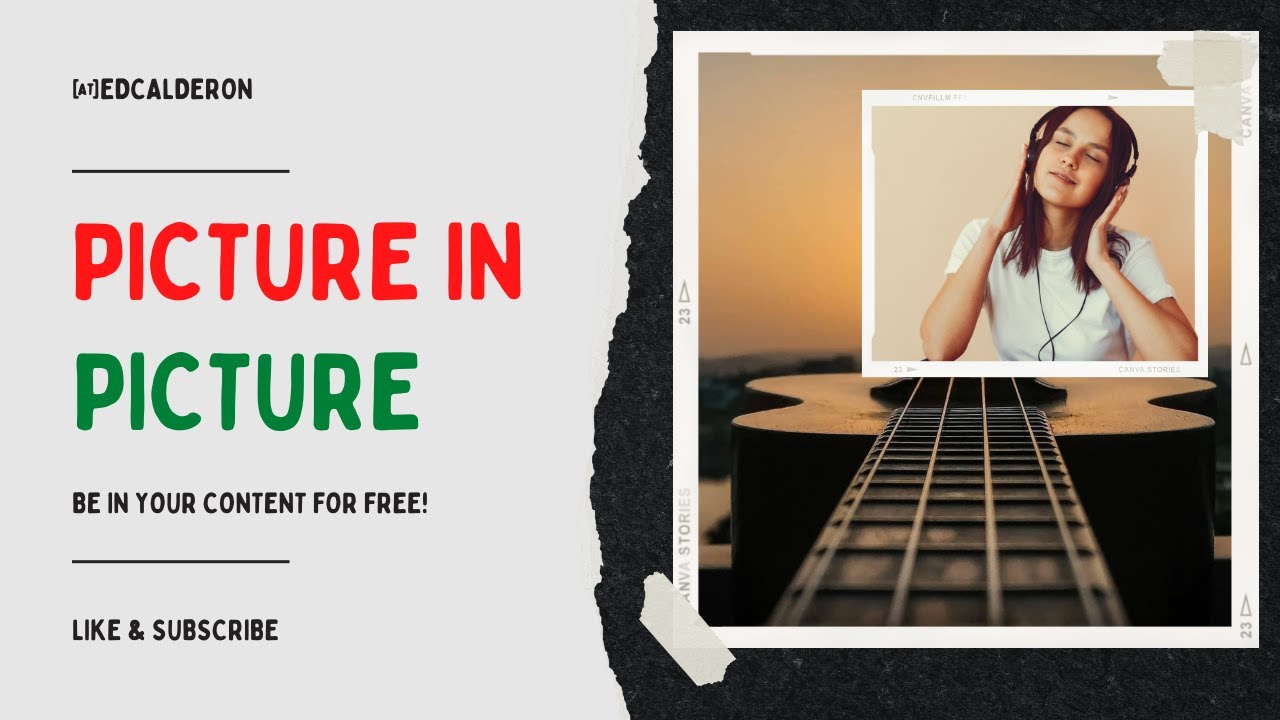
Implementing a Picture-in-Picture effect involves a series of logical steps within your chosen video editing software. While specific button placements and terminology might vary, the underlying workflow remains consistent across most platforms. This section Artikels the general process, enabling you to adapt it to your preferred tools.The foundation of any video editing project, including PiP, lies in the careful preparation and organization of your source materials.
This initial phase ensures a smooth and efficient editing process.
Importing and Preparing Source Footage
Before you can begin layering videos, you need to bring your video files into your editing software and ensure they are ready for use. This typically involves importing both the main video that will form the background and the secondary video that will be placed as the overlay.Here are the key steps involved:
- Import Media: Navigate to your software’s import function (often found under “File” or a dedicated media browser) and select both your primary video file and the video you intend to use for the PiP.
- Organize Project Bin: Once imported, your footage will appear in a project panel or bin. It’s good practice to name your clips descriptively to easily identify them later.
- Create a Sequence/Timeline: Start a new project or sequence within your editing software. This will be your canvas where you will arrange and edit your video clips.
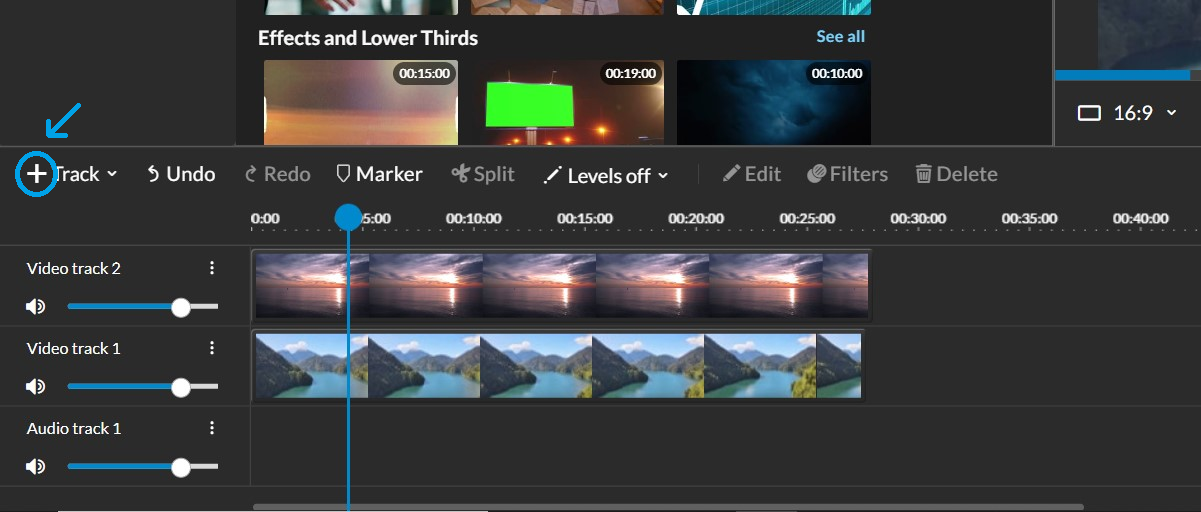
- Place Main Video on Timeline: Drag and drop your primary video onto the main track of your timeline. This establishes the base layer of your video.
Layering the Secondary Video
With your main video in place, the next crucial step is to introduce the secondary video and position it as an overlay. This is achieved by placing the PiP video on a track above the main video track on your timeline.The process of layering is straightforward:
- Position PiP Video: Drag and drop your secondary video clip onto a video track that is positioned
-above* the track containing your main video. Most editing software supports multiple video tracks, allowing for such layering. The video on the higher track will appear on top of the video on the lower track. - Trim and Align: Adjust the in and out points of your PiP clip on the timeline to match the desired duration and placement within your main video. You can also align the start of the PiP clip with a specific moment in the main video.
Adjusting Size and Position of the PiP Window
Once the secondary video is layered, it will likely appear at its full original size and in the center of the screen. The power of PiP lies in its flexibility to be resized and repositioned to suit your creative vision.You can refine the appearance of your PiP element through these adjustments:
- Select the PiP Clip: Click on the secondary video clip on your timeline to select it. This will usually bring up its editing properties or controls.
- Access Transform Properties: Look for a panel or section related to “Effects,” “Inspector,” “Transform,” or “Video Controls.” Within these, you will find options to modify the clip’s scale and position.
- Resizing the PiP: Use the “Scale” or “Size” parameter. You can typically input a percentage value or drag a handle directly on the preview window to shrink the PiP video to your desired dimensions. Holding the Shift key while resizing often maintains the aspect ratio, preventing distortion.
- Positioning the PiP: Utilize the “Position” parameters (often represented by X and Y coordinates or by dragging directly on the preview monitor) to move the PiP window to any corner or area of the screen. Common placements include the top-left, top-right, bottom-left, or bottom-right corners.
- Preview and Refine: Continuously play back your video to see how the PiP looks in context. Make small adjustments to the size and position until you achieve the desired aesthetic and ensure it doesn’t obstruct important elements of the main video.
Customizing PiP Appearance
Once you have your picture-in-picture layer set up, the real magic happens in refining its look and feel to perfectly complement your main video. Customization allows you to control how the PiP element integrates visually, ensuring it enhances rather than distracts from your content. This section will guide you through the essential techniques for tailoring the appearance of your PiP overlays.The ability to precisely control the size and placement of your PiP window is fundamental to its effective integration.
This ensures that the secondary video fits harmoniously within the frame of the primary video, guiding the viewer’s eye where you intend it.
Resizing and Repositioning the PiP Window
Most video editing software provides intuitive tools for manipulating PiP elements. Typically, you can select the PiP layer and then use handles on its bounding box to drag and resize it. For more precise control, numerical input fields for width, height, and position (X and Y coordinates) are often available. Experimenting with different sizes and positions is key to finding the most aesthetically pleasing and functional arrangement.
For instance, a small PiP in a corner might be ideal for a reaction video, while a larger, centered PiP could be used to showcase a demonstration alongside a presenter.
Adding Borders or Frames
Borders and frames can significantly enhance the visual distinction and professional polish of a PiP. These elements help to separate the PiP from the background video, making it easier for the viewer to focus on the secondary content. Many editing programs offer built-in border effects. You can usually adjust the border’s color, thickness, and even its style (e.g., solid, dashed, or drop shadow).
A subtle, thin border in a contrasting color can effectively frame your PiP without being overwhelming.
Applying Transparency or Opacity
Adjusting the transparency, or opacity, of your PiP layer allows it to blend more subtly with the background video. This is particularly useful when the PiP content is less critical or when you want to create a more atmospheric effect. By reducing opacity, you can make the PiP appear ghost-like or semi-transparent, allowing some of the main video to show through.
This technique can be employed to emphasize a recurring visual motif or to provide context without fully obscuring the primary action. Most software allows you to control opacity with a slider, often ranging from 0% (fully transparent) to 100% (fully opaque).
Creating Soft or Feathered Edges
Soft or feathered edges can give your PiP a more integrated and less harsh appearance, making it feel like a natural part of the composition. Instead of a sharp, defined cut-out, feathered edges gradually fade into the background. This effect can be achieved by applying a “feather” or “soft mask” effect to the PiP layer. The feathering amount determines how widely the edges blur.
A gentle feathering can create a smooth transition, making the PiP feel less like an imposed element and more like an organic addition to the scene.
Common Visual Enhancements for PiP Overlays
Beyond basic resizing and framing, a variety of visual enhancements can elevate the quality and impact of your PiP overlays. These adjustments help to ensure the PiP is not only functional but also visually appealing and consistent with your overall video aesthetic.
- Color Correction and Grading: Adjusting the color balance, saturation, and brightness of the PiP to match or complement the main video’s color scheme. This ensures visual harmony and prevents the PiP from appearing out of place.
- Drop Shadows: Adding a subtle drop shadow behind the PiP can create a sense of depth, making it appear as if it’s floating slightly above the main video. This enhances visual separation and can add a professional touch.
- Corner Rounding: Rounding the corners of the PiP can soften its appearance and make it feel more modern and less rigid, especially when combined with other framing techniques.
- Scaling and Cropping: Beyond simple resizing, you might need to crop the PiP to focus on a specific area of the secondary video or scale it up or down to fit specific design requirements.
- Filters and Effects: Applying artistic filters or subtle visual effects to the PiP layer can further enhance its integration or convey a specific mood or tone.
Advanced PiP Techniques and Effects
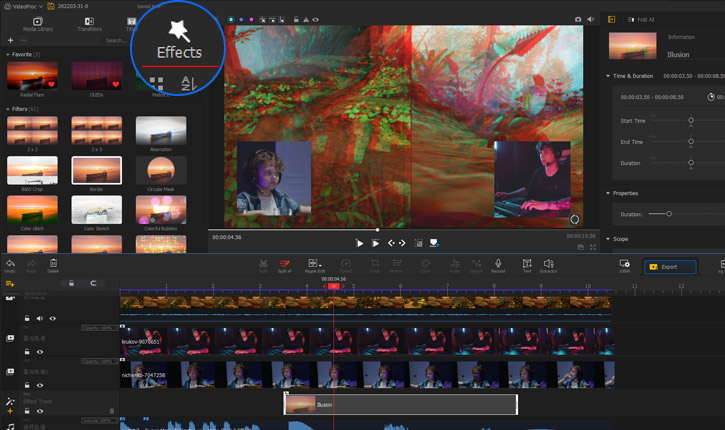
Moving beyond the basic placement and layering of picture-in-picture windows, this section delves into techniques that add dynamism and sophistication to your video productions. By animating the PiP element and employing more advanced implementation strategies, you can create engaging and professional-looking results that capture viewer attention.
PiP Window Animation
Animating the picture-in-picture window allows for dynamic transitions and storytelling elements. Instead of a static overlay, the PiP can enter, exit, or move across the screen, guiding the viewer’s eye and enhancing the overall visual flow.To achieve animation, video editing software typically offers tools for transforming the PiP layer over time. This involves manipulating its position, scale, and rotation.
- Movement: The PiP window can be set to slide in from a corner, move across the screen to follow a subject, or even follow a predetermined path. This is achieved by setting starting and ending coordinates for the PiP’s position.
- Scaling: The size of the PiP window can be adjusted dynamically. It might start small and grow larger to emphasize a point, or shrink and fade out to conclude a segment. This is controlled by adjusting the scale percentage over time.
- Rotation: While less common for standard PiP, rotation can be used for stylistic effects, such as a PiP element that spins into or out of view.
Keyframing PiP Properties for Dynamic Transitions
Keyframing is the fundamental technique used to animate any property of a video element, including the PiP window. Keyframes are markers placed on a timeline that define a specific value for a property at a particular point in time. The software then interpolates (calculates the in-between values) between these keyframes to create smooth motion.The process generally involves:
- Selecting the PiP layer in your video editing software.
- Enabling animation or keyframing for the desired properties (e.g., Position, Scale, Opacity).
- Placing the playhead at the beginning of the desired animation.
- Setting the initial value for the property (e.g., position off-screen, scale to 0%).
- Moving the playhead to the end of the desired animation.
- Setting the final value for the property (e.g., position on-screen, scale to 100%).
The software automatically generates the intermediate frames, creating the animated transition. For instance, to have a PiP window slide in from the left and grow in size, you would set keyframes for both position and scale at the start and end points of the animation.
Corner Pinning for Specific PiP Placements
Corner pinning is a specialized technique that allows for more precise and often more integrated placement of PiP elements, especially when they need to appear as if they are part of the background footage. Instead of simply positioning a rectangular window, corner pinning warps the PiP to match the perspective and plane of a surface within the main video.This is particularly useful for:
- Placing a screen recording onto a monitor that is visible in the background footage.
- Making a video appear on a television or a poster within the scene.
- Creating the illusion that a secondary camera feed is displayed on a digital sign.
The process typically involves selecting four points on the background footage that define a quadrilateral area. The PiP is then stretched and distorted to fill this area, maintaining the perspective of the background. This creates a much more seamless and believable integration than a simple rectangular overlay.
PiP Effects Following On-Screen Subjects
Creating a PiP effect that dynamically follows a subject in the main video adds a professional and engaging touch, often used in sports broadcasts or interviews. This requires tracking the movement of the subject and linking the PiP’s position to that tracked data.The implementation usually involves:
- Subject Tracking: Most advanced video editors have motion tracking capabilities. You would select the subject you want to follow (e.g., a person’s face, a moving object) and the software analyzes the footage to determine its position frame by frame.
- Linking PiP to Track Data: Once the subject is tracked, the tracking data can be applied to the PiP layer. This means the PiP’s position will automatically adjust to mirror the movement of the tracked subject.
- Offsetting and Refinement: You might need to apply an offset to the tracked position to ensure the PiP appears in the desired location relative to the subject (e.g., slightly above and to the right of their head). Fine-tuning of scale and opacity may also be necessary.
This technique is computationally intensive and requires accurate tracking for a smooth result.
Masks Versus Simple Layering for PiP
Both masks and simple layering can be used to create PiP effects, but they offer different levels of control and aesthetic outcomes.
Simple Layering
This is the most straightforward method. The PiP video is placed on a layer above the main video.
- Pros: Easy to implement, quick to set up. The PiP is a distinct rectangular element.
- Cons: Limited in shaping the PiP beyond a rectangle. It can appear as an obvious overlay, which might not always be desired.
Masks
Masks allow you to define specific areas of a layer that are visible or invisible. For PiP, this means you can shape the PiP window into non-rectangular forms or create feathered edges.
- Pros:
- Shaping: Allows for creative shapes (circles, stars, custom shapes) for the PiP.
- Integration: Can be used to blend the PiP more subtly into the background by masking out parts of the PiP or the background.
- Feathering: Creates soft, gradual transitions for the edges of the PiP, making it less abrupt.
- Cons:
- Complexity: Can be more time-consuming to set up, especially with complex or animated masks.
- Performance: Complex masks can sometimes impact rendering performance.
In essence, simple layering is ideal for distinct, rectangular PiP elements, while masks offer greater creative freedom for custom shapes and more integrated visual effects.
Audio Considerations for PiP
When creating picture-in-picture (PiP) videos, managing the audio from both the main video and the picture-in-picture layer is crucial for a professional and engaging final product. Ignoring audio can lead to a confusing or unpleasant viewing experience, with overlapping dialogue, distracting background noise, or completely inaudible key information. Thoughtful audio management ensures that viewers can easily follow the content of both video streams.The interplay between the audio of your main video and your PiP layer requires careful consideration to avoid conflicts and enhance clarity.
This involves understanding how each audio stream contributes to the overall narrative and making informed decisions about their prominence and presence.
Managing Audio from Main and PiP Layers
Effectively managing audio from both the primary video and the PiP element involves determining which audio should be dominant, which should be secondary, and which might need to be removed entirely. This decision is typically driven by the purpose of the PiP. For instance, if the PiP is a demonstration or a commentary track, its audio might need to be more prominent than the background audio of the main video.
Conversely, if the PiP is a reaction shot, its audio might be less critical and could be softened or muted.
Isolating or Muting PiP Audio
Most video editing software provides granular control over audio tracks, allowing you to isolate or mute the audio associated with specific video clips, including your PiP layer. This is a fundamental step in tailoring the soundscape of your PiP video.* Muting: The simplest approach is to completely mute the audio of the PiP layer if it is not essential to the viewer’s understanding.
This is often done when the PiP is purely visual, such as a screen recording being explained by a voiceover from the main track, or a presenter’s reaction shot where their spoken words are not the focus.
Lowering Volume
Instead of a complete mute, you can significantly reduce the volume of the PiP’s audio. This allows any ambient sound or incidental speech from the PiP to be present but not overpowering, adding a subtle layer of realism without distracting from the main audio.
Keyframing Volume
For more dynamic control, you can use keyframes to adjust the volume of the PiP’s audio throughout the video. This allows you to fade the audio in or out at specific moments, perhaps to emphasize a particular action within the PiP or to ensure it doesn’t clash with critical dialogue in the main video.
Synchronizing Audio of Both Video Streams
Synchronization is paramount, especially when the audio from both video streams is intended to be heard simultaneously or in close relation to each other. Misaligned audio can instantly break the illusion of a professional production.The process of synchronizing audio for PiP typically involves:
- Initial Alignment: Place your main video and PiP video clips on their respective timelines.
- Auditory Cue Identification: Listen to both audio tracks and identify a distinct, shared sound event, such as a clap, a spoken word, or a specific musical note, that occurs in both.
- Visual Alignment: In your editing software, zoom into the waveforms of both audio tracks. Visually align the identified sound event in both waveforms. For example, if a clap is used, align the sharp spike in the waveform for the clap in both tracks.
- Playback Verification: Play back the synchronized clips to ensure the audio from both streams is perfectly in sync. Make fine adjustments as needed by nudging the clips forward or backward by a few frames.
- Dialogue Synchronization: If dialogue is present in both streams and intended to be heard together, ensure that the spoken words align with the lip movements and the visual actions in each respective video.
For instance, if your main video features a presenter speaking, and your PiP shows a demonstration that also has accompanying narration, you would ensure the demonstration’s narration begins precisely when the relevant action in the PiP starts, and that it doesn’t overlap awkwardly with the main presenter’s speech.
Best Practices for Clear and Balanced Audio in PiP Videos
Achieving excellent audio quality in PiP videos requires a proactive approach, focusing on clarity, balance, and intelligibility.
- Prioritize the Primary Narrative: Always ensure that the audio essential to the main story or message of your video is the clearest and most prominent. The PiP’s audio should support, not compete with, this primary audio.
- Use a Decent Microphone: For any spoken word in either the main video or the PiP, using a good quality microphone will significantly improve clarity and reduce background noise. This is especially important for voiceovers or direct address.
- Control Background Noise: Minimize ambient noise in both recording environments. If background noise is unavoidable, consider using noise reduction tools in your editing software, but apply them judiciously to avoid distorting the desired audio.
- Level Your Audio: Ensure that the volume levels of both audio streams are consistent and balanced. Avoid sudden loud or quiet passages. Use audio meters in your editing software to monitor levels and prevent clipping (distortion caused by exceeding maximum volume).
- Strategic Use of EQ: Equalization (EQ) can be used to shape the tonal characteristics of your audio. You might boost certain frequencies in your main audio to make it stand out or cut specific frequencies in the PiP audio that might be clashing with the main audio. For example, if both have similar mid-range frequencies, you might slightly reduce those in the PiP to create sonic space for the main audio.
- Consider a Dedicated Voiceover for PiP: If the PiP contains important information or commentary, consider recording a separate, high-quality voiceover for it rather than relying on its original, potentially less clear, audio. This voiceover can then be mixed precisely with the main video’s audio.
- Test on Different Devices: Always preview your PiP video with audio on various devices, such as headphones, laptop speakers, and mobile phone speakers, to ensure the audio mix translates well across different playback environments.
By adhering to these practices, you can ensure that your picture-in-picture videos not only look professional but also sound great, providing a seamless and enjoyable experience for your audience.
Exporting and Rendering PiP Videos
Once you have meticulously crafted your picture-in-picture (PiP) effect, the final step involves exporting and rendering your video. This stage is crucial for ensuring your creative vision is preserved and that the final output is of high quality and compatible with your intended platforms. Proper export settings are key to maintaining visual fidelity and smooth playback.The process of exporting and rendering transforms your edited project, including the incorporated PiP elements, into a playable video file.
This involves encoding the video and audio data into a specific format, applying any final adjustments, and creating the output file. Incorrect settings here can lead to pixelation, stuttering playback, or compatibility issues.
Recommended Export Settings for Videos Containing PiP
Selecting the right export settings is paramount for maintaining the quality of your PiP video. These settings dictate how your video will be compressed, its resolution, frame rate, and overall file size. It is generally advisable to export at the highest quality possible that still meets your distribution needs.For optimal results, consider the following recommendations:
- Format: H.264 (MP4) is a widely compatible and efficient codec for most online platforms and general use. For professional workflows or archival purposes, consider ProRes or DNxHD/HR.
- Resolution: Match the resolution of your project’s timeline. If your project is 1920×1080 (1080p), export at 1920×1080. If it’s 3840×2160 (4K), export at that resolution. Upscaling can lead to a loss of detail.
- Frame Rate: Maintain the frame rate of your source footage and project timeline. Common frame rates include 23.976, 24, 25, 29.97, 30, 50, and 60 frames per second (fps). Inconsistent frame rates can cause jerky motion.
- Bitrate: This is a critical setting that determines the amount of data used per second of video. Higher bitrates generally result in better quality but larger file sizes. For 1080p, a bitrate between 10-20 Mbps is often a good starting point. For 4K, consider 30-60 Mbps or higher. Variable Bitrate (VBR) is often preferred over Constant Bitrate (CBR) as it allocates more data to complex scenes and less to simple ones, optimizing file size and quality.
A two-pass VBR can further enhance quality.
- Audio Settings: Use AAC as the audio codec, with a bitrate of 192 kbps or 320 kbps for stereo audio. Ensure the sample rate is set to 48 kHz.
Importance of Resolution and Frame Rate Consistency
Maintaining consistency in resolution and frame rate throughout your video production workflow, from capturing footage to final export, is fundamental for professional-looking results. Deviations can introduce noticeable artifacts and degrade the viewing experience.Resolution defines the number of pixels that make up each frame of your video. When you combine footage of different resolutions or export at a resolution lower than your source material without proper scaling, the image can appear soft, pixelated, or blurry.
Conversely, exporting at a resolution higher than your source without intelligent upscaling techniques will not add detail and can even introduce digital noise.
Consistency in resolution and frame rate ensures a seamless and predictable visual experience for the viewer.
Frame rate dictates the smoothness of motion in your video. If your project’s frame rate does not align with the frame rate of the source footage or the export settings, you may encounter issues such as judder (stuttering motion) or motion blur that appears unnatural. For instance, dropping frames during playback on a system unable to handle the export frame rate will result in a choppy video.
Similarly, if you have footage shot at 60fps and you export it at 30fps without properly adjusting the speed (e.g., for slow-motion), you will lose half of the motion information.
Common Rendering Issues and Troubleshooting
Rendering, the process of generating the final video file, can sometimes present challenges. Understanding common issues and their solutions will save you time and frustration.Several problems can arise during the rendering process:
- Rendering Errors/Crashes: These can be caused by corrupted source files, insufficient system resources (RAM, processing power), outdated graphics drivers, or bugs in the editing software.
- Troubleshooting: Ensure your software and drivers are up to date. Close unnecessary applications to free up system resources. Try rendering in sections or at a lower quality first to identify problematic clips or effects.
If a specific clip or effect causes the crash, try re-rendering that section or replacing the problematic element.
- Troubleshooting: Ensure your software and drivers are up to date. Close unnecessary applications to free up system resources. Try rendering in sections or at a lower quality first to identify problematic clips or effects.
- Pixelation or Artifacts: This often indicates that the bitrate is too low for the complexity of the video content, or that there was a loss of quality during previous processing steps.
- Troubleshooting: Increase the bitrate in your export settings. Ensure you are exporting at the native resolution of your project. Avoid re-compressing already compressed footage multiple times.
- Choppy Playback or Stuttering: This is typically related to incorrect frame rate settings, insufficient system performance during playback testing, or issues with the video codec.
- Troubleshooting: Verify that your export frame rate matches your project’s frame rate. Test playback on a system that meets or exceeds the recommended specifications for the video’s resolution and bitrate. If the issue persists, consider using a different, more widely supported video codec.
- Audio Sync Issues: The audio may drift out of sync with the video during rendering. This can happen due to differing frame rates between source clips, complex audio processing, or software glitches.
- Troubleshooting: Ensure all source footage has a consistent frame rate. Re-render the audio separately if necessary. Check for any audio effects that might be causing processing delays.
Essential Elements to Review Before Final Export
A thorough review before initiating the final export process can prevent common mistakes and ensure that your video meets your expectations. This checklist covers key aspects of your PiP video project.Before you hit the “Export” button, confirm the following:
- Project Settings: Verify that your project’s resolution, frame rate, and aspect ratio are set as intended.
- PiP Element Placement and Timing: Double-check the position, scale, and duration of all PiP windows. Ensure they appear and disappear at the correct moments and do not obstruct critical parts of the main video.
- Visual Quality of PiP: Examine the PiP windows for any signs of pixelation, blurriness, or color shifts that do not align with your creative intent.
- Audio Levels and Synchronization: Listen carefully to the audio to ensure all sound elements are balanced, clear, and perfectly synced with their corresponding video.
- Transitions and Effects: Review all transitions and effects applied to both the main video and the PiP elements for smooth integration and desired aesthetic.
- Text and Graphics: Ensure all on-screen text, logos, or graphics are legible, correctly placed, and free of errors.
- Export Settings: Confirm that your chosen export settings (format, resolution, frame rate, bitrate, audio codec) align with your distribution goals and the recommendations discussed earlier.
- Storage Space: Ensure you have sufficient free space on your hard drive for the final rendered file. High-resolution videos, especially 4K, can consume a significant amount of storage.
Last Point
As we conclude our exploration into How to Create Picture-in-Picture Effects for Videos, you are now equipped with the knowledge to seamlessly integrate engaging PiP elements into your projects. From mastering basic overlays to implementing sophisticated animations and managing audio, this guide has provided a thorough understanding of the entire process. We encourage you to experiment with the techniques discussed, pushing the boundaries of your creativity to produce visually compelling and informative videos that truly stand out.