Embark on a creative journey with our comprehensive guide on How to Create a Slideshow Video with Photos and Music. This tutorial is designed to transform your cherished memories and visual content into dynamic, engaging video presentations. We will walk you through every essential step, from selecting the perfect pictures and melodies to mastering the software that brings your vision to life.
Creating a slideshow video is a wonderful way to preserve precious moments, captivate an audience, or present information in a visually appealing format. This guide will equip you with the knowledge and techniques needed to craft compelling slideshows that resonate with your viewers.
Understanding the Goal: Creating a Slideshow Video
Creating a slideshow video is a wonderful way to transform a collection of static digital photos into a dynamic and engaging visual narrative. It breathes life into your memories, allowing you to share them in a format that is both captivating and easily consumable. This process essentially involves sequencing your images, often with transitions and effects, and synchronizing them with a chosen soundtrack to evoke emotion and tell a story.The fundamental concept behind a slideshow video is to elevate a series of individual photographs into a cohesive and flowing presentation.
Instead of flipping through albums or scrolling through digital folders, you are crafting an experience. This experience can be deeply personal, such as a compilation of family vacation moments, or professionally oriented, like a portfolio showcase or a product demonstration. The magic lies in the combination of visuals and audio, working in harmony to create a lasting impression.
Essential Components for Slideshow Creation
To embark on the journey of creating a compelling slideshow video, several key components are indispensable. These elements form the building blocks of your project, ensuring that you have the necessary resources to bring your vision to life. A well-prepared set of materials will significantly streamline the creation process and enhance the final output.The primary components required are:
- Digital Photos: These are the visual foundation of your slideshow. Ensure they are of good quality, well-lit, and relevant to the story or theme you wish to convey. High-resolution images will yield a sharper and more professional-looking video.
- Background Music: The soundtrack plays a crucial role in setting the mood and emotional tone of your slideshow. Choose music that complements the visuals and enhances the overall narrative. Consider the tempo and genre to match the intended feeling.
- Software Tool: A dedicated slideshow maker or video editing software is essential for assembling your photos, adding music, applying transitions, and exporting the final video. Many options are available, ranging from simple, user-friendly applications to more advanced professional editing suites.
Benefits of Creating Slideshow Videos
The creation of slideshow videos offers a multitude of advantages, extending beyond mere digital organization. These benefits cater to both personal and professional needs, making it a versatile tool for various applications. By leveraging the power of visual storytelling with audio accompaniment, you can achieve outcomes that are both impactful and memorable.The primary benefits of creating a slideshow video include:
- Preserving Memories: Slideshows provide a dynamic and engaging way to relive cherished moments, such as weddings, birthdays, graduations, or vacations. They transform static photographs into a living chronicle of experiences, making them more accessible and enjoyable for future reflection.
- Engaging Audiences: In a world saturated with information, a well-crafted slideshow video can capture attention and hold it effectively. Whether for a presentation, marketing campaign, or social media content, the combination of visuals and music is inherently more captivating than plain text or static images alone.
- Presenting Information Visually: For educational purposes, business proposals, or project updates, slideshow videos offer a clear and concise method of conveying complex information. Visual aids, supported by a narrative, can improve comprehension and retention, making your message more impactful.
“A picture is worth a thousand words, but a slideshow video with music can tell a story that resonates for a lifetime.”
Gathering and Organizing Your Assets
Before you can bring your photos and music together to create a compelling slideshow video, the first crucial step is to gather all the necessary materials and organize them in a way that makes the creation process smooth and efficient. This involves careful selection of your visuals and a thoughtful approach to arranging them, alongside choosing music that enhances the overall experience.The foundation of any great slideshow lies in the quality and coherence of its visual elements.
Selecting the right photos and ensuring they are well-organized will significantly impact the final video’s appeal and effectiveness. Similarly, the music you choose plays a vital role in setting the mood and reinforcing the narrative.
Selecting and Curating Cohesive Digital Photographs
Choosing the right photographs is paramount to creating a visually appealing and emotionally resonant slideshow. It’s not just about having many pictures, but about selecting those that tell a story, evoke a feeling, or showcase a particular theme effectively. A cohesive set of images will ensure your slideshow feels unified and professional, rather than a random collection of snapshots.When curating your photos, consider the overall message or emotion you wish to convey.
Look for images that are visually interesting, well-composed, and of good quality. Diversity in shots, such as close-ups, wide shots, and action shots, can add dynamism. Aim for a consistent aesthetic or color palette if possible, though this is not strictly necessary if the theme dictates otherwise. Avoid blurry, overexposed, or underexposed images unless they serve a specific artistic purpose.
Strategies for Logical Photo Organization
Once you have selected your photos, organizing them logically is key to building a narrative flow for your slideshow. A well-organized collection makes the editing process much easier and helps ensure your story unfolds seamlessly for the viewer. There are several effective strategies for arranging your visual assets.Consider the following organizational methods:
- Chronological Order: This is the most straightforward approach, ideal for documenting events like vacations, birthdays, or historical timelines. Arrange photos from the earliest moment to the latest.
- Thematic Grouping: If your slideshow has a specific theme, such as “Nature’s Beauty,” “Family Memories,” or “Travel Adventures,” group photos that fall under these sub-themes. This allows for focused segments within the slideshow.
- Narrative Flow: This method involves creating a story arc, even for seemingly simple collections. Think about a beginning, middle, and end. You might start with an introduction, build up to a climax or key moments, and conclude with a reflection or a look towards the future. This requires more thought but can lead to a very engaging video.
- Color or Mood Progression: For more artistic slideshows, you might arrange photos based on their color schemes or the emotions they evoke, creating a visual journey that shifts in tone.
Image Resolution and Format for Optimal Video Quality
The quality of your final video is directly tied to the resolution and format of the individual photos you use. Using high-resolution images ensures that your pictures will look sharp and clear when displayed on various screens, from smartphones to large projectors. Low-resolution images will appear pixelated and unprofessional, detracting from the overall viewing experience.When selecting photos, aim for the highest resolution available.
Most digital cameras and smartphones capture images at resolutions suitable for video.
For standard HD video (1080p), images with a resolution of at least 1920 pixels wide by 1080 pixels high are recommended. For 4K video, you’ll want images with even higher pixel dimensions.
Regarding file formats, JPEG (.jpg) is the most common and widely compatible format for photographs and is generally suitable for slideshow videos. PNG (.png) is also an option, especially if your images contain transparency, though it often results in larger file sizes. Ensure your photos are not excessively compressed, as this can degrade image quality.
Choosing and Obtaining Background Music
Background music is a powerful tool for enhancing the emotional impact and overall atmosphere of your slideshow. The right music can elevate your visuals, evoke specific feelings, and tie your narrative together. Conversely, ill-fitting music can distract or even undermine the intended message of your photos.When selecting music, consider the mood and theme of your slideshow. Is it a joyful celebration, a poignant remembrance, an exciting adventure, or a serene reflection?
- Match the Mood: For happy occasions, upbeat and lively music works well. For more somber or reflective themes, consider instrumental pieces or songs with a slower tempo and emotive lyrics.
- Consider the Pacing: The tempo of the music can influence the perceived pace of your slideshow. Faster music can make the slideshow feel more energetic, while slower music can create a more relaxed or dramatic effect.
- Avoid Distracting Lyrics: Unless the lyrics are directly relevant to your photos or narrative, instrumental music is often preferred for background scores as it is less likely to compete with the visual content.
- Check Licensing: It is crucial to use music that you have the legal right to use. Using copyrighted music without permission can lead to copyright infringement issues.
You can obtain background music from various sources:
- Royalty-Free Music Libraries: Websites like Epidemic Sound, Artlist, or Bensound offer a vast selection of music tracks that can be licensed for use in videos, often for a subscription fee or a one-time purchase.
- Creative Commons Music: Platforms like Free Music Archive or Jamendo provide music that is available under Creative Commons licenses, allowing for free use under specific conditions (e.g., attribution). Always check the license details carefully.
- Original Compositions: If you have musical talent or know someone who does, creating original music is an option that guarantees unique and fully licensed content.
Enhancing the Visual Experience
Once you have gathered your photos and music, the next crucial step is to elevate your slideshow from a simple sequence of images to a captivating visual narrative. This involves employing techniques that add depth, emotion, and professional polish to your presentation, ensuring it resonates with your audience.This section delves into the art of visual enhancement, focusing on how subtle movements, color adjustments, and thoughtful animations can transform static images into dynamic storytelling elements.
By mastering these techniques, you can significantly impact the mood and engagement of your slideshow video.
Creative Use of Zoom and Pan Effects
Zoom and pan effects, when applied judiciously, can breathe life into still photographs, guiding the viewer’s eye and creating a sense of exploration. These subtle movements prevent the slideshow from feeling static and can highlight specific details within an image.
- Zoom In: Gradually zooming into a photograph can draw attention to a particular subject or detail, mimicking how a human eye might focus on something interesting. For instance, zooming into the eyes of a portrait can intensify the emotional connection.
- Zoom Out: A slow zoom out can reveal a broader context or a grand landscape, offering a sense of scale and wonder. This is particularly effective for establishing shots or scenic views.
- Pan Left/Right/Up/Down: Panning across an image simulates a camera movement, allowing you to explore the breadth of a panorama or follow a subject’s movement within a scene. A slow, steady pan across a group photo can give each person a moment in the spotlight.
- Ken Burns Effect: This classic technique combines slow zooms and pans, often in multiple directions, to create a dynamic yet smooth motion across a still image. It’s named after documentarian Ken Burns and is a staple for slideshows, giving a sense of storytelling and flow. For example, a photo of a bustling city street could be panned to follow the movement of people, with a slight zoom to emphasize the energy.
Impact of Color Correction and Filtering Techniques
Color is a powerful tool that directly influences the emotional tone of your slideshow. Adjusting colors and applying filters can evoke specific moods, from warm and nostalgic to cool and modern, or vibrant and energetic.
- Warm Tones: Enhancing reds, oranges, and yellows can create a feeling of warmth, happiness, and nostalgia. This is ideal for family memories, summer vacations, or romantic themes. A subtle sepia filter can further enhance this vintage, nostalgic feel.
- Cool Tones: Blues and greens can evoke feelings of calmness, serenity, professionalism, or even melancholy. This might be suitable for nature scenes, artistic presentations, or more somber reflections. A desaturated look can also contribute to a sophisticated or dramatic atmosphere.
- Vibrancy and Saturation: Increasing saturation can make colors pop, leading to a lively and energetic feel, perfect for celebrations or travel slideshows. Conversely, reducing saturation can create a more muted, artistic, or dramatic effect.
- Contrast Adjustment: Modifying contrast can make images appear sharper and more defined (higher contrast) or softer and more dreamy (lower contrast). High contrast can add drama, while low contrast can create a more ethereal look.
- Black and White Conversion: Converting images to black and white can lend a timeless, classic, and sophisticated feel, often emphasizing form, texture, and emotion without the distraction of color. This is particularly effective for portraits or architectural photography.
Incorporating Subtle Animations and Motion Graphics
Beyond simple zoom and pan, adding subtle animations or motion graphics to individual photos can elevate their visual appeal without being distracting. These elements can highlight key areas, add visual interest, or reinforce the theme of your slideshow.
- Fading In/Out: A gentle fade-in or fade-out of an image can create a smooth transition between photos or introduce a new scene softly.
- Light Leaks and Glitches: For a more modern or artistic aesthetic, subtle light leak effects or digital glitch animations can add a dynamic, edgy feel to specific images.
- Text Overlays with Animation: Animated text introducing a photo or providing context can be very effective. For example, a date or location appearing with a subtle fade or slide animation.
- Parallax Effect: This involves creating a sense of depth by moving background elements at a slower rate than foreground elements, giving the illusion of a 3D space. This is particularly effective for landscape photos.
- Subtle Element Animation: Consider animating small, relevant elements within a photo. For instance, if a photo includes a flag, a subtle waving animation could be applied. For a photo of stars, a gentle twinkling effect could be added.
Guidelines for Ensuring Visual Consistency
Maintaining visual consistency across all images is paramount for a professional and cohesive slideshow. It ensures that the viewer’s experience is smooth and uninterrupted by jarring visual changes.
- Color Palette: Establish a primary color palette and aim for your images to generally fall within these tones. This doesn’t mean every photo needs to be identical, but rather that the overall color feel should be harmonious. For example, if your theme is a beach wedding, leaning towards blues, whites, and sandy beiges would be appropriate.
- Brightness and Exposure: Ensure that the brightness and exposure levels of your photos are relatively consistent. Images that are too dark or too bright can detract from the overall flow. Use your editing software to adjust these levels so that no single image stands out due to improper exposure.
- Contrast Levels: Similar to brightness, maintain a consistent level of contrast. A sudden shift from high-contrast, sharp images to low-contrast, soft images can be disorienting.
- Image Resolution and Aspect Ratio: While not strictly a visual style, using images with similar resolutions and aspect ratios (e.g., all landscape or all portrait, or skillfully cropped to a consistent ratio) prevents awkward cropping or black bars appearing during playback.
- Style of Editing: Decide on a general editing style. Will you lean towards natural, vibrant, vintage, or minimalist? Applying a consistent approach to sharpening, noise reduction, and saturation across your photos will create a unified look. For example, if you choose a slightly desaturated look for a moodier feel, apply this consistently rather than having some photos oversaturated and others extremely muted.
- Use of Filters: If you choose to use filters, apply them consistently. A single, well-chosen filter applied subtly across most images can unify the slideshow, rather than using a different filter for every other photo.
Integrating and Managing Audio
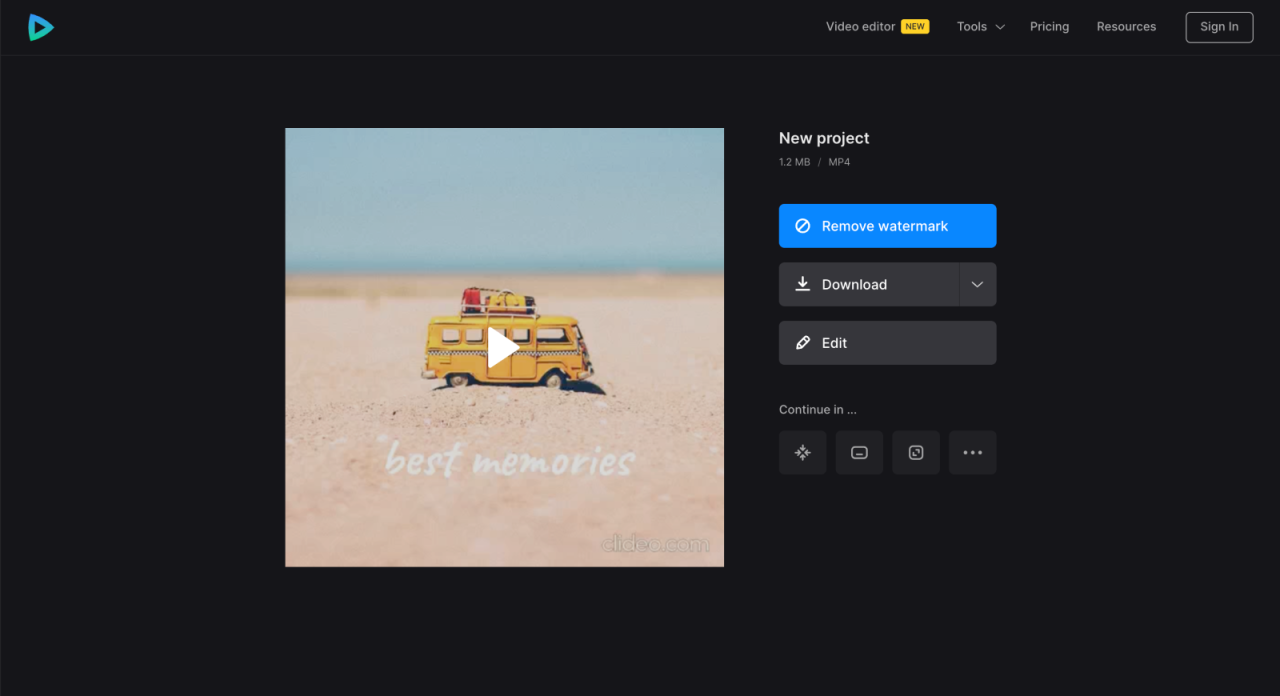
Adding music to your slideshow video is a crucial step in evoking emotion and setting the tone for your visual story. This section will guide you through the process of seamlessly integrating and managing your audio elements, ensuring a professional and engaging final product.The timeline in your video editing software is where the magic of audio integration happens. It allows you to synchronize your music with your visuals, control its presence, and layer other sound elements effectively.
Importing and Placing Music Tracks
The first step in audio integration is to bring your chosen music into your project. Most video editing software offers a straightforward import process.
- Locate the ‘Import’ or ‘Add Media’ option within your software’s menu or interface.
- Navigate to the folder where your music file is saved and select it.
- Once imported, the music track will typically appear in your project’s media bin or library.
- Drag and drop the music track from the media bin onto the audio track of your video timeline. Ensure it is placed at the beginning of your project if you want it to play from the start.
Adjusting Volume Levels
Controlling the volume of your background music is essential to ensure it complements, rather than overpowers, your visuals or any spoken narration.
- Select the audio track on your timeline.
- Look for a volume slider or a decibel (dB) indicator associated with the track.
- Adjust the slider to a level that feels balanced. A common starting point for background music is between -15dB and -20dB, but this will vary depending on the nature of the music and whether there is voiceover.
- Listen to your slideshow with the music at different volumes to find the sweet spot.
Implementing Music Fades
Fading music in at the beginning and out at the end creates a smooth and professional transition, preventing abrupt starts and stops that can be jarring for the viewer.
- Fade-in: To fade music in, locate the beginning of your audio track on the timeline. Many editors have tools to create keyframes. Add a keyframe at the very beginning of the track with the volume set to its lowest point (or mute). Then, add another keyframe a few seconds into the track, setting the volume to your desired level.
The software will then create a gradual increase in volume between these points.
- Fade-out: Similarly, to fade music out, move to the end of your audio track. Add a keyframe a few seconds before the music is meant to end, setting the volume to your desired level. Then, add a final keyframe at the very end of the track with the volume set to its lowest point (or mute). This will create a gradual decrease in volume.
Adding Voiceovers and Sound Effects
Beyond music, voiceovers and sound effects can significantly enhance your slideshow’s narrative and impact. Managing these alongside your music requires careful layering and volume balancing.
- Importing Additional Audio: Voiceover recordings or sound effect files can be imported and placed on separate audio tracks on your timeline, just like music.
- Volume Management: When voiceovers are present, the background music volume should typically be lowered considerably during the narration. This is often achieved by reducing the music track’s volume to around -25dB to -30dB or even lower, ensuring the voice is clear and prominent. Sound effects may require their own specific volume adjustments based on their purpose.
- Layering: You can layer multiple audio elements. For instance, a subtle background music track can play under a voiceover, with specific sound effects strategically placed to punctuate key moments in your slideshow.
- Synchronization: Ensure that sound effects and voiceovers are precisely synchronized with the visual elements they are meant to accompany for maximum impact.
Effective audio management is not just about adding sound; it’s about orchestrating a harmonious blend that elevates your visual storytelling.
Finalizing and Exporting Your Video

The culmination of your slideshow video creation process involves meticulously reviewing your work and then exporting it in a format suitable for your intended audience and platform. This stage ensures that all your creative efforts translate into a polished and professional final product.This section will guide you through the essential steps of previewing your slideshow, selecting optimal export settings, and employing best practices for file management and troubleshooting.
Previewing the Complete Slideshow Video
Before committing to an export, a thorough preview is crucial to catch any inconsistencies or errors. This review process helps ensure that your slideshow flows smoothly and that all elements are synchronized as intended.Take the time to watch the entire video from start to finish. Pay close attention to the following aspects:
- Timing of Slides: Verify that each photo is displayed for an adequate duration, allowing viewers to appreciate the image without feeling rushed or bored. Adjust slide durations as needed to match the pace of the music and narration, if applicable.
- Transitions: Ensure that the transitions between slides are smooth and visually appealing. Check for any abrupt cuts or jarring effects that might detract from the overall viewing experience.
- Audio Synchronization: Confirm that the music and any voiceovers are perfectly aligned with the on-screen visuals. Listen for any instances where the audio might be out of sync with the image changes or if the volume levels are inconsistent.
- Text and Graphics: Review any overlaid text, titles, or graphic elements for correct spelling, grammar, placement, and timing.
Selecting Appropriate Video Export Settings
Choosing the right export settings is vital for delivering a high-quality video that is compatible with various viewing platforms. Different platforms have different requirements and recommendations for video resolution, frame rate, and file format.Here are some common export settings and their considerations:
- Resolution: This refers to the number of pixels in the video’s width and height. Higher resolutions offer sharper images but result in larger file sizes.
- 1080p (1920×1080 pixels): This is a widely accepted standard for high-definition video and is suitable for most online platforms like YouTube, Vimeo, and social media.
- 720p (1280×720 pixels): A good option for smaller files or when bandwidth might be a concern, still offering a decent viewing experience on mobile devices.
- 4K (3840×2160 pixels): For the highest quality, especially if your original photos are high-resolution and you intend for viewers to watch on large 4K displays. Be mindful of significantly larger file sizes.
- Frame Rate: This is the number of frames displayed per second.
- 24 frames per second (fps): Often used for a cinematic look.
- 30 fps: A common standard for online video and broadcasts, providing a smooth motion.
- 60 fps: Offers very smooth motion, ideal for fast-paced content, but results in larger files. For most slideshows, 24 or 30 fps is sufficient.
- File Format: This determines how the video data is compressed and stored.
- MP4 (MPEG-4): The most universally compatible format, widely supported across devices and platforms. It offers a good balance between quality and file size.
- MOV (QuickTime): Often used by Apple devices and software, it can offer high quality but might have less compatibility with non-Apple systems.
- WMV (Windows Media Video): Primarily used on Windows systems.
For general sharing on platforms like YouTube or Facebook, exporting as an MP4 at 1080p resolution and 30 frames per second is a safe and effective choice. Always check the specific recommendations of the platform you intend to use.
Best Practices for Naming and Saving the Final Video File
A well-organized file naming convention makes it easy to locate and manage your video files in the future.Follow these best practices:
- Descriptive Naming: Include key information in the filename, such as the event, date, and a brief description. For example, “SummerVacation2023_BeachTrip_Final.mp4”.
- Chronological Order: If you are creating multiple versions or working on a series, incorporate dates or version numbers to maintain chronological order.
- Avoid Special Characters: Stick to letters, numbers, underscores, and hyphens. Avoid spaces, slashes, or other special characters that can cause compatibility issues.
- Consistent Folder Structure: Save your final video in a dedicated folder for completed projects, alongside any source files or project backups.
Common Troubleshooting Tips for Export Issues
Occasionally, you might encounter problems during the export process. Here are some common issues and their solutions:
- Export Failing or Crashing:
- Check System Resources: Ensure your computer has enough RAM and processing power. Close other unnecessary applications.
- Simplify Project: If your project is very complex with many effects or high-resolution assets, try simplifying it or rendering in stages.
- Update Software: Make sure your video editing software and graphics drivers are up to date.
- Corrupted Assets: Occasionally, a single photo or audio file might be corrupted. Try re-importing or replacing suspect assets.
- Video is Laggy or Choppy:
- Lower Resolution/Bitrate: Try exporting at a slightly lower resolution or bitrate.
- Hardware Acceleration: Ensure hardware acceleration is enabled or disabled in your software’s preferences, as it can sometimes cause issues.
- Audio is Out of Sync:
- Re-sync Audio: Carefully re-align your audio tracks with the video frames in your editing software.
- Check Audio File Integrity: Ensure your audio files are not corrupted.
- File Size is Too Large:
- Adjust Bitrate: Lowering the video bitrate will reduce file size, though it might slightly decrease quality.
- Choose Efficient Codec: MP4 with H.264 or H.265 codecs generally offer good compression.
If you continue to experience persistent issues, consulting the support documentation for your specific video editing software is highly recommended.
Illustrative Examples and Creative Approaches
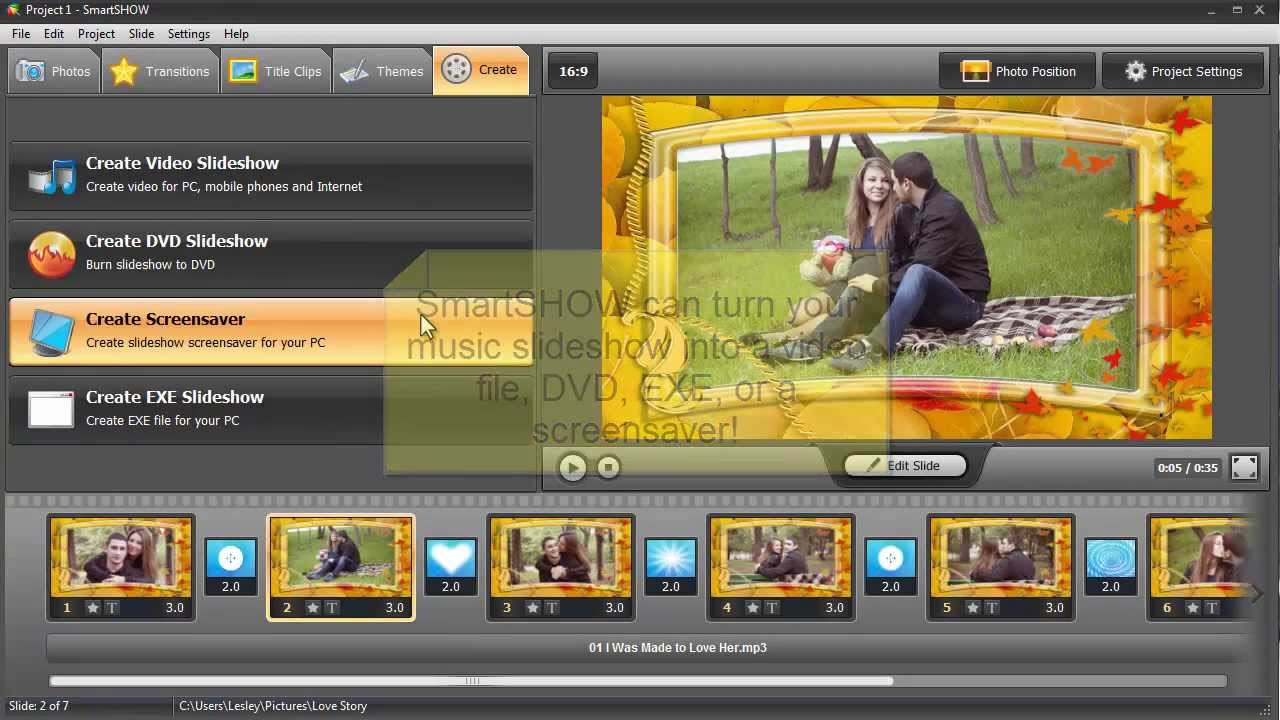
With your assets gathered and your audio in place, it’s time to explore how to bring your slideshow video to life with creative flair. This section delves into various thematic possibilities and provides practical examples for structuring your video’s timeline and utilizing visual effects to their fullest potential.
Creative Themes for Slideshow Videos
Choosing a compelling theme is the first step in crafting a memorable slideshow. A well-defined theme guides your visual choices, music selection, and overall narrative. Here are some popular and effective themes:
- Travelogue: Documenting a journey, highlighting destinations, experiences, and memorable moments.
- Birthday Tribute: Celebrating a loved one’s milestone birthday with photos from different stages of their life, heartfelt messages, and celebratory music.
- Wedding/Anniversary Recap: Reliving the special day or a significant anniversary with key moments, guest photos, and romantic music.
- Product Showcase: Presenting a product or service, emphasizing its features, benefits, and aesthetic appeal with engaging visuals and clear calls to action.
- Graduation/Achievement Celebration: Marking academic or personal achievements with photos of the journey, the ceremony, and future aspirations.
- Family History/Genealogy: Tracing family roots through old photographs, stories, and significant historical context.
- Event Highlights: Summarizing a conference, party, or festival with energetic visuals and upbeat music to capture the atmosphere.
- Art/Photography Portfolio: Displaying a collection of creative work, allowing each piece to shine with thoughtful pacing and complementary music.
Slideshow Timeline Layout Example
A well-paced slideshow is crucial for audience engagement. Varying the duration of photos and employing thoughtful transitions can significantly enhance the viewing experience. The following table illustrates a possible timeline for a 10-photo slideshow, demonstrating how different durations and transitions can be applied.
| Photo Number | Duration (seconds) | Transition In | Transition Out |
|---|---|---|---|
| 1 | 4 | None | Fade |
| 2 | 3 | Fade | Slide Left |
| 3 | 5 | Slide Left | Dissolve |
| 4 | 4 | Dissolve | Fade |
| 5 | 3 | Fade | Zoom In |
| 6 | 4 | Zoom In | Slide Up |
| 7 | 3 | Slide Up | Fade |
| 8 | 5 | Fade | Wipe Right |
| 9 | 4 | Wipe Right | Dissolve |
| 10 | 3 | Dissolve | None |
Scenarios for Visual Element Usage
The way you present your photos can dramatically alter the mood and impact of your slideshow. Different visual effects and editing techniques can be employed to evoke specific emotions and enhance the narrative.
- For a landscape photograph of a serene mountain range, a slow, gentle zoom-in effect can draw the viewer into the scene, emphasizing its vastness and tranquility. This gradual movement mirrors the feeling of taking in a breathtaking view.
- Conversely, if you are showcasing a dynamic action sequence, such as a sports event or a thrilling adventure, a quick series of cuts between photos, perhaps with sharp, energetic transitions like a “push” or “flash,” can convey a sense of speed, excitement, and urgency.
- When presenting portraits, a subtle Ken Burns effect (a slow pan and zoom) can add life to a still image, guiding the viewer’s eye across the subject’s face and creating a more engaging experience than a static display.
- For a product showcase, you might use a combination of static shots with clean, geometric transitions (like a simple fade or a square wipe) to highlight the product’s design and features clearly. Then, you could transition to a more dynamic sequence with close-ups and animated elements to demonstrate functionality.
- In a travelogue, a “reveal” transition, where a new photo appears as if being uncovered, can be effective for introducing new locations, creating a sense of discovery.
Outcome Summary
As we conclude our exploration of How to Create a Slideshow Video with Photos and Music, you are now equipped with the essential skills to transform your static images and favorite tunes into compelling video narratives. By carefully curating your assets, selecting the right tools, and applying creative enhancements, you can produce professional-quality slideshows that preserve memories, engage viewers, and effectively communicate your message.
We encourage you to experiment with the techniques discussed and let your creativity shine in your future video projects.