Embarking on your video editing journey can feel daunting, especially when faced with the myriad of software options available. Understanding how to choose the best video editing software for beginners is the crucial first step towards unlocking your creative potential and bringing your video ideas to life with confidence and ease.
This comprehensive guide will demystify the process, breaking down what truly matters for new editors. We’ll explore the essential features that make software accessible, the trade-offs between free and paid options, and the importance of platform compatibility and user-friendly interfaces. By the end, you’ll be well-equipped to select a tool that not only meets your current needs but also supports your growth as a video creator.
Essential Software Features for New Editors
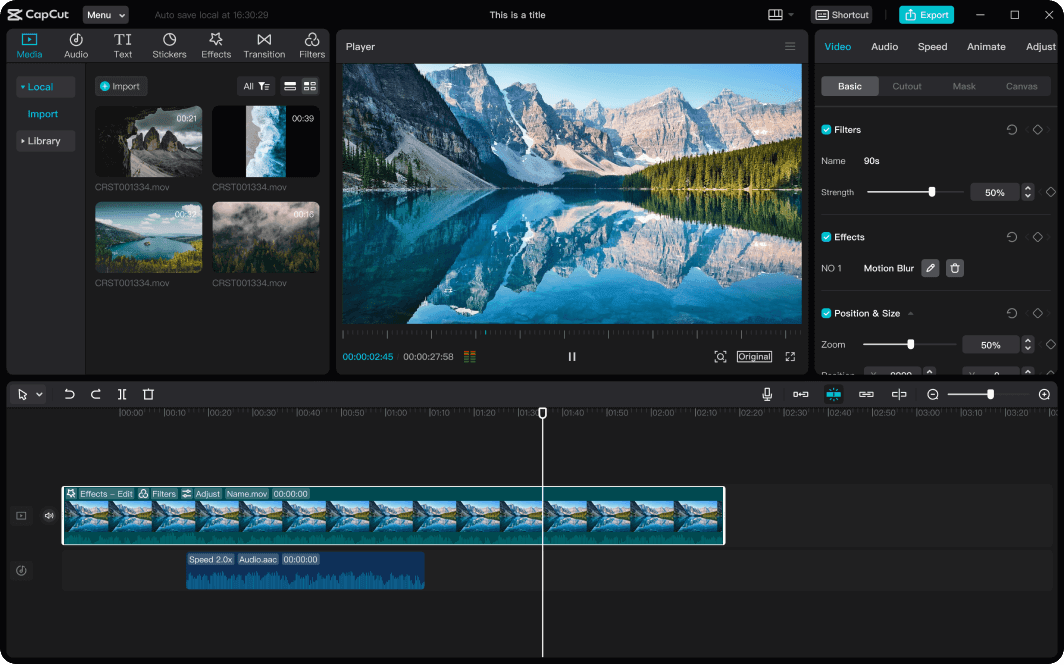
Choosing the right video editing software is a crucial step for anyone starting their video creation journey. While the vast array of options can seem daunting, focusing on a few key features will significantly streamline your learning curve and empower you to produce polished content more efficiently. These essential elements are designed to make the complex process of video editing accessible and enjoyable for beginners.Understanding these core functionalities will not only help you select the most suitable software but also enable you to leverage its capabilities to their fullest potential, transforming your raw footage into compelling narratives.
Must-Have Features for Intuitive Video Editing
For new editors, certain features are paramount to ensuring a smooth and intuitive editing experience. These tools are designed to simplify complex tasks and provide immediate visual feedback, allowing beginners to focus on the creative aspects of storytelling.
- Timeline-Based Editing: This is the backbone of most video editing software, allowing you to arrange video clips, audio tracks, and other media in a sequential order. A clear, visual timeline makes it easy to see how your project is progressing and to make precise adjustments to timing and sequencing.
- Preview Window: A dedicated window where you can watch your edits in real-time. This is essential for assessing the impact of your cuts, transitions, and effects, and for identifying areas that need refinement.
- Basic Trimming and Cutting Tools: The ability to easily shorten, lengthen, and split video clips is fundamental. These tools should be readily accessible and straightforward to use, often involving simple click-and-drag operations.
- Audio Controls: Simple volume adjustments, fading in and out of audio, and the ability to sync audio with video are crucial for a professional sound.
- Import and Export Options: The software should support a wide range of common video and audio file formats for import, and offer straightforward export options with pre-set quality settings for various platforms (e.g., YouTube, social media).
The Importance of a Clear and Organized Interface
The user interface (UI) of a video editing software is your primary point of interaction. For beginners, a cluttered or confusing interface can be a significant barrier to entry, leading to frustration and a steep learning curve. An intuitive and well-organized interface, on the other hand, acts as a helpful guide, making it easier to locate tools and understand their functions.
A clean and logical interface is the silent teacher of any software.
This means that essential tools should be readily visible and grouped logically, often by function. For example, editing tools might be clustered together, while effects and transitions have their own dedicated panels. Clear labeling and consistent design elements across the software contribute to a predictable and user-friendly experience. This allows new editors to spend less time deciphering the software and more time focusing on the creative process of storytelling.
The Role of Drag-and-Drop Functionality
Drag-and-drop functionality is a cornerstone of modern user-friendly software, and it plays a particularly vital role in video editing for beginners. This feature eliminates the need for complex commands or menu navigation for many common actions, allowing users to manipulate media assets with intuitive mouse movements.Instead of selecting a clip and then choosing an “add to timeline” command, a beginner can simply click on a video file in their media library and drag it directly onto the editing timeline.
Similarly, adding effects, titles, or audio can often be accomplished by dragging the desired element from a library onto the specific clip or track on the timeline. This visual and direct manipulation makes the editing process feel more tangible and less abstract, significantly reducing the intimidation factor for newcomers.
The Significance of Basic Transition and Effect Libraries
While advanced visual effects might seem appealing, for new editors, the availability of a well-curated library of basic transitions and effects is far more significant. These pre-built elements provide quick and easy ways to enhance the visual appeal of a video without requiring in-depth knowledge of complex animation or compositing techniques.Transitions, such as simple crossfades, wipes, or dissolves, help to create a smooth flow between different video clips.
They can mask abrupt cuts and add a professional polish to the edit. Effects libraries often include basic color correction tools, simple text overlays, and perhaps some subtle motion effects that can add visual interest without overwhelming the viewer.
Basic transitions and effects are the beginner’s toolkit for immediate visual improvement.
Having these readily accessible within the software allows new editors to experiment and learn what works visually. They can apply these elements, see the results instantly in the preview window, and gain an understanding of how different visual treatments impact the overall feel of their video. This iterative process of applying, observing, and refining is crucial for developing an editing eye.
Free vs. Paid Video Editing Software for Beginners
Choosing the right video editing software is a pivotal step for any beginner. Two primary categories of software exist: free and paid. Each offers distinct advantages and disadvantages that can significantly impact your learning curve, project capabilities, and overall editing experience. Understanding these differences will help you make an informed decision that aligns with your current needs and future aspirations.The decision between free and paid software often hinges on budget, the complexity of desired edits, and the commitment to learning video editing as a skill.
Free options are excellent for getting started and experimenting without financial risk, while paid software typically offers more advanced features, better support, and a more professional workflow.
Advantages and Disadvantages of Free Video Editing Software
Free video editing software presents an accessible entry point for aspiring editors. They eliminate the financial barrier, allowing individuals to explore the world of video creation without any upfront investment. This is particularly beneficial for students, hobbyists, or those who are simply curious about editing and want to test the waters. However, these benefits often come with limitations.The primary advantages of free software include:
- Cost-effectiveness: The most obvious benefit is that they are free to download and use, making them ideal for beginners on a tight budget.
- Accessibility: They are readily available and can be downloaded from official websites, often with minimal system requirements.
- Learning opportunities: Free software provides a platform to learn fundamental editing concepts such as cutting, trimming, adding transitions, and basic audio adjustments.
- No commitment: Beginners can experiment with different styles and techniques without feeling pressured by a financial investment.
However, free software also comes with notable disadvantages:
- Limited features: Advanced tools like sophisticated color grading, motion graphics, multi-camera editing, and complex audio mixing are often absent or rudimentary.
- Watermarks: Some free editors may place a watermark on exported videos, which can detract from a professional look.
- Performance issues: Free software can sometimes be less optimized, leading to slower rendering times or occasional crashes, especially with larger or more complex projects.
- Fewer export options: The variety of video formats and resolutions available for export might be restricted compared to paid alternatives.
- Limited support: User support is typically community-driven through forums, which can be helpful but may not offer immediate or dedicated assistance.
Popular Free Video Editing Software for Beginners
Several free video editing applications are well-suited for beginners due to their intuitive interfaces and essential feature sets. These programs allow new users to familiarize themselves with the editing process without being overwhelmed by complex options.Examples of popular free software include:
- DaVinci Resolve: While incredibly powerful and professional-grade, DaVinci Resolve offers a free version that is remarkably capable. It boasts advanced color correction, visual effects (Fusion), and audio post-production (Fairlight) integrated into one application. For beginners, it can have a steeper learning curve due to its extensive features, but its free version is unparalleled in terms of professional capabilities.
- OpenShot: This is a cross-platform, open-source video editor designed to be easy to use. It offers a drag-and-drop interface, a good selection of transitions and effects, and supports a wide range of video and audio formats. It’s an excellent choice for those who want a straightforward editing experience.
- Shotcut: Another open-source, cross-platform video editor, Shotcut is known for its extensive format support and a good array of features. While its interface might take a little getting used to, it provides more advanced capabilities than some other free options without being overly complicated.
- iMovie (macOS and iOS): For Apple users, iMovie is a fantastic starting point. It’s pre-installed on most Apple devices and offers a user-friendly interface with templates, themes, and basic editing tools that make creating polished videos straightforward.
Benefits and Return on Investment for Paid Beginner-Friendly Software
Paid video editing software, even entry-level options, often provide a more streamlined and feature-rich experience. The investment, while financial, can translate into significant benefits for a beginner looking to grow their editing skills and produce higher-quality content.The benefits of investing in paid software include:
- Enhanced features: Access to more advanced editing tools, higher-quality effects, better color correction, more robust audio editing capabilities, and often better performance.
- Professional output: Paid software typically allows for watermark-free exports in a wider range of formats and resolutions, leading to more professional-looking final products.
- Dedicated support: Users often benefit from more responsive customer support, tutorials, and resources provided by the software developers.
- Regular updates: Paid software usually receives more frequent updates, introducing new features and improving stability.
- Streamlined workflow: Many paid editors are designed with efficiency in mind, offering faster rendering times and a more intuitive workflow for complex tasks.
The return on investment (ROI) for paid software can be seen in several ways. For hobbyists, it might mean creating more engaging content for social media or personal projects. For aspiring professionals, it means acquiring skills with industry-standard tools, which can be crucial for career advancement. The time saved through more efficient editing and fewer technical frustrations also contributes to a positive ROI.
For instance, a beginner who invests in a user-friendly paid editor might spend less time troubleshooting and more time learning creative techniques, leading to faster skill development and the ability to take on more ambitious projects sooner.
Comparison of Free and Paid Video Editing Options for Beginners
To further illustrate the differences, here is a comparison of some popular free and paid video editing software options suitable for beginners. This table highlights key aspects to consider when making your choice.
| Feature | DaVinci Resolve (Free) | OpenShot | Adobe Premiere Elements | Filmora |
|---|---|---|---|---|
| Ease of Use | Steep learning curve due to professional features, but excellent tutorials available. | Very user-friendly with a simple drag-and-drop interface, ideal for absolute beginners. | Designed for beginners with guided edits, step-by-step assistance, and a simplified interface. | Intuitive and user-friendly interface with a good balance of simplicity and advanced features. |
| Core Features | Advanced editing, color correction, visual effects (Fusion), audio post-production (Fairlight). | Basic editing, trimming, cutting, transitions, titles, basic effects. | Basic editing, trimming, transitions, titles, special effects, automated creation tools. | Comprehensive editing tools, transitions, effects, text, motion graphics, green screen, PIP. |
| Export Options | Extensive options for various formats, resolutions, and codecs, including professional formats. | Supports common video formats (MP4, MOV, WEBM, etc.) with standard resolution options. | Supports common video formats with various presets for web, devices, and discs. | Wide range of export formats, resolutions, and bitrates, with presets for social media. |
Platform Compatibility and System Requirements
Selecting the right video editing software also hinges on where you’ll be using it and the capabilities of your computer. Ensuring your chosen software is compatible with your operating system and meets the necessary system requirements is crucial for a smooth and efficient editing experience, preventing frustrating performance issues down the line.
Operating System Compatibility
Video editing software is developed for specific operating systems, and it’s essential to confirm compatibility before making a purchase or investing time in learning a new program. Most professional and beginner-friendly software offers versions for the dominant desktop operating systems.
- Windows: The vast majority of video editing software is compatible with Windows. This includes both free and paid options, offering a wide range of choices for Windows users.
- macOS: Apple’s operating system also has a robust selection of video editing software, with many popular choices optimized for the Mac ecosystem.
- Linux: While the selection might be slightly more limited compared to Windows and macOS, several excellent open-source and some commercial video editing applications are available for Linux users.
Assessing System Requirements for Smooth Performance
Video editing is a resource-intensive task. The software needs to process large video files, apply effects, and render the final output. Understanding and meeting the system requirements ensures your computer can handle these demands without lagging or crashing.
“A system that meets or exceeds the recommended requirements will provide a significantly smoother and more enjoyable editing workflow.”
Minimum Hardware Specifications for Beginners
When evaluating video editing software, pay close attention to the minimum and recommended hardware specifications. While minimum specs allow the software to run, recommended specs are crucial for a practical editing experience, especially for beginners who might be experimenting with more complex edits.Here are some key components to consider:
- Processor (CPU): A multi-core processor is vital. For beginners, an Intel Core i5 or AMD Ryzen 5 equivalent (or higher) is a good starting point. More cores and higher clock speeds lead to faster rendering and smoother playback.
- RAM (Memory): Video editing demands a lot of RAM. 8GB is the absolute minimum, but 16GB is highly recommended for a comfortable experience, allowing for smoother multitasking and handling of larger projects.
- Graphics Card (GPU): While not always as critical as the CPU and RAM for basic editing, a dedicated graphics card can significantly speed up rendering and playback, especially when using GPU-accelerated effects. Look for at least 2GB of VRAM, with 4GB or more being ideal.
- Storage: Fast storage is essential. A Solid State Drive (SSD) for your operating system and editing software, and ideally for your project files, will dramatically improve loading times and overall responsiveness. Aim for at least a 256GB SSD, with larger capacities being preferable for storing video footage.
- Display Resolution: A display with at least 1920×1080 (Full HD) resolution is beneficial for seeing your timeline and preview window clearly.
Cloud-Based vs. Desktop Video Editing Software
The advent of cloud technology has introduced another dimension to video editing software options. Understanding the differences between cloud-based and desktop applications can help beginners choose the most suitable approach for their needs.
- Desktop Software: This is the traditional approach where the software is installed directly onto your computer. It offers full control over your projects and is generally more powerful. However, it relies entirely on your computer’s hardware capabilities. Examples include Adobe Premiere Pro, Final Cut Pro, and DaVinci Resolve.
- Cloud-Based Software: These applications run primarily through a web browser, with processing and storage handled on remote servers. This offers the advantage of accessibility from any device with an internet connection and often requires less powerful local hardware. However, performance can be dependent on internet speed, and file management might differ. Examples include Clipchamp (Microsoft) and WeVideo.
For beginners, desktop software often provides a more comprehensive learning experience and greater flexibility, provided their hardware is adequate. Cloud-based options can be excellent for simpler edits, collaborative projects, or when hardware limitations are a concern, but it’s important to consider internet connectivity.
User Interface and Workflow Considerations
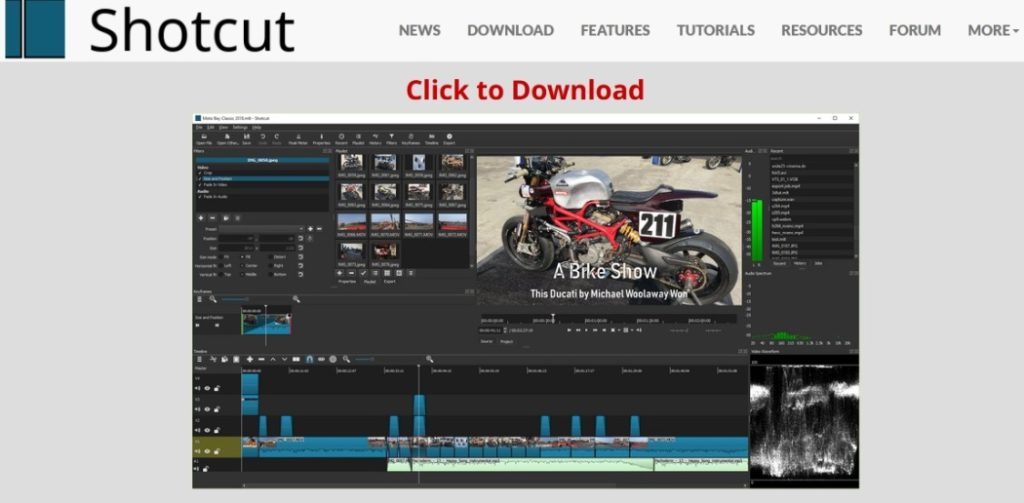
Choosing the right video editing software also hinges on how you interact with it. A well-designed user interface (UI) can significantly streamline your editing process, making it less intimidating and more enjoyable, especially when you’re just starting out. A logical workflow, where tasks follow a natural progression, further enhances efficiency and reduces frustration.Understanding these elements will empower you to select software that feels intuitive and supports your creative journey from the initial import to the final export.
We’ll explore what makes an interface beginner-friendly and walk through a typical editing workflow.
Elements of an Intuitive User Interface
An intuitive user interface for beginners prioritizes clarity, simplicity, and ease of access to essential tools. This means avoiding overwhelming complexity and presenting options in a way that is easy to understand and navigate.
- Clean Layout: A well-organized screen with distinct areas for different functions (e.g., media bin, preview window, timeline) reduces visual clutter.
- Clear Iconography: Universally recognized icons for common actions like play, pause, cut, and trim are crucial. Tooltips that appear when hovering over an icon provide additional clarity.
- Drag-and-Drop Functionality: The ability to easily import media and arrange clips on the timeline by simply dragging and dropping them is a fundamental feature for beginners.
- Logical Panel Arrangement: Editing panels, such as those for color correction, audio adjustments, or text overlays, should be easily accessible and logically grouped. Beginners benefit from panels that offer basic controls with the option to dive deeper if needed.
- Customizable Workspace: While beginners might not need extensive customization, the ability to rearrange or resize panels to suit their viewing preferences can enhance comfort and efficiency.
A Typical Beginner Editing Workflow
The process of editing a video, even a simple one, generally follows a predictable path. Understanding this workflow helps in anticipating the software’s capabilities and how you’ll use them.The typical workflow begins with gathering your raw footage and other assets, then organizing them, followed by assembling and refining your story on a timeline, and finally preparing your finished video for sharing.
- Importing Media: This is the first step where you bring all your video clips, audio files, images, and other assets into the editing software.
- Organizing Media: Once imported, it’s beneficial to organize your media into bins or folders within the software to easily locate specific clips later.
- Assembling the Sequence: Dragging and dropping your selected clips onto the timeline to create a rough cut of your video. This is where you establish the basic order of your shots.
- Editing and Refining: This stage involves trimming clips, cutting out unwanted sections, rearranging shots, and adding transitions between them to improve the flow and pacing.
- Adding Audio: Incorporating background music, sound effects, or voiceovers, and adjusting their levels to complement the visuals.
- Applying Effects and Color Correction: Making basic adjustments to color, brightness, and contrast to enhance the visual appeal of your footage. Simple text overlays or titles can also be added here.
- Review and Revisions: Watching the edited video to identify any areas that need further refinement or adjustments.
- Exporting the Final Video: Rendering and saving your edited project in a format suitable for sharing on platforms like YouTube, social media, or for personal viewing.
Navigating and Utilizing Common Editing Panels and Timelines
The timeline is the central hub of any video editing software, representing the temporal flow of your project. Understanding how to interact with it and the associated panels is key to efficient editing.The timeline is where you visually arrange and manipulate your video and audio clips. Different panels provide specialized tools and controls that work in conjunction with the timeline to refine your edit.
- The Timeline: This is a visual representation of your video project, typically divided into tracks for video and audio. You’ll see your clips laid out from left to right, indicating their order and duration. Key actions include:
- Adding and Removing Clips: Dragging clips from your media library onto the timeline or deleting them.
- Trimming and Splitting: Adjusting the start and end points of clips to shorten or lengthen them, or cutting a clip into multiple parts.
- Moving Clips: Rearranging the order of clips on the timeline.
- Zooming: Adjusting the view of the timeline to see more or less detail, essential for precise edits.
- The Media Bin/Project Panel: This is where all your imported assets are stored. It’s crucial for keeping your project organized. You can usually sort, filter, and preview media here.
- The Preview/Program Monitor: This window displays your edited video as it progresses. You can play, pause, and scrub through your video here to see the results of your edits.
- The Tools Panel: This usually contains a selection of editing tools like the selection tool (for moving and selecting clips), the razor/cut tool (for splitting clips), and the text tool.
- The Inspector/Properties Panel: When a clip or element is selected on the timeline, this panel displays its properties and allows you to make adjustments to things like scale, position, opacity, color, and audio levels.
Step-by-Step Guide for a Simple Video Edit
Let’s walk through a basic editing process using a hypothetical beginner-friendly tool, “EasyEdit Pro.” This example assumes you have a few short video clips and a piece of background music.This guide will take you from importing your files to exporting a finished, short video.
- Launch EasyEdit Pro and Create a New Project: Open the software and select “Create New Project.” Give your project a name, like “My First Edit,” and choose a save location.
- Import Your Media: Navigate to the “Media Bin” or “Project Panel.” Click the “Import” button and select your video clips and music file. They will appear in the Media Bin.
- Add Clips to the Timeline: From the Media Bin, drag your first video clip onto the “Video Track 1” of the timeline. Then, drag your second clip next to it, and so on, to create a basic sequence.
- Trim Unwanted Portions: Select the first clip on the timeline. Hover your mouse over the beginning or end of the clip until the cursor changes to a trim tool. Click and drag inwards to shorten the clip, removing any unnecessary footage. Repeat for all clips.
- Add Background Music: Drag your music file from the Media Bin onto “Audio Track 1” of the timeline. Position it so it starts at the beginning of your video.
- Adjust Music Volume: Select the music clip on the timeline. In the “Inspector” or “Audio Properties” panel, find the “Volume” slider. Lower it to a level where it doesn’t overpower any potential dialogue (or in this case, just complements the video).
- Add a Simple Transition: Go to the “Transitions” panel. Find a “Cross Dissolve” transition and drag it between two of your video clips on the timeline. This creates a smooth blend.
- Preview Your Edit: Click the play button in the “Preview Monitor” to watch your video from start to finish. Check the pacing and ensure everything looks and sounds as you intend.
- Export Your Video: Go to the “File” menu and select “Export.” Choose a preset for “YouTube 1080p” or a similar common format. Name your exported file and click “Export.”
Learning Resources and Community Support
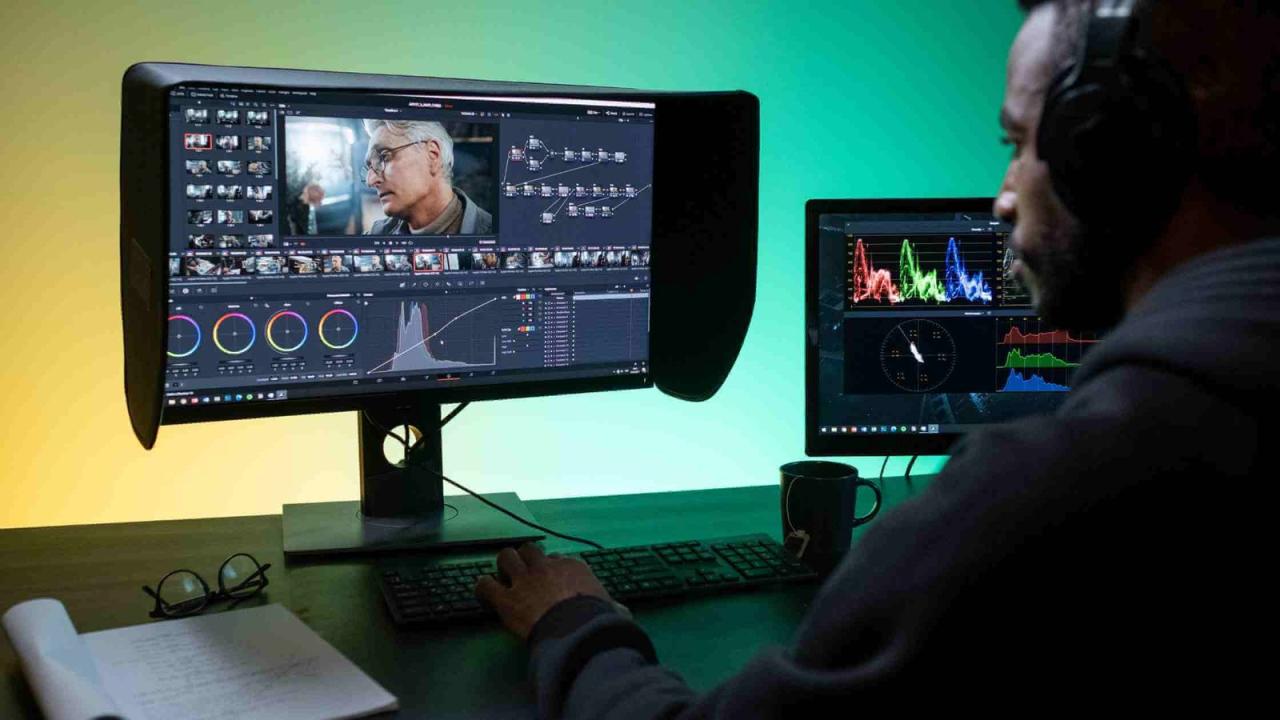
Once you’ve narrowed down your choices based on features, cost, and compatibility, the next crucial step in selecting the best video editing software for beginners is to consider the learning resources and community support available. Even the most intuitive software can present a learning curve, and having access to helpful materials and a supportive community can significantly smooth this transition, empowering you to become proficient more quickly.The availability and quality of learning resources can profoundly impact your journey as a new video editor.
Good tutorials, comprehensive documentation, and active online forums not only help you understand the software’s functionalities but also provide solutions to common challenges and inspiration for creative workflows. Investing time in exploring these resources upfront will save you frustration and accelerate your progress.
Online Video Tutorials
Online video tutorials are an invaluable asset for beginners, offering visual demonstrations of software features and editing techniques. These can range from short, focused clips demonstrating a single function, like how to add a transition, to longer, in-depth guides covering entire editing projects. Many software developers provide official tutorial channels, while independent creators offer a wealth of knowledge, often showcasing creative applications and workflows.The effectiveness of video tutorials lies in their ability to show, not just tell.
Watching an experienced editor navigate the software, perform edits, and explain their reasoning provides a practical understanding that can be difficult to grasp from text alone. Beginners often find it easiest to follow along with these visual guides, pausing and rewinding as needed to replicate the steps.
Written Guides and Articles
While video tutorials excel at demonstration, written guides and articles offer a structured and detailed approach to learning. These can include official documentation provided by the software vendor, blog posts from industry experts, and comprehensive articles on video editing websites. Written resources are excellent for understanding the theoretical underpinnings of editing, exploring advanced concepts, and serving as a quick reference for specific functions.Written materials allow for a deeper dive into the nuances of features and offer a level of detail that might be glossed over in a video.
They are also easily searchable, making them ideal for finding specific answers to technical questions or for reviewing concepts at your own pace.
User Forums and Communities
User forums and online communities are vibrant ecosystems where beginners can connect with experienced editors, ask questions, and share their work. These platforms are crucial for troubleshooting problems, seeking advice on creative decisions, and staying updated on software developments and best practices. Many software applications have dedicated forums hosted on their official websites, while broader communities exist on platforms like Reddit and specialized video editing forums.Engaging with a community provides access to a collective pool of knowledge.
When you encounter a problem, chances are someone else has faced it before and has already shared a solution. Furthermore, observing discussions between experienced users can offer insights into efficient workflows and creative techniques.
In-Software Help Systems
Most professional video editing software includes built-in help systems designed to provide immediate assistance. These can manifest as tooltips that appear when you hover over a button, contextual help menus, or comprehensive searchable knowledge bases directly accessible from within the application. These systems are designed for quick access to information without leaving the editing environment.In-software help is particularly useful for understanding the immediate function of a tool or menu option.
While they may not offer the depth of external tutorials or forums, they are indispensable for navigating the interface and quickly resolving minor operational queries.It is highly recommended to explore the types of learning materials available for potential software choices. A software that boasts an extensive library of high-quality video tutorials, well-written documentation, an active user forum, and a robust in-software help system will undoubtedly offer a more supportive and less intimidating learning experience for new editors.
Exporting and Sharing Beginner Projects

Once you’ve poured your creativity into editing your video, the next crucial step is preparing it for the world to see. Exporting is the process of rendering your project into a playable video file. Understanding the fundamental export settings will ensure your video looks its best and plays smoothly on various devices and platforms. This section will guide you through the essential settings, common pitfalls, and a helpful checklist to make your export process a breeze.Exporting might seem daunting with its array of options, but for beginners, focusing on a few key settings will yield excellent results.
These settings dictate the quality, file size, and compatibility of your final video. By mastering these basics, you can confidently share your creations across different online spaces.
Essential Export Settings for Beginners
Understanding these core export settings is fundamental to producing a polished video. They directly influence the visual clarity, motion smoothness, and overall compatibility of your final output.
- Resolution: This refers to the number of pixels that make up the video frame, typically expressed as width x height (e.g., 1920×1080). Higher resolutions offer more detail but result in larger file sizes. For most beginner projects destined for online viewing, Full HD (1080p) is a standard and excellent choice.
- Frame Rate: Measured in frames per second (fps), this determines how many still images are displayed each second to create the illusion of motion. Common frame rates include 24fps (cinematic look), 30fps (standard for web content), and 60fps (for smoother motion, especially in action or gaming footage). Consistency with your project’s original footage is generally recommended.
- Format (Codec and Container): The format encompasses both the codec (the algorithm used to compress and decompress video data) and the container (the file wrapper that holds the video, audio, and metadata). For beginners, MP4 (using the H.264 codec) is almost universally compatible and offers a good balance of quality and file size.
Choosing Appropriate Export Settings for Common Platforms
Different platforms have specific recommendations and best practices for video uploads. Adhering to these guidelines helps ensure your video plays correctly and looks its best without being unnecessarily compressed or rejected.To make the process straightforward, here are some recommended export settings for popular platforms:
- YouTube:
- Resolution: 1920×1080 (1080p) is highly recommended for general uploads. Higher resolutions like 4K (3840×2160) are also supported if your source footage allows.
- Frame Rate: 30fps is standard. If your original footage was shot at 60fps and you want to maintain that smooth motion, exporting at 60fps is also acceptable.
- Format: MP4 (H.264 codec) is the preferred format.
- Bitrate: While often automatically handled by software, for YouTube, a target bitrate of 8-15 Mbps for 1080p at 30fps is a good starting point. Higher bitrates are needed for higher resolutions and frame rates.
- Instagram (Feed/Reels):
- Resolution: 1080×1080 (square) or 1080×1920 (vertical for Reels) are common.
- Frame Rate: 30fps is standard.
- Format: MP4 (H.264 codec) with AAC audio.
- Aspect Ratio: Be mindful of the platform’s preferred aspect ratios (1:1 for feed, 9:16 for Reels).
- Facebook:
- Resolution: 1280×720 (720p) is a good minimum for good quality. 1920×1080 (1080p) is also widely supported.
- Frame Rate: 30fps is standard.
- Format: MP4 or MOV (H.264 codec preferred).
Common Export Pitfalls and How to Avoid Them
Beginners often encounter challenges during the export process that can lead to disappointing results. Being aware of these common issues allows you to proactively prevent them.Here are some frequent problems and practical solutions:
- Low-Quality Output: This can happen if you choose a low resolution or a very low bitrate.
- Avoidance: Always export at a resolution that matches or is close to your source footage, and select a reasonable bitrate (e.g., 8-15 Mbps for 1080p). Avoid using presets labeled “low quality” or “web low.”
- Choppy or Stuttering Video: This is often due to an incorrect frame rate mismatch or insufficient processing power.
- Avoidance: Ensure your export frame rate matches your project’s frame rate. If your computer struggles, try exporting at a slightly lower resolution or frame rate, or close other demanding applications during export.
- Large File Sizes: While higher quality often means larger files, excessively large files can be difficult to upload or share.
- Avoidance: Experiment with different bitrates. For platforms that re-encode, you might not need the absolute highest bitrate. Using the H.264 codec in an MP4 container generally offers good compression.
- Incorrect Aspect Ratio: Videos appearing stretched or with black bars can occur if the aspect ratio isn’t set correctly.
- Avoidance: Double-check the resolution settings to ensure they match the intended display format (e.g., 16:9 for standard widescreen, 9:16 for vertical mobile content).
- Missing Audio or Poor Audio Quality: Sometimes audio tracks can be overlooked or compressed too aggressively.
- Avoidance: Ensure your audio export settings are enabled and set to a reasonable quality (e.g., AAC codec with a bitrate of 128-192 kbps).
Checklist for Preparing a Video for Export
Before you hit that export button, running through this checklist will help ensure your video is ready for its debut and that you’ve considered all the necessary steps.
- Final Review of Edits: Watch the entire video from start to finish, paying attention to pacing, cuts, transitions, and any potential errors.
- Audio Levels Check: Ensure all audio elements (dialogue, music, sound effects) are balanced and at appropriate levels. No clipping or distortion.
- Color Correction/Grading: Confirm that your color adjustments are applied consistently and to your satisfaction.
- Text and Graphics: Verify that all titles, lower thirds, and graphic overlays are correctly placed, spelled, and animated.
- Export Settings Confirmation: Double-check your chosen resolution, frame rate, and format against the platform’s recommendations.
- Aspect Ratio Verification: Ensure the aspect ratio is correct for the intended platform (e.g., 16:9, 9:16, 1:1).
- Audio Export Settings: Confirm that audio is included in the export and that the audio codec and bitrate are set appropriately.
- File Naming Convention: Use a clear and descriptive file name for your exported video (e.g., “MyProject_Final_v2.mp4”).
- Sufficient Disk Space: Make sure you have enough free space on your hard drive for the exported file. Exporting can create large files.
- Backup Project File: Always save your project file before starting the export process.
Final Review
Navigating the world of video editing software no longer needs to be a complex puzzle. By focusing on beginner-specific needs, essential features, cost-effectiveness, system compatibility, and accessible learning resources, you can confidently select a tool that empowers your creativity. Remember, the best software is the one that allows you to focus on telling your story, not struggling with complicated menus.
Start editing, experiment, and enjoy the process of bringing your visions to the screen.